# Notification Centers

## Chapter 17: Using the Notification Center

Learn how to monitor real-time events and customize your alert preferences using the Notification Center.

> ℹ️ **Notification Management**
>
> * **Available to:** All user roles
> * **Scope:** Personal notification preferences
> * **Permissions:** Personal customization - all users can manage their own notifications
> * **Access:** Click **bell icon** (<i class="fa-bell">:bell:</i>) top-right corner of interface

***

## Overview: Your Personalized Alert Feed

The Notification Center, accessed via the **bell icon** (<i class="fa-bell">:bell:</i>)  in the top-right corner, is your personal, real-time feed of important events. It's designed to be a "heads-up display," giving you a quick summary of recent activities without requiring you to navigate to the full Event Log.

The content you see is always dynamically filtered based on your specific user permissions and your currently selected management scope.

{% hint style="warning" %}
**Dynamic Filtering:**&#x20;

The same notification event may appear differently for different users based on their permissions, scope selection, and personal subscription preferences.
{% endhint %}

***

### Task 1: Understanding and Using the Notification Center

#### Notification Center vs. Event Log: What's the Difference?

It's important to understand when to use the Notification Center versus the main [Event Log (Chapter 14)](https://doc.engenius.ai/edcc-user-manual/administration-and-platform/event-log).

<table><thead><tr><th width="136.84765625">Feature</th><th width="292.92578125">Notification Center</th><th>Event Log</th></tr></thead><tbody><tr><td>Purpose</td><td>Quick summary &#x26; real-time alerts</td><td>Deep investigation &#x26; auditing</td></tr><tr><td>Data</td><td>Filtered, user-centric feed</td><td>Complete, official record</td></tr><tr><td>Management</td><td>Can be marked as "read"</td><td>Read-only, cannot be changed</td></tr><tr><td>Scope</td><td>Personal, permission-based filtering</td><td>Organization-wide comprehensive log</td></tr><tr><td>Best Used For</td><td>Daily monitoring and immediate awareness</td><td>Detailed investigation and compliance audits</td></tr></tbody></table>

#### Accessing Your Notifications

**Basic Access:**

1. **Visual Indicator**: Look for the bell icon (<i class="fa-bell">:bell:</i>)  with red badge showing unread count
2. **Open Panel:** Click the bell icon (<i class="fa-bell">:bell:</i>)  to open the Notification Center
3. **Quick Scan**: Review categories and recent events
4. **Close**: Click outside the panel or press Escape to close

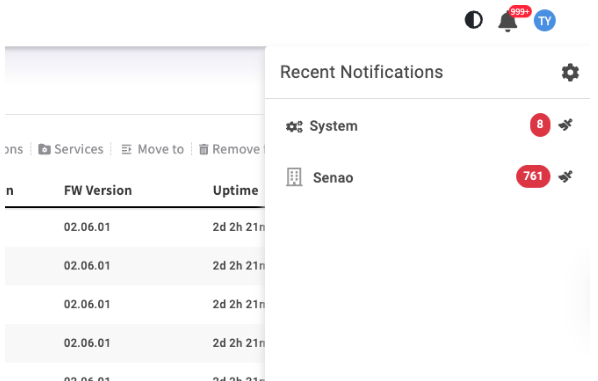
<div align="left"><figure><img src="https://content.gitbook.com/content/iGPGTG6LFrVfBRB76ZPF/blobs/t7uPUmNygFsHofHkHNyV/image.png" alt=""><figcaption><p><mark style="background-color:$info;">The main Notification Center view showing the categories and unread count indicators</mark></p></figcaption></figure></div>

***

### Task 2: Managing Your Daily Notifications

#### Daily Notification Workflow

**Recommended Daily Routine:**

1. **Check Badge Count:** Look for red badge on bell icon
2. **Review New Alerts**: Click to open Notification Center
3. **Prioritize by Category**: Check System notifications first, then Management Scope
4. **Mark as Read**: Clear reviewed notifications to maintain clean feed
5. **Investigate Critical Items**: Navigate to full Event Log for detailed investigation if needed

#### Understanding Notification Categories

<table><thead><tr><th width="140.73046875">Category</th><th>Content &#x26; Scope</th><th>Typical Use Case</th></tr></thead><tbody><tr><td>System</td><td>Platform-wide events and Organization-level administrative actions (e.g., new user invited, EDCC software update complete)</td><td>All users: Software updates, user management, system maintenance</td></tr><tr><td>Management Scope</td><td>Events specific to your authorized Organizations, HVs, and PODs (e.g., "Device: Node-ABC goes offline," "Change Timezone to Prod_POD")</td><td>Filtered by permissions: Node status changes, POD configuration updates</td></tr></tbody></table>

#### Permission-Based Filtering

**How Content is Filtered:**

* **User Role:** Your permission level determines which types of events you can see
* **Management Scope:** Currently selected scope affects which POD-specific events appear
* **POD Access:** You only receive notifications from PODs you have access to
* **Personal Subscriptions:** Your Preferences settings further filter the content

***

### Task 3: Customizing Your Alert Preferences

#### Accessing Notification Preferences

**Process:**

1. Open Notification Center by clicking **bell icon** (<i class="fa-bell">:bell:</i>)&#x20;
2. Click the gear icon ( <i class="fa-gear">:gear:</i>) in the top-right corner of the panel
3. Configure your preferences in the dialog

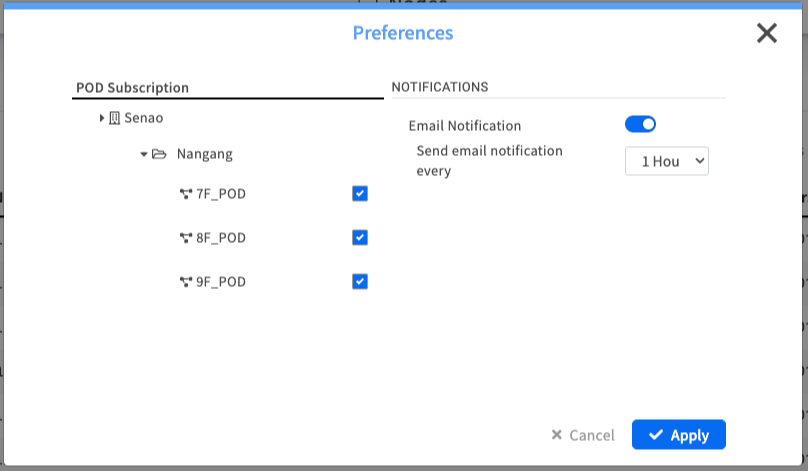
<figure><img src="https://content.gitbook.com/content/iGPGTG6LFrVfBRB76ZPF/blobs/07JGQM9CRIOo999Sfa0E/image.png" alt=""><figcaption><p><mark style="background-color:$info;">The Preferences dialog for notifications.</mark></p></figcaption></figure>

#### POD Subscription: Focusing on What Matters

**Purpose:** Essential for administrators who manage many PODs but only need to be actively alerted about a critical few. Allows selective subscription to specific PODs.

**How it Works:**

* View a tree of all management scopes you are authorized to access
* Check or uncheck boxes next to each POD to subscribe or unsubscribe
* Changes apply immediately to your notification feed

**Configuration Strategy:**

<table><thead><tr><th width="149.3046875">User Role</th><th>Recommended Subscription Strategy</th></tr></thead><tbody><tr><td>Organization Admin</td><td>Subscribe to all critical PODs, unsubscribe from development/test environments</td></tr><tr><td>POD Admin</td><td>Focus subscriptions on assigned PODs only to reduce notification noise</td></tr><tr><td>POD Viewer</td><td>Subscribe only to PODs relevant to monitoring responsibilities</td></tr></tbody></table>

{% hint style="warning" %}
**Use Case Example:**&#x20;

An administrator responsible only for Production\_POD can unsubscribe from Dev\_POD and Test\_POD to ensure their notification feed is only populated with alerts relevant to their duties.
{% endhint %}

### Email Notifications: Staying Informed Offline

**Purpose:** Allows EDCC to send notifications directly to your email address, ensuring you stay informed of critical events even when not logged into the platform.

**Configuration Options:**

<table><thead><tr><th width="214.25390625">Setting</th><th width="249.33984375">Options</th><th>Recommended Use</th></tr></thead><tbody><tr><td>Email Notification Toggle</td><td>On/Off</td><td>Master switch for all email alerts</td></tr><tr><td>Frequency Dropdown</td><td>Every 1 Hour, Every 24 Hours, Weekly</td><td>Balance between immediacy and interruption</td></tr></tbody></table>

**Frequency Recommendations:**

* **Hourly**: For Organization Admins monitoring critical infrastructure
* **Daily:** For POD Admins with regular monitoring responsibilities
* **Weekly:** For Viewers or administrators of stable environments

{% hint style="danger" %}
**SMTP Dependency:**&#x20;

Email notifications require properly configured SMTP server in System > Application Settings. Without SMTP configuration, the Notification Center becomes your primary and essential source for all alerts.
{% endhint %}

***

### Managing Notification Volume

#### Reducing Alert Fatigue

If you find yourself overwhelmed by notifications:

* **Unsubscribe from non-essential PODs**: Use Preferences to focus on PODs you actively manage
* **Adjust email frequency:** Reduce from hourly to daily or weekly digests
* **Use scope filtering:** Switch Management Scope to focus on specific areas

#### Key Integration Points

* **Dashboard alerts derive from same events**: Critical notifications often correspond to Dashboard health indicators
* **Event Log provides details:** Use Notification Center for awareness, Event Log for investigation
* **Scope selection affects content**: Changing scope dynamically filters notification history

***

## Chapter Summary & Key Takeaways

* **Personal Alert Management**: Use the bell icon for quick, real-time summary of events filtered specifically for your permissions and preferences
* **Complement to Event Log**: Use Notification Center for daily awareness, Event Log for detailed investigation and compliance auditing
* **Customization is Key**: Configure Preferences to subscribe only to relevant PODs and set appropriate email frequency to reduce noise
* **SMTP Dependency**: Email notifications require Organization Admin to configure mail server in System > Application Settings
* **Permission-Based**: Content dynamically filters based on your role, scope selection, and personal subscriptions
* **Daily Integration:** Incorporate notification checking into your daily operational routine for proactive issue awareness

**What's Next**: This completes the main EDCC functionality coverage. Refer to the Appendices for additional reference materials and troubleshooting guidance.

> 💡 **Pro Tip**: Start each day by checking your Notification Center - it's the fastest way to identify any issues that developed overnight or during off-hours.

<br>