# Backup & Restores

## Chapter 16.4: Backing Up and Restoring the EDCC Platform

Learn how to use EDCC's powerful backup and restore features to protect both individual node configurations and the entire platform.

> 🔐 **Organization Administrator Only**
>
> * **Required Role**: Organization Admin only
> * **Access Level**: Complete EDCC platform administration
> * **Restriction**: POD Admin and Viewers cannot access this section
> * **Purpose**: System-wide backup and recovery operations

***

## Overview: Your Data Protection & Recovery Center

The **`System > Backup & Restore`** page is your safety net. It provides the essential tools for data protection and disaster recovery, ensuring the integrity of both your individual node settings and the overall EDCC platform configuration.

Think of this page as your insurance policy against accidental misconfigurations, hardware failures, or the need to migrate your entire system.

***

## Understanding EDCC's Two Backup Types

EDCC offers two distinct backup modes, each designed for a specific purpose. Understanding the difference is key to creating an effective data protection strategy.

Think of it this way:

* **Configuration Backup**: A "blueprint" for a single building (a POD).
* **System Backup**: The "master plans" for the entire city (the EDCC platform).

<table><thead><tr><th width="139.32421875">Feature</th><th>Configuration Backup (POD-Level)</th><th>System Backup (Platform-Level)</th></tr></thead><tbody><tr><td><strong>Scope</strong></td><td>Settings for all nodes within a specific POD.</td><td>The entire EDCC platform.</td></tr><tr><td><strong>Content</strong></td><td>Node-specific settings (e.g., network, services, BMC credentials).</td><td>Everything: Global settings, user accounts, permissions, all PODs, all node configurations, etc.</td></tr><tr><td><strong>Primary Use Case</strong></td><td>Recovering from misconfiguration. If you apply a bad setting to a POD, you can quickly roll it back.</td><td>Full disaster recovery. If the EDCC host server fails, this is how you rebuild it.</td></tr><tr><td><strong>Secondary Use Case</strong></td><td>Standardizing PODs. Use a backup as a "golden image" template to configure new PODs.</td><td>Platform Migration. Move your entire EDCC setup to a new host server.</td></tr></tbody></table>

***

### Task 1: Protecting Node Configurations (Configuration Backup)

This feature allows you to create snapshots of the configurations for all nodes within a selected POD. It is an invaluable tool for change management and recovering from operational errors.

<div align="left"><figure><img src="https://content.gitbook.com/content/iGPGTG6LFrVfBRB76ZPF/blobs/RoaIKLEaVdPclDNofOkG/image.png" alt=""><figcaption></figcaption></figure></div>

#### **How to Create a Configuration Backup**

**Process**:

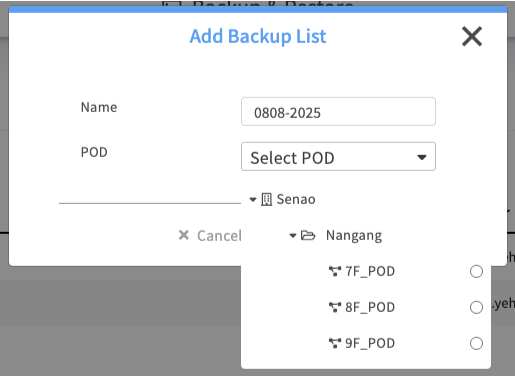
1. Navigate to the **Configuration Backup** tab
2. Click the **+ Add** button
3. In the dialog, enter a descriptive **Name** for the backup (e.g., Prod-POD-Pre-Update-2025-09-04)
4. Select the target **POD** from the dropdown list
5. Click **Apply**

#### **Managing Your Configuration Backups**

The main screen displays a list of your saved configuration "blueprints." The **Actions** column provides several options for managing each backup.

🖼️ <mark style="background-color:$success;">\[Image: The Configuration Backup list view, showing existing backups and available actions.]</mark>

<figure><img src="https://content.gitbook.com/content/iGPGTG6LFrVfBRB76ZPF/blobs/iflZoraMJPLz6NlcjJwT/image.png" alt=""><figcaption></figcaption></figure>

<table><thead><tr><th width="127.21484375">Action</th><th width="437.28515625">Description &#x26; Why It Matters</th><th>Risk Level</th></tr></thead><tbody><tr><td><strong>Restore</strong></td><td><strong>The Rollback Button</strong>. This overwrites the current configurations of all nodes in the associated POD with the data from this backup file.</td><td><strong>HIGH</strong> - Overwrites current settings</td></tr><tr><td><strong>Protect</strong></td><td><strong>Lock for Safety</strong>. This locks the backup to prevent it from being accidentally deleted. A protected backup is often your "golden image" or a critical pre-change snapshot.</td><td> <strong>LOW</strong> - Safety feature</td></tr><tr><td><strong>Re-Backup</strong></td><td><strong>Update in Place</strong>. This updates the existing backup entry with the nodes' current, most recent settings. This is useful for versioning a single backup point (e.g., your "Daily Backup") without creating many separate files.</td><td><strong>MEDIUM</strong> - Overwrites backup data</td></tr><tr><td><strong>Delete</strong></td><td>Permanently deletes the selected backup entry.</td><td><strong>HIGH</strong> - Cannot be undone</td></tr></tbody></table>

{% hint style="success" %}
**Best Practice: Backup Before You Change**

Always create a configuration backup before making significant changes to a POD, such as applying new service profiles or performing batch operations. Protect known-good, stable configurations to use as a reliable baseline.
{% endhint %}

***

### Task 2: Protecting the Entire Platform (System Backup)

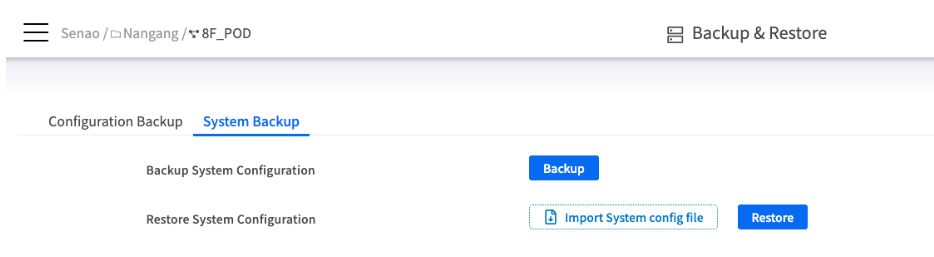
This feature creates a complete backup of the entire EDCC platform itself. It is your primary tool for full disaster recovery and system migration.

<figure><img src="https://content.gitbook.com/content/iGPGTG6LFrVfBRB76ZPF/blobs/QmOTilSFydXjfwxoQB95/image.png" alt=""><figcaption></figcaption></figure>

#### **How to Create a System Backup**

**Process**:

1. Navigate to the **System Backup** tab
2. Click the **Backup** button
3. EDCC will generate a system configuration file and trigger a download to your local computer

{% hint style="success" %}
**Best Practice: Store Backups Off-Site**

Store your downloaded system backup files in a secure, off-site location (e.g., a separate file server, cloud storage). This ensures you can recover your EDCC platform even if the host server is completely inaccessible.
{% endhint %}

***

### Task 3: Restoring Data (A High-Risk Operation)

Restoring data is a powerful but high-risk operation. Always proceed with caution and perform restores during a planned maintenance window to minimize service impact.

{% hint style="danger" %}
**Critical Warning: Restores are Final and Overwrite Data**

* All restore operations are **final and cannot be undone**
* Restoring a backup will **completely overwrite** the current settings within its scope
* It is **highly recommended** to create a fresh backup of the current state before any restore operation
  {% endhint %}

<figure><img src="https://content.gitbook.com/content/iGPGTG6LFrVfBRB76ZPF/blobs/xBCP5pCPpTzwgj7dzC3s/image.png" alt=""><figcaption></figcaption></figure>

#### **How to Restore a Configuration Backup (POD-Level)**

**Process**:

1. In the **Configuration Backup** list, find the backup you wish to restore
2. Click the **Restore** button in the Actions column
3. Read the confirmation warning carefully and proceed

#### **How to Restore a System Backup (Platform-Level)**

This is a two-step process:

**Process**:

1. On the **System Backup** tab, click **Import System config file** and select a previously saved backup file from your local computer
2. After the file is successfully uploaded, click the **Restore** button to begin the platform-wide restoration process

***

***

## Chapter Summary & Key Takeaways

* **Two Types for Two Jobs**: Use Configuration Backups for POD-level mistakes and templating. Use System Backups for platform-wide disaster recovery and migration
* **Backup Before Major Changes**: Always take a Configuration Backup before modifying a POD
* **Store System Backups Off-Site**: Your System Backup file is your key to recovery if the host fails. Keep it safe and separate
* **Restores are Irreversible**: All restore operations overwrite current data and cannot be undone. Proceed with caution
* **Regular Backup Schedule**: Establish consistent backup routines for both configuration and system levels
* **Test Your Recovery**: Periodically verify that backups can be successfully restored
* **Document Everything**: Maintain clear records of backup purposes and recovery procedures

**What's Next**: This completes the core EDCC manual content. The appendices will provide additional reference materials and troubleshooting guidance.

> 💡 **Pro Tip**: Treat backups as insurance - you hope you'll never need them, but when you do, you'll be grateful they exist. Regular, well-organized backups are the foundation of confident system administration.