# Inventory

## Chapter 16.1: Managing the Device Inventory

Learn how to register, organize, and assign your nodes using the central Inventory, the starting point for all device lifecycle management in EDCC.

> 🔒 **Organization Administrator Only**
>
> * **Required Role:** Organization Admin only
> * **Access Level**: Complete EDCC platform administration
> * **Restriction**: POD Admin and Viewers cannot access this section
> * **Purpose**: Device registration and POD assignment

## Overview: Your Central Hardware Asset Registry

The **`System → Inventory`** page is the master list of all nodes registered to your Organization. Think of it as a central holding area or asset registry for your hardware. Every node's journey in EDCC begins and ends here.

Before a node can be monitored or configured, it must first be registered and exist within this Inventory. This page provides the tools to manage the entire lifecycle of your hardware, from initial registration to final decommissioning.

{% hint style="danger" %}
**Critical Limitation:** Devices in Organization Inventory are in "asset list" state and cannot be managed until assigned to a POD.
{% endhint %}

## The Node Lifecycle in EDCC

Every node managed by EDCC follows a clear, four-stage lifecycle. Understanding this process is key to effective device management. The actions you take on this page directly move a node between these stages.

<pre><code><strong>Registration → Inventory → Assignment → Active Management
</strong></code></pre>

### Stage Definitions

<table><thead><tr><th width="151.66796875">Stage</th><th width="159.29296875">Status</th><th width="182.05859375">Capabilities</th><th>Purpose</th></tr></thead><tbody><tr><td>1. Registration</td><td>Initial discovery</td><td>Basic identifiers recorded</td><td>Introduce node to EDCC platform</td></tr><tr><td>2. Inventory</td><td>Asset list only</td><td>No management possible</td><td>Holding area for unassigned nodes</td></tr><tr><td>3. Assignment</td><td>POD assignment</td><td>Inherits POD context</td><td>Prepare for active management</td></tr><tr><td>4. Active Management</td><td>Fully operational</td><td>All EDCC features unlocked</td><td>Complete monitoring and configuration</td></tr></tbody></table>

### Detailed Stage Descriptions

#### **Stage 1: Registration**

Registration marks the beginning of a node's journey in EDCC. During this phase, a physical node is introduced to the platform through automated network scanning, manual serial number entry, or bulk CSV import.

**What Happens During Registration:**

* EDCC creates a basic hardware record with essential identifiers.
* System performs initial BMC connectivity verification.
* Basic hardware model and capabilities are detected.
* Node receives unique internal EDCC identifier.

**Key Information Recorded:**

* Hardware serial number (primary identifier)
* Model name and specifications
* BMC MAC address and network information
* Discovery method, timestamp, and registering user

{% hint style="warning" %}
**Important Limitations:**&#x20;

At this stage, the node exists purely as a database entry. No management capabilities are active—administrators cannot access monitoring, sensors, or configuration options.
{% endhint %}

#### **Stage 2: Inventory**

The inventory phase serves as a secure holding area where nodes exist as catalogued assets. Think of this like having equipment stored in a warehouse—you have complete documentation, but items aren't yet deployed operationally.

**Current State:**

* Node appears in **`System → Inventory`** list with specifications visible.
* POD column remains blank (indicating unassigned status).
* No active BMC communication occurs.
* Only Organization Administrators can see and manage inventory devices.

**What You Can Do:**

* View hardware specifications and identifiers.
* Assign to POD (progresses to Stage 3).
* De-register device (removes from EDCC entirely).
* Perform bulk operations on multiple devices.

{% hint style="danger" %}

#### Critical Restrictions: These limitations are intentional for security:

* No monitoring capabilities - Cannot view Dashboard health status.
* No sensor access - Cannot check temperature, fans, or voltage.
* No remote operations - Cannot power control, firmware updates, or KVM access.
* No event logging - BMC SEL and system events not accessible.
* No configuration management - Cannot apply policies or settings.
  {% endhint %}

#### **Stage 3: Assignment**

Assignment is the critical transition where nodes move from passive assets to active infrastructure components. An Organization Administrator assigns devices to specific PODs, triggering integration processes.

**Assignment Process:**

1. Admin selects node(s) from inventory (blank POD column).
2. Target POD and credentials are specified.
3. EDCC initiates BMC connection using POD default credentials.
4. Node inherits POD-level configuration context.

What the Node Inherits from POD:

* Default BMC username and password.
* POD timezone settings for all timestamps.
* Service monitoring profiles and policies.
* Firmware provisioning schedules and maintenance windows.

{% hint style="warning" %}
**Technical Verification:**&#x20;

The system performs BMC connectivity tests, initial hardware capability assessments, and begins integrating with POD-level monitoring systems. Failed authentication prevents successful assignment.
{% endhint %}

#### **Stage 4: Active Management**

Active management represents full operational capability where all EDCC features become available. Nodes appear in MANAGE→ Node List for authorized users and participate completely in platform monitoring and management.

**Complete Feature Access:**

* Monitoring - Real-time Dashboard integration and health status.
* Sensors - Live temperature, voltage, fan speed, and power monitoring.
* Event Logging - BMC SEL access and platform event correlation.
* Remote Operations - Power control, firmware updates, ISO mounting, KVM/SOL access.
* Configuration Management - Service profiles and automated firmware provisioning.
* Policy Application - POD-wide settings and maintenance schedules.

**User Access Control:**

* POD Administrators: Full operations and configuration access.
* POD Viewers: Monitor-only access to same resources.
* Access automatically filtered based on user's specific POD permissions.

{% hint style="info" %}
**Ongoing Integration:**&#x20;

Nodes contribute to POD-level health indicators, participate in scheduled maintenance windows, and maintain integration with all platform features. They remain in active management until explicitly moved or decommissioned.
{% endhint %}

## The Inventory Interface

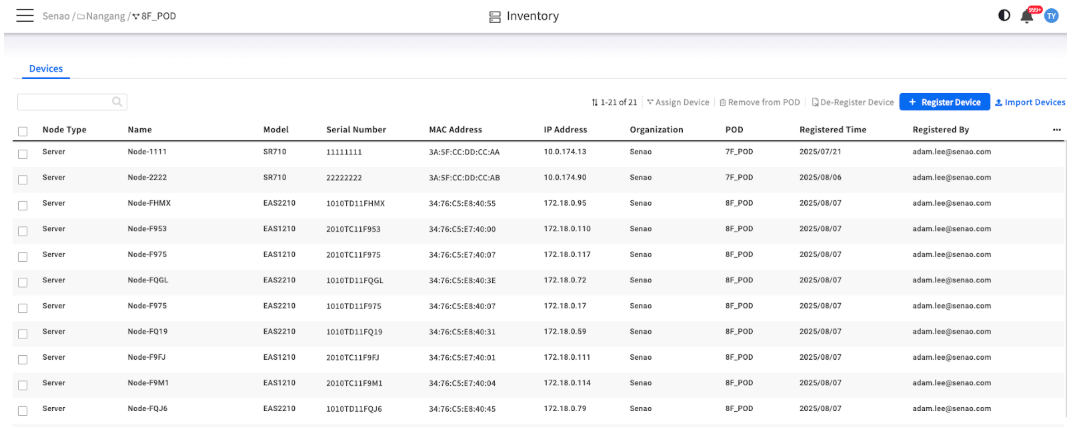
The main Inventory page provides a comprehensive list of all nodes across your entire Organization, giving you a complete overview of your hardware assets and their current lifecycle stage.

<figure><img src="https://content.gitbook.com/content/iGPGTG6LFrVfBRB76ZPF/blobs/QDcV7xB6D3jlJSSrfzBZ/image.png" alt=""><figcaption><p><mark style="background-color:$info;">The main Inventory interface, showing the list of nodes and columns</mark></p></figcaption></figure>

### The Inventory List Explained

<table><thead><tr><th width="186.5703125">Column</th><th>Description &#x26; Why It Matters</th></tr></thead><tbody><tr><td>Name / Model</td><td>The node's user-defined name and its hardware model.</td></tr><tr><td>Organization</td><td>The top-level organization that this node is registered to.</td></tr><tr><td>Serial Number</td><td>The unique hardware serial number, your primary identifier for asset tracking.</td></tr><tr><td>IP / MAC Address</td><td>The network identifiers for the node's BMC, crucial for troubleshooting connectivity.</td></tr><tr><td>POD</td><td>The Most Critical Column. This tells you the node's current lifecycle stage at a glance. If blank = Inventory (Stage 2, unmanaged). If it shows a POD name = Active Management (Stage 4).</td></tr><tr><td>Registered Time / By</td><td>An audit trail showing when the node was added to EDCC and by which user.</td></tr></tbody></table>

### Stage 1: Bringing New Nodes into EDCC (Registration)

Overview: Registration is the initial step where a physical node is introduced to the EDCC platform. You have three methods to choose from, each suited for different scenarios.

#### Method A: Registering via IP Scan

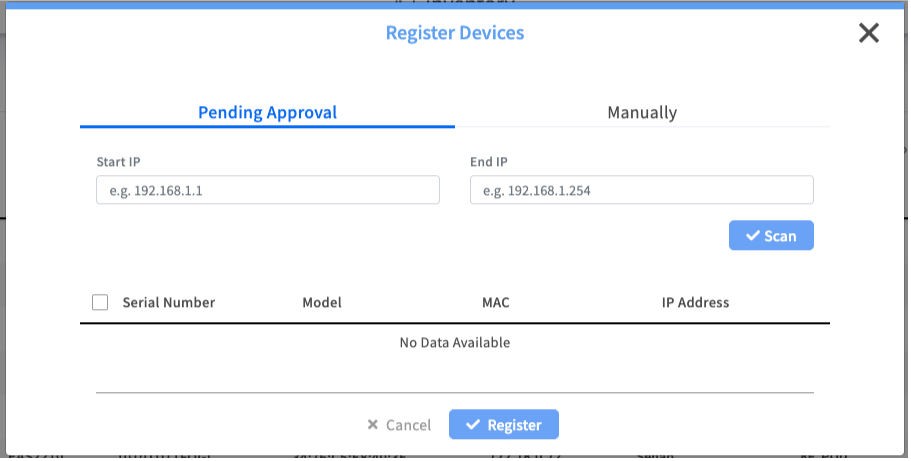
**Use this for**: Automatically discovering new, unknown nodes on your local network. Best method when you have just physically racked new servers.

<figure><img src="https://content.gitbook.com/content/iGPGTG6LFrVfBRB76ZPF/blobs/kc8maLjphyHb3IK0fC4h/image.png" alt=""><figcaption></figcaption></figure>

**Process:**

1. Click the **+ Register Device** button.
2. In the **`Pending Approval`** tab, enter a **Start IP and End IP** to define the network range to scan.
3. Click Scan. EDCC will list any compatible nodes it finds.
4. Check the box next to the devices you wish to add and click Register.

#### Method B: Registering Manually

**Use this for:** Adding a specific, known node, especially if it's on a different network segment or you prefer to register by hardware identifier.

**Process:**

1. Click the **+ Register Device** button.
2. Select the **`Manually`** tab.
3. Enter the Serial Number of the node and click **Register.**

#### Method C: Importing Devices in Bulk

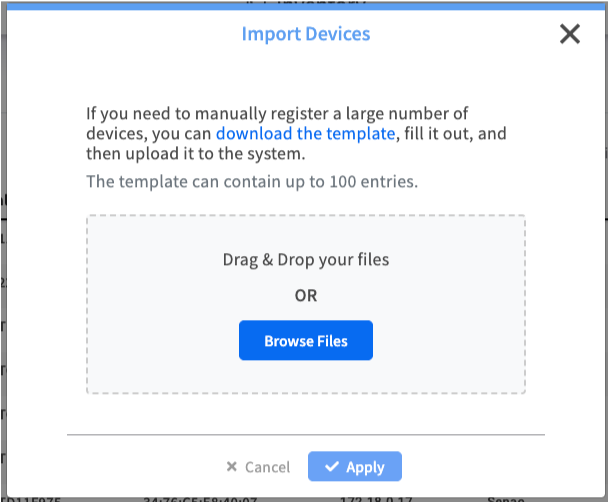
**Use this for:** Registering a large number of nodes at once. Most efficient method for initial data center deployments.

<div align="left"><figure><img src="https://content.gitbook.com/content/iGPGTG6LFrVfBRB76ZPF/blobs/LZPp4nEAVgqSA1YuyXMJ/image.png" alt=""><figcaption></figcaption></figure></div>

**Process:**

1. Click the **Import Devices** button.
2. Click the download the template link to get the required **CSV file** format.
3. Fill out the template with your node information (up to 100 entries).
4. Drag and drop the completed CSV file onto the upload area and click **Apply.**

### Stage 2 & 3: Activating Nodes for Management (Assignment)

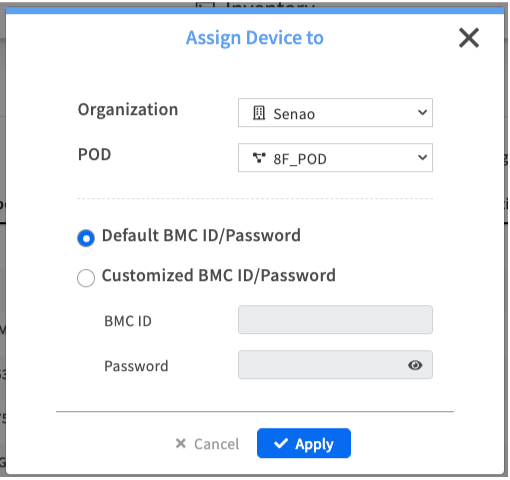
Assigning a node moves it from the passive Inventory (Stage 2) into an active, manageable state within a POD (Stage 4). This action "turns on" all of EDCC's management capabilities for that node.

<div align="left"><figure><img src="https://content.gitbook.com/content/iGPGTG6LFrVfBRB76ZPF/blobs/TTZDpHqbSZwqEGHHWaoX/image.png" alt=""><figcaption></figcaption></figure></div>

**Process:**

1. In the Inventory list, select one or more nodes that have a blank POD column.
2. Click the **Assign Device** button from the top toolbar.
3. In the dialog, select the target Organization and POD.
4. Choose the **BMC Authentication** method.
5. Click **Apply**. The node is now fully manageable.

{% hint style="success" %}
**Pro Tip: Use a "Staging" POD**

Consider creating a dedicated "Staging" or "Onboarding" POD. Assign all new nodes here first to perform initial health checks and firmware updates before moving them to their final production POD.
{% endhint %}

### Stage 4: Retiring Nodes from Service (Decommissioning)

When a node needs to be repurposed or retired, you have two irreversible options for removing it from active management. Choosing the correct one is critical to avoid accidental data loss.

<table><thead><tr><th width="131.44921875">Action</th><th>What it Does</th><th>Consequence</th><th>When to Use</th></tr></thead><tbody><tr><td>Remove from POD</td><td>Moves an active node from its POD back into the central Inventory.</td><td>The node becomes unmanaged. All history, event logs (including BMC SEL), and configuration records within that POD are permanently lost.</td><td>When you need to re-assign a node to a different POD or temporarily take it out of active management.</td></tr><tr><td>De-register Device</td><td>Permanently deletes the node's record from the entire EDCC platform.</td><td>The node is completely removed from EDCC. To manage it again, you must re-register it from scratch.</td><td>Only when a node is being permanently decommissioned and will no longer be managed by EDCC.</td></tr></tbody></table>

{% hint style="danger" %}

#### Common Mistake: Confusing "Remove" with "De-register"

Always double-check your intention. If you simply want to move a node, use Remove from POD. Only use De-register Device for hardware that is being permanently retired. These actions cannot be undone.
{% endhint %}

## Chapter Summary & Key Takeaways

* **Inventory is the Holding Area**: Nodes in the Inventory are unmanaged assets waiting for assignment.
* **Assignment Activates Management:** A node MUST be assigned to a POD before you can monitor or configure it.
* **Use Bulk Import**: For large deployments, the "Import Devices" feature is the most efficient registration method.
* **Remove vs. De-register**: Remove from POD is for re-assignment (and deletes POD history). De-register is for permanent deletion from EDCC. Choose carefully.
* **Organization Admin Only**: This entire functionality is restricted to Organization Administrators.

**What's Next:** Chapter 16.2 will explore EDCC Platform Health monitoring, where you'll learn to monitor the EDCC system itself.

> 💡 **Pro Tip**: Document your node lifecycle procedures, especially the criteria for moving nodes between PODs and the decommissioning approval process.

<br>