> For the complete documentation index, see [llms.txt](https://doc.engenius.ai/llms.txt). Markdown versions of documentation pages are available by appending `.md` to page URLs; this page is available as [Markdown](https://doc.engenius.ai/edcc-user-manual/administration-and-platform/user-profile.md).
# User Profile
## Chapter 17: Managing Your User Profile
Learn how to manage your personal account information, enhance security with Two-Factor Authentication, and access critical system functions.
> ℹ️ **User Profile Management**
>
> * **Available to**: All user roles
> * **Scope**: Personal account settings and preferences
> * **Permissions**: Users can only modify their own profile settings
> * **Access**: Click user avatar in top-right corner
***
## Overview: Your Personal Command Center
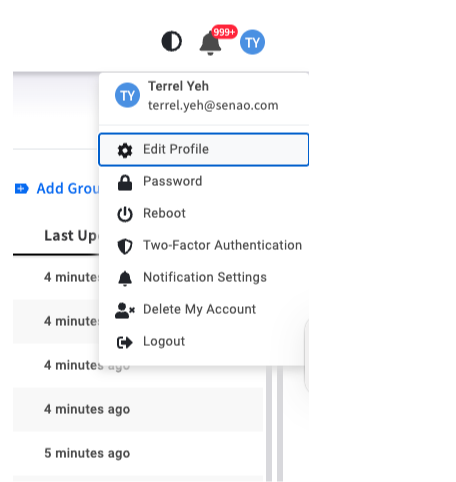
The **`User Profile`** menu, accessed by clicking your user avatar in the top-right corner, is the central location for all your personal account management needs.
From here, you can perform three key types of tasks:
* **Secure Your Account**: Change your password and enable Two-Factor Authentication (2FA).
* **Customize Your Experience**: Modify your personal information and manage notification preferences.
* **Access System Functions**: Execute critical operations like platform reboot or account deletion.
The user profile dropdown menu.
***
### Task 1: Account Security
Securing your account is the first line of defense in protecting the infrastructure you manage. A compromised administrator account can lead to unauthorized changes or service disruptions.
#### **Enabling Two-Factor Authentication (2FA)**
{% hint style="warning" %}
**Highly Recommended**:
2FA significantly improves account security and is recommended for all users, especially those with administrative privileges.
**Prerequisites**: Install Google Authenticator or compatible TOTP app on your mobile device.
{% endhint %}
**Setup Process**:
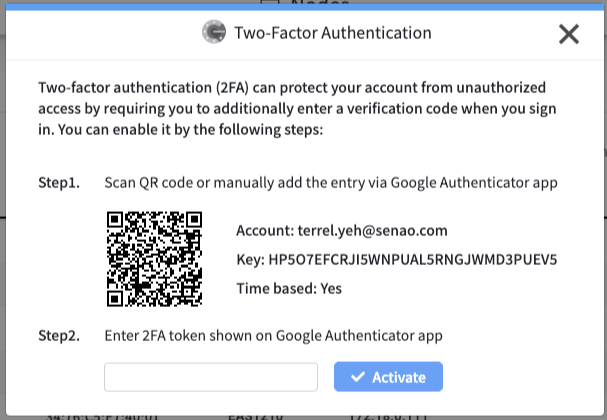
1. Select **Two-Factor Authentication** from the user menu
2. Open your authenticator app and scan the QR code or manually enter the alphanumeric key
3. Enter the 6-digit verification code from your app
4. Click **Activate**
{% hint style="danger" %}
**Recovery Key**: Save the manual entry key securely in a password manager or safe location. This is your only recovery method if you lose your mobile device.
{% endhint %}
#### **Changing Your Password**
**Process**:
1. Select **Password** from the user menu
2. Follow the on-screen prompts to set a new password
3. Use a strong, unique password following your organization's security policy
***
### Task 2: Personal Preferences
These settings allow you to personalize your EDCC environment and ensure clear identification in audit logs.
#### **Profile Information**
**Edit Profile**: Update your display name and contact information. Clear identification helps other team members in audit trails and collaboration.
#### **Notification Preferences**
Direct shortcut to **Notification Center** preferences dialog. For detailed configuration guidance, see Chapter 16: Using the Notification Center.
#### **Session Management**
**Logout**: Secure session termination. Essential when using shared computers or ending work sessions.
***
### Task 3: Critical System Operations
{% hint style="warning" %}
**Administrative Functions Only**: These operations have platform-wide impact and should only be used during planned maintenance or emergency situations.
{% endhint %}
#### **Platform Reboot**
**Purpose**: Restarts the EDCC software platform (not the physical host server).
**Impact**:
* Causes temporary service interruption for all users
* Terminates all active sessions
* Platform restart typically takes 2-5 minutes
**When to Use**:
* During planned maintenance windows
* When directed by technical support for system issues
* After certain configuration changes that require restart
#### **Account Deletion**
{% hint style="danger" %}
**Irreversible Action**: This operation cannot be undone and may have significant consequences.
{% endhint %}
**Impact**:
* Permanently removes your user profile and settings
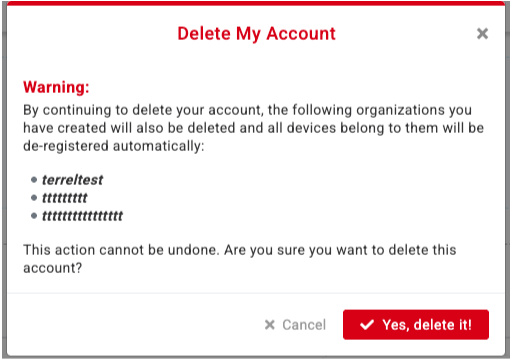
* If you are the creator of Organizations, those Organizations may also be deleted
* Nodes in affected Organizations will lose management
**Before Proceeding**:
* Coordinate with other administrators
* Ensure proper data backup if applicable
* Consider transferring Organization ownership instead
The "Delete My Account" warning dialog showing the list of affected organizations.
***
## Chapter Summary & Key Takeaways
* **Enable 2FA**: Most important security action you can take to protect your account and the infrastructure you manage
* **Save Recovery Information**: Store your 2FA recovery key securely - losing it may result in account lockout
* **Platform Reboot Impact**: Causes temporary service interruption for all users - coordinate timing appropriately
* **Account Deletion Consequences**: Irreversible action that may affect Organizations and nodes - proceed with extreme caution
* **Regular Maintenance**: Periodically review and update your security settings as part of good security hygiene
**What's Next**: This completes the core EDCC user interface coverage. Continue to the Appendices for additional reference materials and troubleshooting guidance.
> 💡 **Security Reminder**: Regularly review your account security settings and keep your 2FA recovery information up to date.
---
# Agent Instructions
This documentation is published with GitBook. GitBook is the documentation platform designed so that both humans and AI agents can read, navigate, and reason over technical content effectively. Learn more at gitbook.com.
## Querying This Documentation
If you need additional information that is not directly available in this page, you can query the documentation by asking a question.
Perform an HTTP GET request on the following URL with the `ask` and `goal` query parameters:
```
GET https://doc.engenius.ai/edcc-user-manual/administration-and-platform/user-profile.md?ask=&goal=
```
`ask` is the immediate question: it should be specific, self-contained, and written in natural language.
`goal` is what the user is ultimately trying to achieve, the reason they need the answer. Sharing it helps GitBook give you a better, more relevant answer. A goal is most helpful when it describes the outcome the user wants rather than restating the question. For example, with `ask=how do I create an API token`, a goal like `automate deployments from our CI pipeline` lets GitBook tailor the answer to that use case.
The response will contain a direct answer to the question and relevant excerpts and sources from the documentation.
Use this mechanism when the answer is not explicitly present in the current page, you need clarification or additional context, or you want to retrieve related documentation sections.