# User Profile
## Chapter 17: Managing Your User Profile
Learn how to manage your personal account information, enhance security with Two-Factor Authentication, and access critical system functions.
> ℹ️ **User Profile Management**
>
> * **Available to**: All user roles
> * **Scope**: Personal account settings and preferences
> * **Permissions**: Users can only modify their own profile settings
> * **Access**: Click user avatar in top-right corner
***
## Overview: Your Personal Command Center
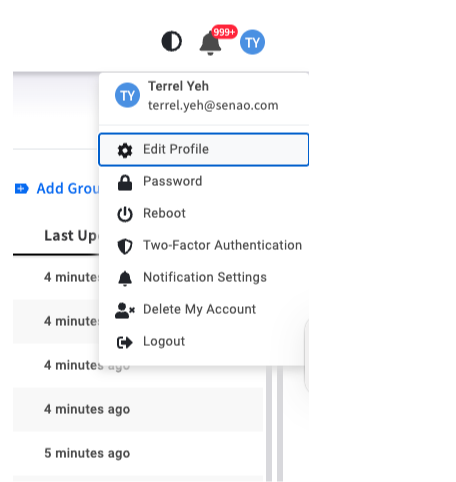
The **`User Profile`** menu, accessed by clicking your user avatar in the top-right corner, is the central location for all your personal account management needs.
From here, you can perform three key types of tasks:
* **Secure Your Account**: Change your password and enable Two-Factor Authentication (2FA).
* **Customize Your Experience**: Modify your personal information and manage notification preferences.
* **Access System Functions**: Execute critical operations like platform reboot or account deletion.
The user profile dropdown menu.
***
### Task 1: Account Security
Securing your account is the first line of defense in protecting the infrastructure you manage. A compromised administrator account can lead to unauthorized changes or service disruptions.
#### **Enabling Two-Factor Authentication (2FA)**
{% hint style="warning" %}
**Highly Recommended**:
2FA significantly improves account security and is recommended for all users, especially those with administrative privileges.
**Prerequisites**: Install Google Authenticator or compatible TOTP app on your mobile device.
{% endhint %}
**Setup Process**:
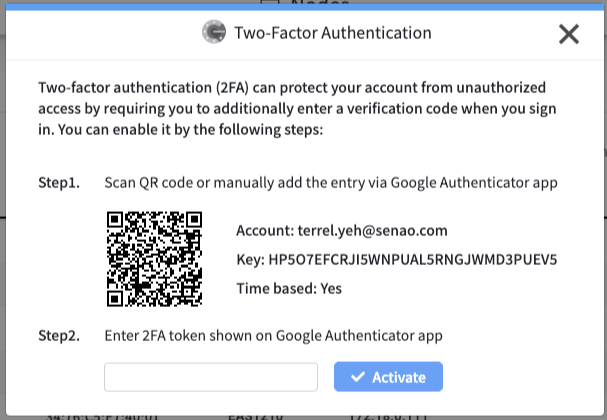
1. Select **Two-Factor Authentication** from the user menu
2. Open your authenticator app and scan the QR code or manually enter the alphanumeric key
3. Enter the 6-digit verification code from your app
4. Click **Activate**
{% hint style="danger" %}
**Recovery Key**: Save the manual entry key securely in a password manager or safe location. This is your only recovery method if you lose your mobile device.
{% endhint %}
#### **Changing Your Password**
**Process**:
1. Select **Password** from the user menu
2. Follow the on-screen prompts to set a new password
3. Use a strong, unique password following your organization's security policy
***
### Task 2: Personal Preferences
These settings allow you to personalize your EDCC environment and ensure clear identification in audit logs.
#### **Profile Information**
**Edit Profile**: Update your display name and contact information. Clear identification helps other team members in audit trails and collaboration.
#### **Notification Preferences**
Direct shortcut to **Notification Center** preferences dialog. For detailed configuration guidance, see Chapter 16: Using the Notification Center.
#### **Session Management**
**Logout**: Secure session termination. Essential when using shared computers or ending work sessions.
***
### Task 3: Critical System Operations
{% hint style="warning" %}
**Administrative Functions Only**: These operations have platform-wide impact and should only be used during planned maintenance or emergency situations.
{% endhint %}
#### **Platform Reboot**
**Purpose**: Restarts the EDCC software platform (not the physical host server).
**Impact**:
* Causes temporary service interruption for all users
* Terminates all active sessions
* Platform restart typically takes 2-5 minutes
**When to Use**:
* During planned maintenance windows
* When directed by technical support for system issues
* After certain configuration changes that require restart
#### **Account Deletion**
{% hint style="danger" %}
**Irreversible Action**: This operation cannot be undone and may have significant consequences.
{% endhint %}
**Impact**:
* Permanently removes your user profile and settings
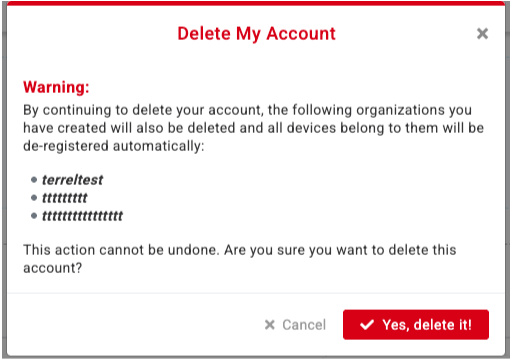
* If you are the creator of Organizations, those Organizations may also be deleted
* Nodes in affected Organizations will lose management
**Before Proceeding**:
* Coordinate with other administrators
* Ensure proper data backup if applicable
* Consider transferring Organization ownership instead
The "Delete My Account" warning dialog showing the list of affected organizations.
***
## Chapter Summary & Key Takeaways
* **Enable 2FA**: Most important security action you can take to protect your account and the infrastructure you manage
* **Save Recovery Information**: Store your 2FA recovery key securely - losing it may result in account lockout
* **Platform Reboot Impact**: Causes temporary service interruption for all users - coordinate timing appropriately
* **Account Deletion Consequences**: Irreversible action that may affect Organizations and nodes - proceed with extreme caution
* **Regular Maintenance**: Periodically review and update your security settings as part of good security hygiene
**What's Next**: This completes the core EDCC user interface coverage. Continue to the Appendices for additional reference materials and troubleshooting guidance.
> 💡 **Security Reminder**: Regularly review your account security settings and keep your 2FA recovery information up to date.