# General Settings

## Chapter 13: Configuring General Settings

*Establish the foundational identity, time zone, and default authentication for your POD.*

> ⚠️ **Configuration Access Required**
>
> * **Required Role**: POD Admin or Organization Admin
> * **Required Scope**: POD level only
> * **Restriction**: Module disabled when Organization or Hierarchy View selected

***

## Overview: Defining Your POD's Foundational DNA

The **`CONFIGURE → General Settings`** page is where you define the foundational "DNA" for your POD. The settings here—its name, its operational time zone, and its default access credentials—act as the baseline for many other functions throughout EDCC.

Think of this page as filling out the official "birth certificate" for your POD. Getting these core settings right from the beginning is essential for ensuring that all subsequent automated tasks, event logs, and management actions operate in a consistent and predictable manner.

{% hint style="danger" %}
**Important: Save Your Changes**

Any changes made on this page, whether to the POD's name, time zone, or default credentials, must be saved by clicking the **Apply** button in the top-right corner to take effect.
{% endhint %}

***

## Configuring the POD's Core Identity

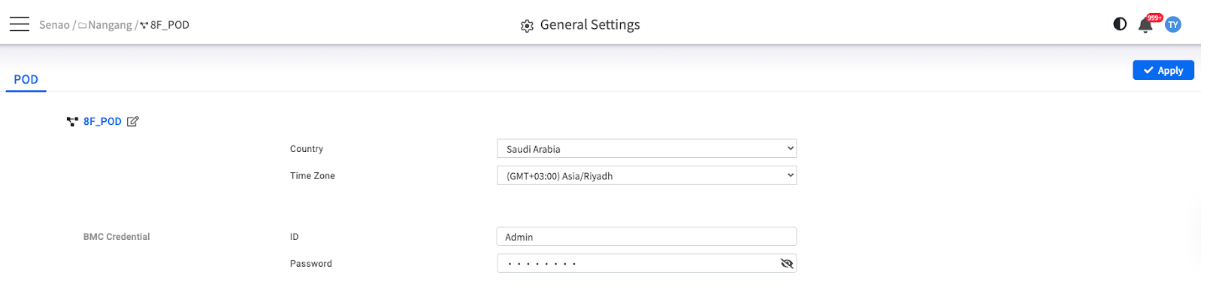
This interface contains the four essential parameters that define your POD's identity and default behaviors.

<figure><img src="https://content.gitbook.com/content/iGPGTG6LFrVfBRB76ZPF/blobs/ueGhz3hzfzaHaE0wEcMc/image.png" alt=""><figcaption><p><mark style="background-color:$info;">The main General Settings interface, showing the fields for POD Name, Country, Time Zone, and BMC Credential.</mark></p></figcaption></figure>

<table><thead><tr><th width="170.8515625">Setting</th><th>Description &#x26; Why It Matters</th></tr></thead><tbody><tr><td><strong>POD Name</strong></td><td><p><strong>The Display Name</strong>: </p><p>This is the human-readable name for your POD that appears throughout the UI, including the Management Tree. <strong>Why it matters</strong>: A clear, descriptive name (e.g., "Data Center A - Production") is critical for easy identification, especially in environments with many PODs, preventing accidental changes to the wrong environment.</p></td></tr><tr><td><strong>Country</strong></td><td><p><strong>Geographical Location</strong>: </p><p>The country where the POD is physically located. <strong>Why it matters</strong>: This setting works with the Time Zone to provide geographical context, which is useful for asset management and global operations planning.</p></td></tr><tr><td><strong>Time Zone</strong></td><td><p><strong>The Operational Clock</strong>: </p><p>The local time zone of the POD. This is one of the most critical settings on this page. It dictates the timing of all scheduled and logged activities. (See detailed explanation below).</p></td></tr><tr><td><strong>BMC Credential (ID / Password)</strong></td><td><p><strong>The Default Handshake</strong>: </p><p>The default username and password that EDCC will use to communicate with new nodes added to this POD. <strong>Why it matters</strong>: This standardizes and simplifies the onboarding process for new hardware. (See detailed explanation below).</p></td></tr></tbody></table>

***

## Deep Dive: The Critical Importance of the Time Zone Setting

Setting an accurate time zone is crucial for consistent and predictable operations. It becomes the standard for all time-sensitive operations and displays within this POD, preventing dangerous mistakes like running maintenance during peak business hours.

#### **Key Areas Affected by Time Zone**

<table><thead><tr><th width="159.46484375">Function</th><th>Impact</th><th>Risk of Incorrect Setting</th></tr></thead><tbody><tr><td><strong>Firmware Provisioning</strong></td><td>The maintenance window schedule you create in Chapter 10 runs based on the POD's local time</td><td>An incorrect setting here could cause updates to run at 3 PM instead of 3 AM</td></tr><tr><td><strong>Event Logs</strong></td><td>All timestamps in both the global Event Log and the node-specific BMC SEL are displayed according to this time zone</td><td>Essential for accurately troubleshooting and correlating events across different systems</td></tr><tr><td><strong>Dashboard &#x26; UI</strong></td><td>All "Last Updated" timestamps and activity logs across the EDCC interface will use this time zone</td><td>Provides consistent time reference for all administrators, regardless of where they are located</td></tr></tbody></table>

{% hint style="danger" %}
**Critical Warning**: Time zone errors can cause scheduled maintenance to run during business hours, potentially causing unexpected downtime.
{% endhint %}

***

## Deep Dive: Managing the Default BMC Credential

The BMC Credential you set on this page acts as the default authentication method for the entire POD. It's the "master key" EDCC uses to initially manage your nodes.

### **How Default Authentication Works**

**Process**: When you add a new node to this POD from the **`System > Inventory`** list, EDCC will automatically attempt to log in and manage it using this username and password. This streamlines the onboarding process significantly.

### **Handling Credential Exceptions**

**Individual Overrides**: If a specific node within the POD must use a different credential for security or legacy reasons, you can set it manually. Navigate to that node's **`MANAGE → Node Detail → Summary`** tab, enter the unique credentials in the Device Management panel, and click Apply.

{% hint style="success" %}
**Best Practice: Enforce a Strong, Standard Credential**

For enhanced security, it is highly recommended to change this from the vendor default password. Use this setting to enforce a standard, strong BMC credential policy across your POD, and update it periodically according to your organization's security policies.
{% endhint %}

***

## Chapter Summary & Key Takeaways

* **Time Zone is Critical**: This setting controls the timing of all scheduled maintenance. Double-check it to avoid accidental downtime during business hours
* **Default Credential Simplifies Onboarding**: The BMC Credential set here is automatically used for new nodes, making expansion easier
* **Individual Nodes Can Be Overridden**: If a node has a unique password, you can set it on its Node Detail → Summary page
* **Click Apply**: None of your changes take effect until you click the Apply button
* **Good Naming Prevents Errors**: Use clear, descriptive POD names that indicate location and purpose
* **Security First**: Use strong credentials and change them regularly according to security policies

**What's Next**: This completes the CONFIGURE module exploration. Part 4 will cover Administration and Platform Management, starting with centralized event logging.

> 💡 **Pro Tip**: Document your POD configuration decisions (naming conventions, time zones, credential policies) in your operational procedures - this ensures consistency as your infrastructure grows.
