# OS Deployment

## Chapter 10: OS Deployment

*Build and manage a centralized library of ISO images for remote operating system installation.*

> ⚠️ **Configuration Access Required**
>
> * **Required Role**: POD Admin or Organization Admin
> * **Required Scope**: POD level only
> * **Restriction**: Module disabled when Organization or Hierarchy View selected
> * **Prerequisite**: HTTPS File Server must be configured in System Settings

***

## Overview: Your Centralized & Standardized Software Library

The **`CONFIGURE → OS Deployment`** page is your OS Repository—a central storage library for all the ISO image files you need for node deployment and maintenance. The goal of this feature is to move away from ad-hoc, manual OS installations towards a standardized, repeatable, and secure process.

By uploading an approved, official OS image here, you create a "single source of truth." This ensures that every time a new node is deployed, it uses the exact same, correct version of the operating system, which is critical for maintaining a stable and secure infrastructure.

This page is for managing the library of available ISOs. The actual process of mounting an ISO to a specific node is performed from the **`MANAGE → Node Detail → Operations` tab.**

***

## The Complete OS Installation Workflow

Understanding the full process helps clarify this page's role as a preparation step. Deploying an OS is a multi-step process involving different user roles and parts of the EDCC interface. This page covers Step 2 of that workflow.

```
Setup → Preparation → Deployment → Execution → Installation
```

1. **(One-Time Setup)** An Org-Admin configures the HTTPS File Server in System > Application Settings
2. **(Preparation)** You navigate here (CONFIGURE > OS Deployment) to upload the required .iso image to the repository
3. **(Deployment)** You navigate to the target node's MANAGE > Node Detail > Operations tab
4. **(Execution)** You use the Mount ISO Image operation to attach the ISO from the repository to the node
5. **(Installation)** You use the node's remote console (KVM) to boot from the virtual media and perform the OS installation

{% hint style="warning" %}
**Prerequisite: Org-Admin Action Required**

Before you can upload and use ISO images, an administrator with Organization-level permissions must first enable and configure the **HTTPS File Server**. This is a one-time setup performed in **System > Application Settings**. If you cannot upload files, please contact your Org-Admin.
{% endhint %}

***

## Understanding the OS Repository Interface

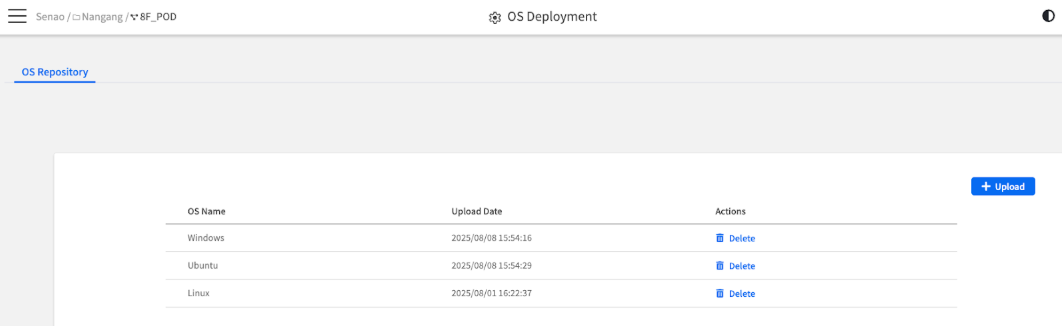
The interface is straightforward, consisting of a list of your current ISOs and a primary action button to add new ones.

<figure><img src="https://content.gitbook.com/content/iGPGTG6LFrVfBRB76ZPF/blobs/RVCWuPjaQjT9eGqH0SyZ/image.png" alt=""><figcaption><p><mark style="background-color:$info;">The main OS Repository interface, showing the list of uploaded ISOs and the "+ Upload" button</mark></p></figcaption></figure>

<table><thead><tr><th width="170.09375">Component</th><th>Purpose</th></tr></thead><tbody><tr><td><strong>The ISO List</strong></td><td>The main table displays all ISOs currently available in the repository</td></tr><tr><td><strong>The + Upload Button</strong></td><td>Your entry point for adding new ISO images to the library</td></tr></tbody></table>

***

### Managing Your ISO Repository

#### **Viewing the Repository List**

The main table gives you an at-a-glance view of your software library's contents.

<table><thead><tr><th width="138.55078125">Column</th><th>Description &#x26; Why It Matters</th></tr></thead><tbody><tr><td><strong>OS Name</strong></td><td><strong>The Unique Key</strong>: This is the identifier you assign to the ISO file. It's the name you will select when mounting the image on a node.</td></tr><tr><td><strong>Upload Date</strong></td><td><strong>Version Control</strong>: This timestamp helps you track when an image was last updated, which is useful for knowing if you have the latest version.</td></tr><tr><td><strong>Actions</strong></td><td><strong>Management Operations</strong>: Provides the Delete button to remove the ISO from the repository.</td></tr></tbody></table>

#### **Uploading a New ISO Image**

This is the core process for adding new operating systems to your central library. The key concept to understand here is the "OS Name," which acts as a unique slot for each type of OS.

**Process**:

1. Click the **+ Upload** button
2. In the Upload dialog, first select the appropriate **OS Name** from the dropdown list
3. Next, either **drag and drop** your .iso file into the upload area or use the **"Browse Files"** button to select it
4. Click **OK** to begin the upload

<div align="left"><figure><img src="https://content.gitbook.com/content/iGPGTG6LFrVfBRB76ZPF/blobs/xmbhBrMaZGj5m1EOisZ9/image.png" alt=""><figcaption><p><mark style="background-color:$info;">The OS Name selection dropdown in the Upload dialog</mark></p></figcaption></figure></div>

{% hint style="danger" %}
**Important: Uploading Will Overwrite Existing Files**

The repository allows only **one ISO file per OS Name**. If you upload a new file for an OS Name that already exists (e.g., uploading a new "Ubuntu" ISO), the new file will **overwrite and permanently replace** the old one.
{% endhint %}

#### **Deleting an ISO Image**

Deleting an ISO is a simple housekeeping task to remove outdated or unused images from your library.

**Process**: To remove an ISO file, simply click the **Delete** button next to it in the list.

{% hint style="warning" %}
**Is it safe to delete an ISO?**

Yes. Deleting an ISO from the repository is a safe operation. It will **not affect** any nodes that have already had an operating system installed using that image. It only removes the image from being available for future deployments.
{% endhint %}

## OS Deployment Best Practices

### **Repository Management Strategies**

**ISO Organization**:

* **Naming Conventions**: Use descriptive OS Names that include version and purpose (e.g., "Ubuntu-22.04-Server", "Windows-Server-2022-Standard")
* **Version Control**: Document which ISO versions are certified for your environment
* **Storage Planning**: Monitor repository storage usage and plan for multiple OS versions

**Image Preparation**:

* **Source Verification**: Only upload official, verified ISO images from trusted sources
* **Security Scanning**: Scan ISO files for malware before uploading to repository
* **Customization**: Consider pre-configured images with your organization's standard settings

### **Deployment Planning**

**Pre-Deployment Checklist**:

<table><thead><tr><th width="168.6328125">Item</th><th>Verification</th><th>Notes</th></tr></thead><tbody><tr><td><strong>Network Connectivity</strong></td><td>BMC can reach HTTPS File Server</td><td>Test with ping or connectivity check</td></tr><tr><td><strong>Storage Space</strong></td><td>Sufficient space for OS installation</td><td>Check target node storage capacity</td></tr><tr><td><strong>Backup Strategy</strong></td><td>Critical data backed up if needed</td><td>Document recovery procedures</td></tr><tr><td><strong>BIOS Settings</strong></td><td>Boot order and virtualization settings</td><td>May need adjustment via BMC</td></tr></tbody></table>

**Deployment Scenarios**:

<table><thead><tr><th width="176.9296875">Scenario</th><th>Approach</th><th>Considerations</th></tr></thead><tbody><tr><td><strong>New Node Setup</strong></td><td>Fresh OS installation</td><td>No data loss concerns, straightforward process</td></tr><tr><td><strong>OS Refresh</strong></td><td>Complete reinstallation</td><td>Backup user data, document configurations</td></tr><tr><td><strong>Recovery Operations</strong></td><td>Restore from known-good image</td><td>May need specific recovery ISOs</td></tr><tr><td><strong>Testing/Development</strong></td><td>Flexible deployment</td><td>Can use beta or specialized images</td></tr></tbody></table>

### **Troubleshooting Common Issues**

**Upload Problems**:

* **Large File Timeouts**: Break deployment into smaller chunks if network is slow
* **Storage Quotas**: Check HTTPS File Server storage limits and cleanup old images
* **Permission Errors**: Verify user has upload permissions and HTTPS server is properly configured

**Mount Failures**:

* **Authentication Issues**: Verify BMC can authenticate to HTTPS File Server
* **Network Problems**: Check firewall rules and network connectivity between BMC and file server
* **File Corruption**: Re-upload ISO if mounting consistently fails

**Installation Issues**:

* **Boot Problems**: Verify ISO is bootable and not corrupted
* **Hardware Compatibility**: Ensure OS supports the node's hardware configuration
* **Storage Detection**: Check if OS installer can detect node's storage devices

***

## Chapter Summary & Key Takeaways

* **It's a Library, Not the Installer**: This page is for managing your list of available ISOs. The actual installation is launched from the node's Operations tab
* **Org-Admin Prerequisite**: The entire feature depends on the HTTPS File Server being configured in System > Application Settings
* **One ISO Per OS Name**: Remember that uploading a new ISO for an existing OS Name will overwrite the old one
* **Deleting is Safe**: Removing an ISO from the repository does not affect nodes that were previously installed with it
* **POD Scope Required**: This configuration feature is only available when a POD is selected

**What's Next**: Chapter 11 will explore Automating Firmware Provisioning, where you'll learn to schedule and manage firmware updates across your POD infrastructure.

> 💡 **Pro Tip**: Use descriptive OS Names that include version information (e.g., "Ubuntu-22.04-LTS" instead of just "Ubuntu") to maintain clear version control in your repository.
