# Services Profiles

## Chapter 12: Managing Services Profiles

*Define and manage POD-level monitoring policies by creating flexible service profiles.*

> ⚠️ **Configuration Access Required**
>
> * **Required Role**: POD Admin or Organization Admin
> * **Required Scope**: POD level only
> * **Restriction**: Module disabled when Organization or Hierarchy View selected

***

## Overview: Your Monitoring Policy Headquarters

The **`CONFIGURE → Services Profiles`** page is your headquarters for defining how and how often EDCC monitors the internal management services of your nodes. Instead of a one-size-fits-all approach, this page allows you to create and manage reusable templates, known as Profiles, which give you granular control over your POD's monitoring behavior.

The core purpose of this page is to establish a standard, POD-wide monitoring policy that ensures consistency, while still allowing for flexibility.

***

## Why Create Multiple Profiles?

Before creating profiles, it's helpful to understand why you might need more than one. Different operational scenarios call for different monitoring strategies.

<table><thead><tr><th width="153.1640625">Profile Type</th><th>Use Case</th><th>Configuration Strategy</th></tr></thead><tbody><tr><td><strong>Standard Operations</strong></td><td>Use the Default profile with moderate check interval</td><td>Routine, everyday monitoring with good balance between responsiveness and system overhead</td></tr><tr><td><strong>Maintenance Window</strong></td><td>Create "Maintenance Check" profile with short check interval</td><td>Rapid feedback on system status after making changes</td></tr><tr><td><strong>Troubleshooting</strong></td><td>Design "Intensive Diagnostics" profile with high retry attempts</td><td>Apply to problematic nodes to diagnose intermittent connectivity issues</td></tr><tr><td><strong>Low-Priority Systems</strong></td><td>Create "Relaxed" profile with long check interval</td><td>Reduce monitoring overhead on non-critical lab or development systems</td></tr></tbody></table>

***

### The 3-Step Policy Workflow

Setting up your POD-wide monitoring policy follows a logical, three-step process.

```
Understand Services → Build Profile Library → Activate Policy
```

<figure><img src="https://content.gitbook.com/content/iGPGTG6LFrVfBRB76ZPF/blobs/qHGmW5NDKfEgoRrwdNZU/image.png" alt=""><figcaption></figcaption></figure>

**Process**:

1. **Understand the Services**: Know what you are monitoring.
2. **Build Your Profile Library**: Create or edit templates (Profiles) that define how you want to monitor.
3. **Activate the Default Policy**: Use the master switch to turn the POD-wide default monitoring on or off.

***

### Step 1: Understand the Service Categories

You can configure profiles for two distinct types of monitoring services. Understanding their different purposes is key to creating effective policies.

<table><thead><tr><th width="216.24609375">Service Category</th><th>Purpose &#x26; User Impact</th></tr></thead><tbody><tr><td><strong>REDFISH BMC HEALTH</strong></td><td><p><strong>Focus: Fault Detection</strong>. </p><p>This service periodically checks the node's System Event Log (SEL) for new Critical or Warning events (e.g., fan failures, overheating). A failure here directly impacts the POD Health widget on the Dashboard. This is your primary proactive problem detection service.</p></td></tr><tr><td><strong>REDFISH SYSTEM INFORMATION</strong></td><td><p><strong>Focus: Asset Synchronization</strong>. </p><p>This service periodically retrieves static hardware specifications (e.g., model, serial numbers, firmware versions). A failure here means the hardware list in System Information may be out-of-date, but it does not typically indicate an immediate hardware fault.</p></td></tr></tbody></table>

***

### Step 2: Build Your Profile Library

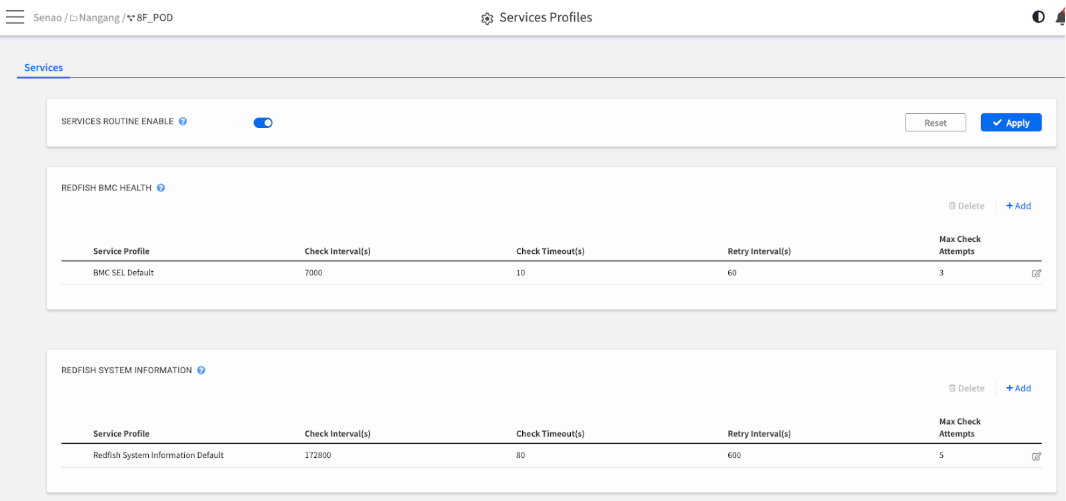
This is where you create and manage your reusable monitoring templates (Profiles). You can create multiple profile options for each service category.

<div align="left"><figure><img src="https://content.gitbook.com/content/iGPGTG6LFrVfBRB76ZPF/blobs/1i4hc9cWsVfNZDQV0mX8/image.png" alt=""><figcaption></figcaption></figure></div>

#### **Managing Profiles**

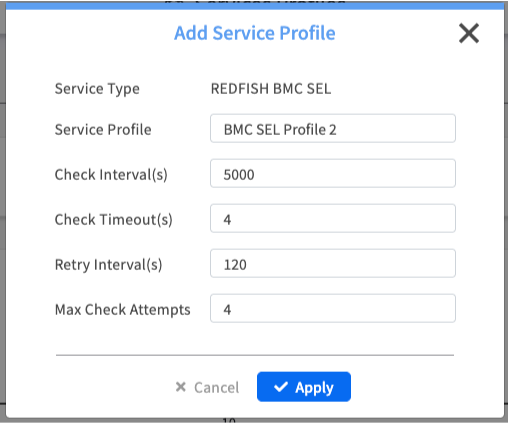
**To Add a New Profile**:

1. Click the **+ Add** link next to the service category
2. Give your new profile a descriptive name (e.g., "Intensive Maintenance Check")
3. Configure the monitoring parameters
4. Click **Apply** to save the new profile

**To Edit or Delete**:

* Click the **pencil icon** to edit any profile (including the defaults)
* Click the **trash can icon** to delete a custom profile (defaults cannot be deleted)

#### **Understanding the Profile Parameters**

<table><thead><tr><th width="169.2265625">Parameter</th><th>Description &#x26; Why It Matters (The Trade-offs)</th></tr></thead><tbody><tr><td><strong>Check Interval(s)</strong></td><td><p><strong>How often to check</strong>. </p><p>A lower value (e.g., 60s) means faster detection of new events, but it also creates more network traffic and a higher load on the nodes' BMCs. A higher value is less resource-intensive but has a longer detection time.</p></td></tr><tr><td><strong>Check Timeout(s)</strong></td><td><p><strong>How long to wait for a response</strong>. </p><p>A shorter timeout will quickly identify unresponsive BMCs, but might generate false positives on a heavily congested network. A longer timeout is more tolerant of slow networks but will take longer to detect a truly offline BMC.</p></td></tr><tr><td><strong>Retry Interval(s)</strong></td><td><p><strong>How long to wait between retries</strong>. </p><p>This is the "cool-down" period after a failed check before trying again.</p></td></tr><tr><td><strong>Max Check Attempts</strong></td><td><p><strong>How many times to retry</strong>. </p><p>The maximum number of times EDCC will retry a failed check before marking the service as down and generating an alert. A higher number makes the check more resilient to temporary network blips.</p></td></tr></tbody></table>

***

### Step 3: Activate POD-Wide Default Monitoring

After you have created your library of custom profiles (like "Intensive Check"), your final step is to activate the **default** monitoring for the entire POD.

**Process:**

1. **Enable the Master Control:** Turn on the main **`SERVICES ROUTINE ENABLE` toggle** at the very top of the page. This is the master "on/off" control for the POD.
2. **Save Everything:** Click the **`Apply`** button in the top-right corner to save your changes.

{% hint style="danger" %}
**Important: Understanding This Logic**

Turning the master **`SERVICES ROUTINE ENABLE`** toggle **ON** performs one specific action:

* It activates the **"Default"** profiles (e.g., "Default" for BMC Health, "Default-Info" for System Info) for **all** nodes in the POD.

:warning:  **This action DOES NOT allow you to select a POD-wide "active profile."**

To use any of the **custom profiles** you created (like "Intensive Maintenance Check"), you must go to the individual node's settings (as explained in the next section).
{% endhint %}

***

## POD-Wide Policy vs. Individual Node Overrides

EDCC uses a hierarchical approach to service monitoring: a general rule for all, with the flexibility for exceptions.

### **The Rule: POD-Wide Policy (Set Here)**

* **What it is:** The policy set on this page.
* **How it works:** When **`SERVICES ROUTINE ENABLE`** is ON, all nodes in the POD automatically inherit the parameters defined in the "Default" profiles.
* **Purpose**: Ensures consistent, baseline monitoring across your entire infrastructure.

### **The Exception: Individual Node Override (Set in Ch. 7.6)**

{% hint style="warning" %}
Individual Node Override can be setup in [Chapter 7.6 Managing Node Services](https://doc.engenius.ai/edcc-user-manual/manage-module/node-detail-page/service-node-level)
{% endhint %}

* **What it is**: A node-specific exception to the POD-wide rule.
* **How it works:** If you have a specific node that needs different monitoring (e.g., a critical server needing "Intensive Diagnostics"), you must:
  * Navigate to its **`MANAGE → Node Detail → Services`** tab.
  * Go to the Subscription sub-tab.
  * Turn on the **`INDIVIDUAL SERVICES CONFIGURATION ENABLE`** switch.
  * Select one of your other custom profiles (e.g., "Intensive Diagnostics") from the dropdown menu.
* **Purpose:** Provides flexibility for special cases (troubleshooting, critical servers, non-critical labs) without changing the default for all other nodes.

{% hint style="success" %}
**Best Practice: The Rule, Not the Exception**

Use the POD-level Default profiles (edited on this page) to define your standard monitoring policy. Use the other profiles you create here as templates for specific, temporary, or permanent individual node overrides.
{% endhint %}

***

## Service Profile Management Strategies

### **Profile Design Guidelines**

**Naming Conventions**:

* **Use descriptive names that indicate purpose**: "Standard-Operations", "Maintenance-Intensive", "Low-Priority-Lab"
* **Include monitoring frequency in name**: "Quick-Check-30s", "Standard-Check-300s"
* **Indicate environment type**: "Production-Standard", "Development-Relaxed"

**Parameter Optimization**:

| Environment Type        | Check Interval   | Timeout     | Max Attempts  | Use Case                      |
| ----------------------- | ---------------- | ----------- | ------------- | ----------------------------- |
| **Production Critical** | 60-120 seconds   | 30 seconds  | 3-5 attempts  | Fast detection, balanced load |
| **Standard Operations** | 300 seconds      | 60 seconds  | 3 attempts    | Default balanced monitoring   |
| **Development/Lab**     | 600-1200 seconds | 120 seconds | 2 attempts    | Minimal overhead              |
| **Maintenance Mode**    | 30-60 seconds    | 15 seconds  | 5-10 attempts | Maximum responsiveness        |

### **Monitoring Policy Planning**

**Assessment Questions**:

* **Criticality**: How quickly do you need to detect issues?
* **Network Capacity**: Can your network handle frequent monitoring traffic?
* **BMC Performance**: Are BMCs under heavy load from other operations?
* **Alert Tolerance**: Can you handle more frequent alerts for faster detection?

**Implementation Strategy**:

1. **Start Conservative**: Begin with longer intervals and adjust based on needs
2. **Monitor Impact**: Watch for BMC performance issues with aggressive monitoring
3. **Adjust Gradually**: Make incremental changes to find optimal balance
4. **Document Changes**: Keep records of profile modifications and their effects

### **Profile Lifecycle Management**

**Regular Review Process**:

* **Quarterly Assessment**: Review profile effectiveness and adjust parameters
* **Performance Analysis**: Monitor network and BMC load from service checks
* **Incident Correlation**: Analyze if monitoring frequency affected issue detection
* **Optimization**: Fine-tune parameters based on operational experience

**Version Control**:

* **Document Changes**: Record what changes were made and why
* **Test Changes**: Validate new profiles in non-critical environments first
* **Backup Configurations**: Keep records of working profile configurations
* **Rollback Plan**: Be prepared to revert to previous configurations if needed

***

## Chapter Summary & Key Takeaways

* **Profiles are Templates**: Use profiles to create different "flavors" of monitoring (e.g., standard, intensive, relaxed) for different situations
* **Health vs. Information**: BMC Health is for detecting faults, while System Information is for asset management. They serve different purposes
* **Activation is for the "Default"**: The master **`SERVICES ROUTINE ENABLE`** switch turns the "Default" monitoring policy on or off for the entire POD.
* **POD-Level is the Rule**: The policy you set here applies to all nodes in the POD by default. Use the Node Detail → Services page only for specific exceptions
* **Balance is Key**: Optimize monitoring frequency to balance detection speed with system resource usage
* **Document Your Strategy**: Maintain clear documentation of your monitoring policies and the reasoning behind parameter choices

**What's Next**: Chapter 13 will explore Configuring General Settings, where you'll learn to manage POD-wide operational settings and policies.

> 💡 **Pro Tip**: Start with the default profiles and adjust gradually based on your operational needs. Overly aggressive monitoring can impact BMC performance, while too relaxed monitoring may delay issue detection.