> For the complete documentation index, see [llms.txt](https://doc.engenius.ai/llms.txt). Markdown versions of documentation pages are available by appending `.md` to page URLs; this page is available as [Markdown](https://doc.engenius.ai/edcc-user-manual/manage-module/node-detail-page.md).

# Node Detail Page

## In-Depth Node Management (Node Detail)

*Your complete guide to the Node Detail page—the central cockpit for monitoring, managing, and troubleshooting an individual node.*

> ℹ️ **Individual Server Management**
>
> * **Available to**: All user roles
> * **Scope**: POD level (individual server focus)
> * **Permissions**:
>   * **POD/Org Admin**: Full control including Operations tab
>   * **Viewer roles**: Monitor-only (Summary, System Info, Sensors, BMC SEL tabs)
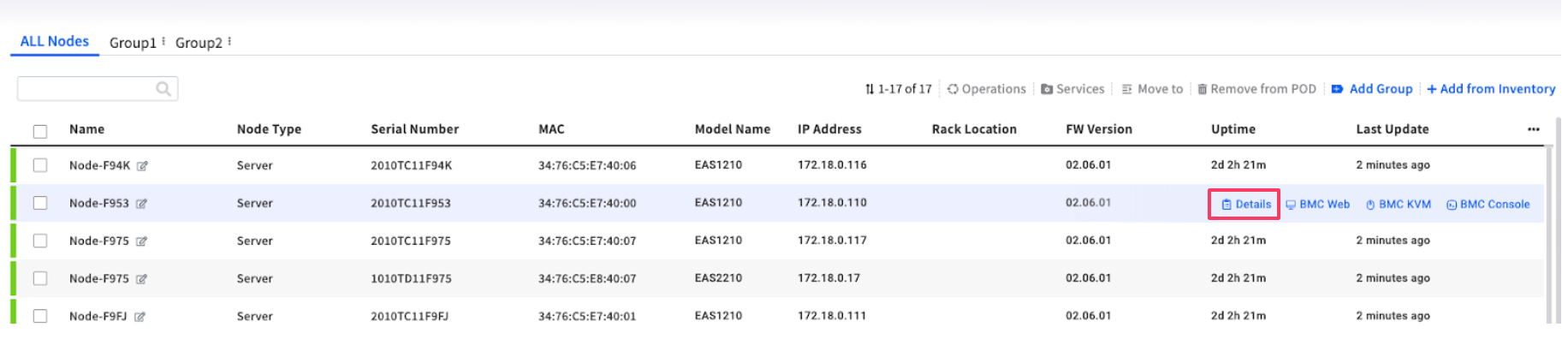
> * **Access Method**: Select node from **Node List** → click **Details** or use individual node action menu

***

## Overview: The Cockpit for a Single Node

After selecting a node from the **Node List**, you arrive at the **Node Detail** page. Think of this as the command center or "cockpit" for that specific machine.

You'll come here when you need to move beyond a high-level overview and perform a deep-dive investigation or a specific management action. Whether you're troubleshooting a hardware alert, checking a component's exact part number, or remotely rebooting the node, this is where you'll find the right tool for the job.

<figure><img src="https://content.gitbook.com/content/iGPGTG6LFrVfBRB76ZPF/blobs/qi7AkcM0ARfndWwWo22r/image.png" alt=""><figcaption></figcaption></figure>

{% hint style="success" %}
&#x20;**Navigation Context**: Access this page by selecting a specific node from the **Node List** and clicking **Details** or using the individual node action menu (**...**).
{% endhint %}

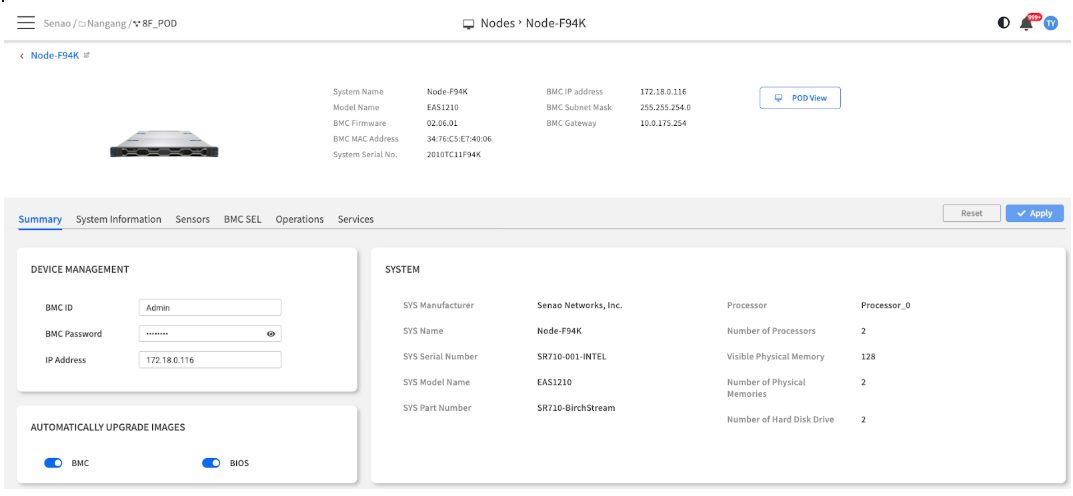
<figure><img src="https://content.gitbook.com/content/iGPGTG6LFrVfBRB76ZPF/blobs/8QtQkK15kM1g7sOOKCNY/image.png" alt=""><figcaption><p><mark style="background-color:$info;">A full screenshot of the Node Detail page, showing the tabbed interface from "Summary" to "Services</mark></p></figcaption></figure>

***

## Which Tab Should I Use? A Quick Reference Guide

The **Node Detail** page is organized into six specialized tabs, each designed for specific tasks. Use this table as your quick navigation guide to find the right tool for your immediate needs.

<table><thead><tr><th width="215.91015625">When you need to...</th><th width="151.15234375">Go to this Tab</th><th width="176.88671875">Purpose</th><th>Key Features</th></tr></thead><tbody><tr><td><strong>Get a quick health overview</strong> and see live sensor graphs</td><td><a href="/edcc-user-manual/manage-module/node-detail-page/summary-tab.md"><strong>7.1 Summary</strong></a></td><td>Real-time status dashboard</td><td>Identity verification, live sensor charts, basic configuration</td></tr><tr><td><strong>Find exact part numbers</strong> for memory DIMM, CPU, or power supply</td><td><a href="/edcc-user-manual/manage-module/node-detail-page/system-information.md"><strong>7.2 System Information</strong></a></td><td>Complete hardware inventory</td><td>Detailed component specifications, serial numbers, part numbers</td></tr><tr><td><strong>Check detailed sensor readings</strong> and verify warning/critical thresholds</td><td><a href="/edcc-user-manual/manage-module/node-detail-page/sensors.md"><strong>7.3 Sensors</strong></a></td><td>Precise environmental monitoring</td><td>Real-time sensor values, threshold comparisons, status indicators</td></tr><tr><td><strong>Investigate hardware alerts</strong> and see what the BMC recorded</td><td><a href="/edcc-user-manual/manage-module/node-detail-page/bmc-sel.md"><strong>7.4 BMC SEL</strong></a></td><td>Hardware event investigation</td><td>Event logs, resolution tracking, alert correlation</td></tr><tr><td><strong>Execute direct hardware control</strong> like remote reboot or firmware updates</td><td><a href="/edcc-user-manual/manage-module/node-detail-page/operations.md"><strong>7.5 Operations</strong></a></td><td>Direct BMC command execution</td><td>Power control, firmware updates, maintenance operations</td></tr><tr><td><strong>Monitor management services</strong> or customize monitoring policies</td><td><a href="/edcc-user-manual/manage-module/node-detail-page/service-node-level.md"><strong>7.6 Services</strong></a></td><td>Redfish service health management</td><td>Service status monitoring, configuration overrides</td></tr></tbody></table>

## Important Concepts for Node Detail Management

### **Data Refresh Requirements**

{% hint style="danger" %}
**Manual Refresh Required**: Most tabs display snapshot data from page load. For real-time information, perform manual browser refresh (F5) to get latest BMC readings.
{% endhint %}

### **Permission-Based Functionality**

* **Configuration Changes**: Require POD Admin or Organization Admin role
* **Read-Only Access**: Available to all user roles for monitoring purposes
* **Operations Tab**: Completely restricted to Admin roles due to high-risk nature

### **BMC-Centric Management**

All Node Detail functions communicate directly with the server's BMC via Redfish protocol, providing:

* **Out-of-band Control**: Independent of OS status
* **Hardware-Level Access**: Direct component monitoring and control
* **Real-time Data**: Live sensor readings and event logging

***

**What's Next :** This chapter serves as the introduction to a comprehensive six-part series. Each sub-chapter provides detailed, step-by-step instructions for mastering a specific aspect of individual node management.

Please proceed to **Chapter 7.1: Summary Tab** to begin your deep dive into individual node management.

***

> 💡 **Pro Tip**: Bookmark the tab reference table above - it's your fastest way to navigate directly to the right tool for any node management task!


---

# Agent Instructions
This documentation is published with GitBook. GitBook is the documentation platform designed so that both humans and AI agents can read, navigate, and reason over technical content effectively. Learn more at gitbook.com.

## Querying This Documentation
If you need additional information that is not directly available in this page, you can query the documentation by asking a question.

Perform an HTTP GET request on the following URL with the `ask` and `goal` query parameters:

```
GET https://doc.engenius.ai/edcc-user-manual/manage-module/node-detail-page.md?ask=<question>&goal=<user_goal>
```

`ask` is the immediate question: it should be specific, self-contained, and written in natural language.
`goal` is what the user is ultimately trying to achieve, the reason they need the answer. Sharing it helps GitBook give you a better, more relevant answer. A goal is most helpful when it describes the outcome the user wants rather than restating the question. For example, with `ask=how do I create an API token`, a goal like `automate deployments from our CI pipeline` lets GitBook tailor the answer to that use case.

The response will contain a direct answer to the question and relevant excerpts and sources from the documentation.

Use this mechanism when the answer is not explicitly present in the current page, you need clarification or additional context, or you want to retrieve related documentation sections.
