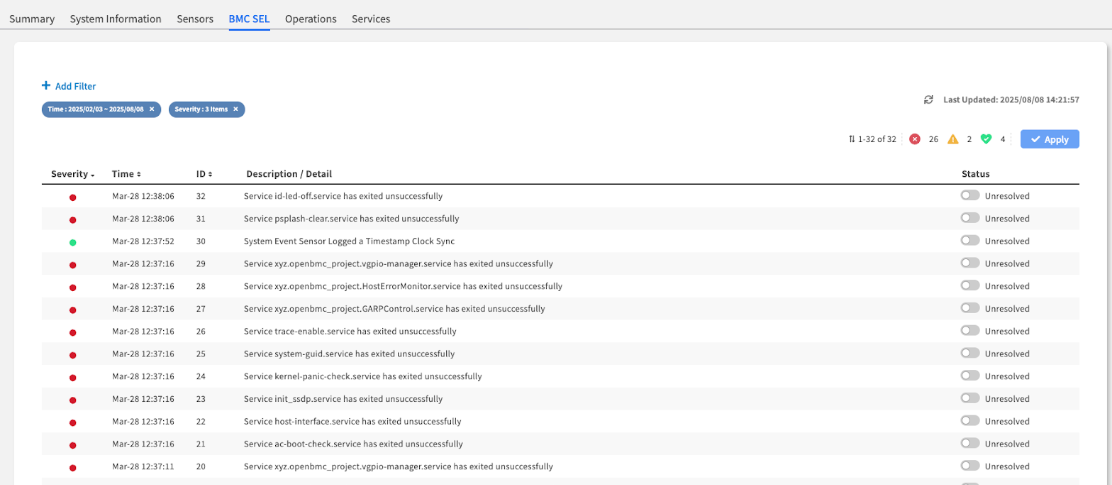
The main BMC SEL interface, showing the event list with color-coded severity indicators.
The main BMC SEL interface, showing the event list with color-coded severity indicators.
| Column | Description & Why It Matters | Usage Priority |
|---|---|---|
| Severity | The Event's Impact: Color-coded for immediate recognition. ● Critical (Red): Requires immediate attention. ● Warning (Orange): A non-critical issue that should be investigated. ● OK (Green): Informational events. | HIGHEST - Start here |
| Time | The Exact Timestamp: Crucial for correlating hardware events with other system logs to pinpoint a root cause. | HIGH - For correlation |
| Description | The "What Happened": A human-readable summary of the event. This is your most important clue. | HIGHEST - Key diagnostic info |
| Status | The Event's Lifecycle: An interactive toggle showing if the event is Unresolved (default, requires action) or Resolved (acknowledged and handled). | HIGH - For management |
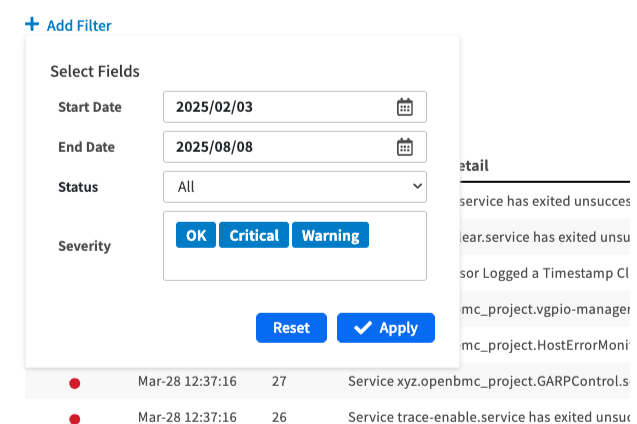
The "Add Filter" dialog box, showing the date and severity options.
Date Range:
Last 24 hours
| Focus on recent events | Troubleshooting current issues | |Severity:
Warning + Critical
| Exclude informational noise | Focus on actionable events | | **Specific Time Range** | Correlate with known incidents | Match with maintenance windows | #### **Advanced Filtering Strategies** **Incident Investigation**: * **Start Broad**: Begin with Critical + Warning events * **Narrow by Time**: Focus on timeframe when issues began * **Clear and Refocus**: Remove filters to see full context when needed **Regular Monitoring**: * **Daily Review**: Filter to last 24 hours, all severities * **Weekly Audit**: Review unresolved events across longer periods * **Maintenance Correlation**: Filter around planned maintenance activities *** ### Step 3: Manage and Resolve the Event This is the most critical part of the workflow. After you have taken action to fix the underlying physical issue, you must update the event's status in EDCC to clear the alert. {% hint style="warning" %} **Admin Permission Required**: Event resolution requires POD Admin or Organization Admin role. {% endhint %} #### **Resolution Workflow** **Step-by-Step Process**: 1. **Fix the Physical Issue**: Address the underlying hardware problem first 2. **Locate the Event**: Find the `Unresolved` event you have fixed 3. **Toggle Status**: Click the toggle switch in the **Status** column to change it to **Resolved** 4. **Save Changes**: **Crucially, click the `Apply` button** in the top-right corner of the page to save this change {% hint style="danger" %} #### Critical **Warning: Changes Are Not Saved Automatically** The `Resolved` status is **not saved** until you click the **Apply** button. If you navigate away **without clicking Apply**, the event will remain `Unresolved`, and any associated Dashboard alerts will not be cleared. {% endhint %} #### **Resolution Best Practices** **Before Marking Resolved**: * **Verify Fix**: Confirm the physical issue has been actually addressed * **Check Sensors**: Verify related sensors now show normal readings * **Test Functionality**: Ensure affected component is operating properly * **Document Action**: Note what was done to resolve the issue (for future reference) **Resolution Workflow Safety**: * **One at a Time**: Resolve events individually to avoid mistakes * **Double-Check**: Verify you're resolving the correct event * **Apply Immediately**: Click Apply after each resolution * **Verify Results**: Check Dashboard to confirm alert clearance *** ### The Critical Link Between SEL and the Dashboard **Overview:** The health status you see on the main `Dashboard` is directly controlled by the events in this log. Understanding this relationship is key to effective monitoring. #### **Dashboard Health Status Logic** | SEL Event Status | Dashboard Impact | Required Action | | -------------------------------- | ------------------------------- | ---------------------------------------------------- | | **Unresolved Critical Event(s)** | POD Health shows **`CRITICAL`** | Resolve physical issue + mark event Resolved + Apply | | **Unresolved Warning Event(s)** | POD Health shows **`WARNING`** | Investigate and resolve as appropriate | | **All Events Resolved** | POD Health shows **`GOOD`** | Normal monitoring | #### **Alert Clearance Process** ``` Physical Issue → SEL Event → Dashboard Alert ↓ ↓ ↓ Physical Fix → Mark Resolved → Alert Cleared + Click Apply ``` **Key Points**: * If a node has even one **`Unresolved Critical`** event in its SEL, the overall POD Health on the Dashboard will be flagged as **`CRITICAL`** * To clear that **`CRITICAL`** status, you **must** complete the workflow: fix the hardware issue, then mark the corresponding event(s) here as **`Resolved`** and click `Apply` * Dashboard alerts will **NOT** clear until both the physical issue is resolved **AND** the event status is updated in the SEL *** ### Event Log Management Strategies #### **Daily Operations** **Morning Health Check**: 1. **Review Unresolved Events**: Check for any critical or warning events 2. **Verify Recent Events**: Look for new events since last check 3. **Correlate with Dashboard**: Ensure Dashboard status matches SEL status 4. **Plan Actions**: Prioritize critical events for immediate attention #### **Incident Response** **When Dashboard Shows Critical**: 1. **Navigate to SEL**: Go directly to affected node's BMC SEL tab 2. **Identify Root Cause**: Find the critical event(s) causing the alert 3. **Gather Context**: Use filters to see event timeline and related events 4. **Plan Response**: Determine physical action needed based on event details #### **Maintenance Coordination** **Before Maintenance**: * **Document Baseline**: Note current unresolved events * **Plan Resolution**: Identify which events maintenance will address **After Maintenance**: * **Verify Fixes**: Check that physical work resolved the issues * **Update SEL Status**: Mark resolved events and click Apply * **Confirm Dashboard**: Verify Dashboard reflects successful resolution *** ### Chapter Summary & Key Takeaways * **Dashboard Alerts Start Here**: An alert on the Dashboard is a symptom. The detailed event in the SEL is the diagnosis * **Resolution is a Two-Step Process**: You must first fix the physical hardware issue, then mark the event as **`Resolved`** in this interface * **"Apply" is the Final Step**: Dashboard alerts will not clear until you have marked an event as **`Resolved`** **and** clicked the **Apply** button * **Use Filters**: In a "log storm," the filter is your best tool for finding the initial root-cause event * **Admin Rights Required**: Event resolution requires Admin permissions - Viewers can investigate but cannot resolve * **Direct Dashboard Connection**: SEL event status directly controls Dashboard health indicators **What's Next**: Chapter 7.5 will explore the Operations tab, where you'll learn to execute direct BMC commands for power management, firmware updates, and system maintenance operations. > 💡 **Pro Tip**: Develop a habit of checking the SEL whenever Dashboard health changes - it's your fastest path to understanding what happened and what needs to be fixed.