# Node List

## Chapter 6: Managing Nodes with the Node List

Your command center for viewing, organizing, and performing powerful batch operations on all nodes within your POD.

> ℹ️ **Node Management Access**
>
> * **Available to**: All user roles
> * **Scope:** Organization, Hierarchy View, POD levels
> * **Permissions:**
>   * **Admin roles:** Full management capabilities within authorized PODs
>   * **Viewer roles**: Monitor-only access

## Overview

The Node List is the heart of your daily management tasks. Think of it as a powerful spreadsheet built for infrastructure management. Its entire purpose is to help you efficiently perform three core tasks:

**Find:** Quickly locate specific nodes using search and filters.

**Organize:** Group nodes into logical collections that mirror your operational needs.

**Act:** Execute powerful individual or bulk (batch) operations.

This chapter will guide you through mastering this workflow.

💡 Scope Impact: The Node List content changes based on your selected scope:

* Organization/HV: Shows nodes from all authorized PODs within that scope
* POD: Shows only nodes from the selected POD
* Permission Filtering: You only see nodes from PODs you have access to

{% hint style="warning" %}

#### Scope Impact

The Node List content changes based on your selected scope:

* Organization/HV: Shows nodes from all authorized PODs within that scope
* POD: Shows only nodes from the selected POD
* Permission Filtering: You only see nodes from PODs you have access to
  {% endhint %}

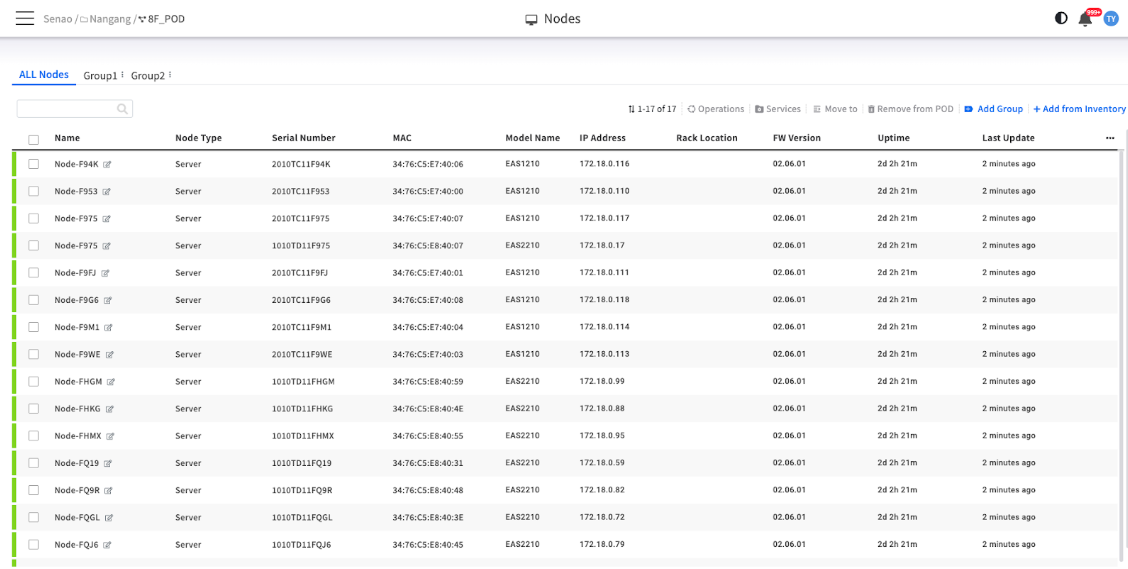
<figure><img src="https://content.gitbook.com/content/iGPGTG6LFrVfBRB76ZPF/blobs/N8jN7AiH0jaAifPm3p01/image.png" alt=""><figcaption><p><mark style="background-color:$info;">The main Node List interface, showing the group tabs, search bar, bulk operations toolbar, and the node table</mark></p></figcaption></figure>

## Finding the Nodes You Need

In any large environment, your first challenge is to pinpoint the right nodes.

### Search & Filter Options

<table><thead><tr><th width="163.953125">Method</th><th width="211.38671875">Best Used For</th><th>Example</th></tr></thead><tbody><tr><td>Search Bar</td><td>Quick lookup by known identifiers</td><td>Search "EAS1210" or "192.168.1.100"</td></tr><tr><td>Column Sorting</td><td>Trend identification</td><td>Sort by "Uptime" to find recently rebooted nodes</td></tr></tbody></table>

### Search Strategies

**Quick Identification:**

* **Search Bar:** Use the search bar at the top to instantly find a node by its Name, Serial Number, or IP Address
* **Column Sorting:** Click on any column header (e.g., Uptime, Last Update) to sort the entire list. This is a quick way to find nodes that have recently rebooted or haven't checked in

{% hint style="success" %}
**Pro Tip:** Combine sorting with filtering for powerful queries like "Show all EAS2210 models sorted by oldest firmware version"
{% endhint %}

## Organizing Your Nodes with Groups

Once you can find your nodes, the next step is to organize them for efficient management.

### What are Groups? A "Tagging" System

{% hint style="warning" %}
**Critical Concept:** Groups in EDCC are labels (or tags), not folders.
{% endhint %}

**Key Characteristics:**

* **Flexible Membership:** A single node can belong to many groups at the same time. For example, a node could be tagged as "Database Servers," "Linux," and "Floor-8-Rack-A" simultaneously
* **For Organization Only:** Placing a node in a group does not change its configuration. It is purely an organizational tool to make selecting and viewing nodes easier
* **Cross-POD Groups:** Groups can contain nodes from multiple PODs (when viewing at Organization or HV level)

### Why Groups are Your Most Powerful Tool

The time you invest in creating logical groups will pay off massively when you perform bulk operations.

#### **Recommended Grouping Strategies:**

<table><thead><tr><th width="205.15234375">Strategy</th><th>Example Groups</th><th>Use Case</th></tr></thead><tbody><tr><td>By Role</td><td>Web Servers, Database Servers, Compute Nodes</td><td>Application-specific maintenance</td></tr><tr><td>By Environment</td><td>Production, Staging, Development</td><td>Environment-based operations</td></tr><tr><td>By Physical Location</td><td>Data-Center-A-Rack-10, Branch-Office-B</td><td>Physical maintenance planning</td></tr><tr><td>By Maintenance Policy</td><td>Update-Group-A (first Sunday), Update-Group-B (second Sunday)</td><td>Scheduled maintenance</td></tr><tr><td>By Criticality</td><td>Mission-Critical, Standard, Development</td><td>Priority-based management</td></tr></tbody></table>

{% hint style="success" %}
**Best Practice: The Payoff**

A clear grouping strategy is the foundation of efficient bulk management. Once your groups are set, a task like "Power down all development servers" becomes as simple as:

1. Click the "Development" group tab
2. Select all nodes
3. Execute the bulk "Power Off" operation
   {% endhint %}

### How to Create and Manage Groups

You can create and manage groups using two main workflows, depending on your preference.

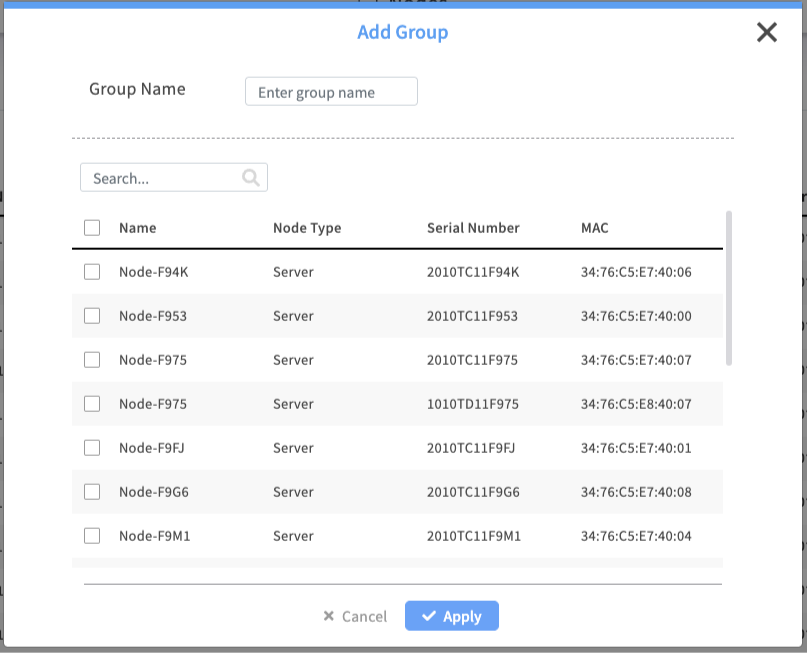
#### Method A: Create an Empty Group, Then Add Nodes

1. Ensure you are on the **All Nodes** tab.
2. Click the **+ Add Group** button on the toolbar.
3. Enter a **name** for your group (e.g., "Production-DB-Servers") and click Apply.
4. Click your newly created group tab.
5. Click the **Add** from ALL nodes button on the toolbar, then check the boxes for the nodes you wish to add to this group.

<figure><img src="https://content.gitbook.com/content/iGPGTG6LFrVfBRB76ZPF/blobs/cUImKLU5YTQZOz8HcQHL/image.png" alt=""><figcaption></figcaption></figure>

#### Method B: Select Nodes First, Then Create a Group (Recommended)

1. On the **All Nodes** tab, check the boxes next to the nodes you want to group together.
2. Click the **+ Add Group** button on the toolbar.
3. Enter a **name** for your group.
4. Click **Apply.** EDCC automatically creates the new group and adds your selected nodes to it.

#### How to Remove a Node from a Group

1. Click on the custom group's tab.
2. Check the boxes next to the nodes you want to remove.
3. Click the Remove from Group button on the toolbar.

{% hint style="warning" %}
&#x20;**Important Concept:** "Remove from Group" does not delete the node from the POD. It only removes the "tag." The node remains fully managed and is still visible in the All Nodes list.
{% endhint %}

## Taking Action on Your Nodes

After you've found and selected your target nodes, you can perform a wide range of management actions.

### Quick Actions on a Single Node

For any node in the list, click the **... (More actions) menu** on the far right to access direct management shortcuts. These are your go-to tools for deep-dive troubleshooting on an individual node.

<table><thead><tr><th width="138.01953125">Action</th><th width="465.13671875">Purpose</th><th>Access Level</th></tr></thead><tbody><tr><td>Details</td><td>Your primary entry point for in-depth analysis. Takes you to the full Node Detail page</td><td>All users</td></tr><tr><td>BMC Web</td><td>Opens the node's native Baseboard Management Controller (BMC) web interface in a new browser tab</td><td>All users</td></tr><tr><td>BMC KVM</td><td>Launches a KVM (Keyboard, Video, Mouse) remote console session, giving you direct, OS-level graphical control</td><td>All users</td></tr><tr><td>BMC Console</td><td>Launches a Serial-over-LAN (SoL) console session, providing a lightweight, text-based command-line interface</td><td>All users</td></tr></tbody></table>

<figure><img src="https://content.gitbook.com/content/iGPGTG6LFrVfBRB76ZPF/blobs/cm84ropWTmBhvodySAs9/image.png" alt=""><figcaption><p><mark style="background-color:$info;">The action menu for a single node, showing "Details", "BMC Web", "BMC KVM", and "BMC Console</mark></p></figcaption></figure>

### Powerful Bulk (Batch) Operations

This is where you can save the most time. To begin, select the checkboxes next to one or more nodes. This will activate the bulk operations toolbar.

Crucially, the available buttons on the toolbar change depending on which group tab you have selected.

<figure><img src="https://content.gitbook.com/content/iGPGTG6LFrVfBRB76ZPF/blobs/BDj0Aq4GZpGdMC8Y8iwb/image.png" alt=""><figcaption><p><mark style="background-color:$info;">The Node List toolbar, highlighting the bulk operations area</mark></p></figcaption></figure>

#### **Bulk Operations in the "All Nodes" Tab**

This view is your main hub for asset management and initial organization.

* **Operations**: Execute remote actions (e.g., Power Control, Clear SEL) on all selected nodes.

> 💡 **Pro Tip**: As your team noted, this provides a subset of commands suitable for batch execution. For the full set of single-node operations (like change BMC password and mounting an ISO), see [Chapter 7.5: Executing Remote Operations.](https://doc.engenius.ai/edcc-user-manual/manage-module/node-detail-page/operations)

* **Service Subscription (or Services)**: Batch-assign or update the monitoring "Service Profiles" for multiple nodes at once.
* **Move to (or Move to POD)**: Moves the selected nodes from this POD to another POD. (Note: This typically requires Organization Admin permissions.)
* **Remove from POD**: Returns the selected nodes to the unassigned System > Inventory list. This un-manages the node.
* **Add Group**: Creates a new group tab. If you have nodes selected before clicking, they will be automatically added to this new group.
* **Add from Inventory (or Add Node)**: Begins the workflow to add unassigned nodes from the **`System > Inventory`** into this POD.

#### **Bulk Operations in a "Custom Group" Tab**

This view is your primary workspace for daily operations and maintenance on a specific set of nodes.

* **Operations:** Same as above, but acts only on the selected nodes within this group.
* **Service Subscription (or Services):** Same as above, for nodes in this group.
* **Remove from Group:** Removes the selected nodes from this group tag. The nodes remain in the "All Nodes" list.
* **Add from ALL nodes:** A convenient shortcut to add more nodes from the "All Nodes" list into this current group.

{% hint style="danger" %}
**Important: Measure Twice, Cut Once**

Bulk operations are powerful and execute immediately. There is no "undo" function. Always double-check which nodes are selected before you click "Apply".
{% endhint %}

## Reference: The Node Table Columns

The main table provides key information at a glance. While all columns are useful, pay special attention to these during daily checks:

<table><thead><tr><th width="139.2421875">Column</th><th width="421.40625">Description &#x26; What to Look For</th><th>Monitoring Priority</th></tr></thead><tbody><tr><td>Name</td><td>The unique identifier for the node</td><td>Identity</td></tr><tr><td>Node Type</td><td>Physical or Virtual device classification</td><td>Planning</td></tr><tr><td>Serial Number</td><td>Hardware serial for warranty and support</td><td>Support</td></tr><tr><td>MAC Address</td><td>Network identifier for BMC interface</td><td>Network</td></tr><tr><td>Model Name</td><td>The specific EnGenius model (e.g., EAS1210). Useful for filtering</td><td>Inventory</td></tr><tr><td>IP Address</td><td>The IP address of the node's BMC, which EDCC uses for management</td><td>Critical</td></tr><tr><td>Rack Location</td><td>The physical location defined in POD View. Essential for finding a node</td><td>Physical</td></tr><tr><td>FW Version</td><td>The current BMC firmware version. Look for inconsistencies across nodes</td><td>⚠️ Security</td></tr><tr><td>Uptime</td><td>How long the node has been running. Look for unusually low uptime (recent reboot)</td><td>Health</td></tr><tr><td>Last Update</td><td>The last time EDCC received a status update. Look for old timestamps (offline nodes)</td><td>Critical</td></tr></tbody></table>

### Key Columns for Daily Monitoring

**Health Indicators (check these first):**

* **Last Update**: Old timestamps indicate communication issues
* **Uptime**: Low values suggest recent reboots or instability
* **IP Address**: Empty or incorrect IPs prevent management

**Consistency Checks (review periodically):**

* **FW Version**: Ensure consistent firmware across similar nodes
* **Model Name**: Verify hardware inventory accuracy

## Chapter Summary & Key Takeaways

* **Master the Workflow:** First Find your nodes (with search/filters), then Organize them (with groups), then Act on them (with single or bulk operations)
* **Groups are Tags:** Use groups as flexible labels to make selection and bulk operations fast and safe.
* **How-To is Key:** Create groups by selecting nodes in "All Nodes" and clicking "Add Group," or by adding nodes to a custom group using "Add from ALL nodes."
* **Context is Everything:** The bulk operations toolbar changes depending on whether you are in the "All Nodes" tab or a custom group tab.
* **Monitor Key Columns:** Uptime & Last Update are your best friends for spotting recently rebooted or unresponsive nodes.
* **Safety First:** Always double-check your selection before performing a powerful bulk operation.
* **Scope Awareness:** Remember that what you see depends on your selected scope and permissions.

**What's Next:** Chapter 7 will dive deep into individual node management using the Node Detail page, where you'll learn comprehensive monitoring and control of individual servers.

> 💡 **Pro Tip:** Create a daily routine of checking the Node List sorted by "Last Update" to quickly identify any nodes that haven't checked in recently.

<br>