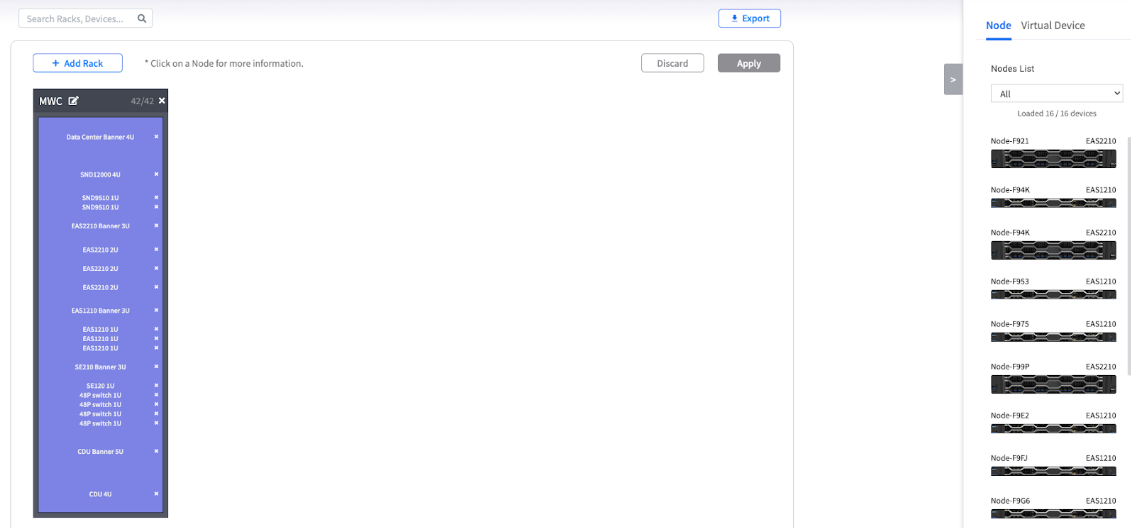
# POD View

## Chapter 8: Visualizing Topology with POD View

A powerful drag-and-drop tool for designing, planning, and documenting your logical rack layouts.

> ℹ️ **POD Topology**
>
> * **Available to**: All user roles
> * **Scope**: POD level (for editing) / Organization & HV levels (view-only)
> * **Permissions:**
>   * **Admin roles**: Full topology management (add, edit, delete) at the POD level.
>   * **Viewer roles**: View-only visualization.

{% hint style="danger" %}
**Note:** You can only create or modify rack layouts when you are in the POD scope. Org/HV scopes provide a read-only aggregated view.
{% endhint %}

***

## Overview: Your Digital Whiteboard for Rack Planning

The **`MANAGE → POD`** View is your digital whiteboard for creating a logical representation of your data center racks. It's a powerful planning and documentation tool that allows you to design, visualize, and share your rack layouts without ever stepping foot in the data center. Its core purpose is to bridge the gap between your physical hardware and your logical management structure.

{% hint style="warning" %}
**mportant: This is a Planning Tool, Not a Live Monitor**

It is crucial to understand that POD View is for organizational and planning purposes only. The arrangements you make here (e.g., placing a node in a rack) do not affect the node's actual operation, network configuration, or management status.
{% endhint %}

***

## Why Use POD View? Your Primary Use Cases

Before diving into the "how," it's important to understand the "why." POD View is a strategic tool designed to solve several key challenges in data center management.

<table><thead><tr><th width="162.95703125">Use Case</th><th width="313.44140625">Purpose</th><th>Benefits</th></tr></thead><tbody><tr><td><strong>Initial Data Center Design</strong></td><td>Before any hardware is installed, use POD View and Virtual Devices to create a complete logical map of your planned environment</td><td>Plan layouts including servers, switches, and PDUs</td></tr><tr><td><strong>Capacity Planning</strong></td><td>As your infrastructure grows, use Virtual Devices to plan for future expansion and reserve rack space</td><td>Visualize future growth and space allocation</td></tr><tr><td><strong>Physical Maintenance &#x26; Identification</strong></td><td>Help technicians quickly and accurately identify the logical location of a specific node within a rack</td><td>Reduce human error during physical work</td></tr><tr><td><strong>Documentation and Reporting</strong></td><td>Click the Export button to generate a PDF of your layout for official technical documentation</td><td>Create standardized rack documentation</td></tr></tbody></table>

***

## Understanding the POD View Workspace

The interface is divided into three main areas. The canvas is where you build, the device panel is your inventory of building blocks, and the action buttons are your tools.

<figure><img src="https://content.gitbook.com/content/iGPGTG6LFrVfBRB76ZPF/blobs/jsuFyM0C4quUNYYLRs73/image.png" alt=""><figcaption><p><mark style="background-color:$info;">The main POD View interface, showing the rack canvas on the left and the device panel on the right.</mark></p></figcaption></figure>

#### **The Rack Canvas**

This is your digital data center floor, where you place and organize your virtual racks to mirror your physical layout.

#### **The Device Panel**

This sidebar is your palette of all available equipment, separated into the hardware you actually manage and the conceptual items you need for planning.

<table><thead><tr><th width="132.640625">Tab</th><th width="288.94140625">Content</th><th>Purpose</th></tr></thead><tbody><tr><td><strong>Node Tab</strong></td><td>Lists all the real, managed EnGenius nodes in this POD</td><td>Place actual managed hardware</td></tr><tr><td><strong>Virtual Device Tab</strong></td><td>Contains non-real, placeholder devices you can create for planning</td><td>Plan for switches, firewalls, or future servers</td></tr></tbody></table>

#### **The Action Buttons**

This is your command toolbar for managing the entire layout.

<table><thead><tr><th width="108.27734375">Button</th><th width="339.0859375">Function</th><th>Purpose</th></tr></thead><tbody><tr><td><strong>Add Rack</strong></td><td>Opens the dialog to create new racks on your canvas</td><td>Create rack containers</td></tr><tr><td><strong>Apply / Discard</strong></td><td>Saves or cancels the changes you've made to your layout</td><td>Manage layout changes</td></tr><tr><td><strong>Export</strong></td><td>Allows you to export the current rack layout as a PDF document</td><td>Generate documentation</td></tr></tbody></table>

***

## Building Your Topology: A Step-by-Step Guide

Follow these steps to create a visual representation of your POD's infrastructure, moving from creating the large containers (racks) to placing the individual components within them.

### **Step 1: Adding and Naming Racks**

Your first step is to create the virtual racks that will serve as the containers for all your devices.

**Process**:

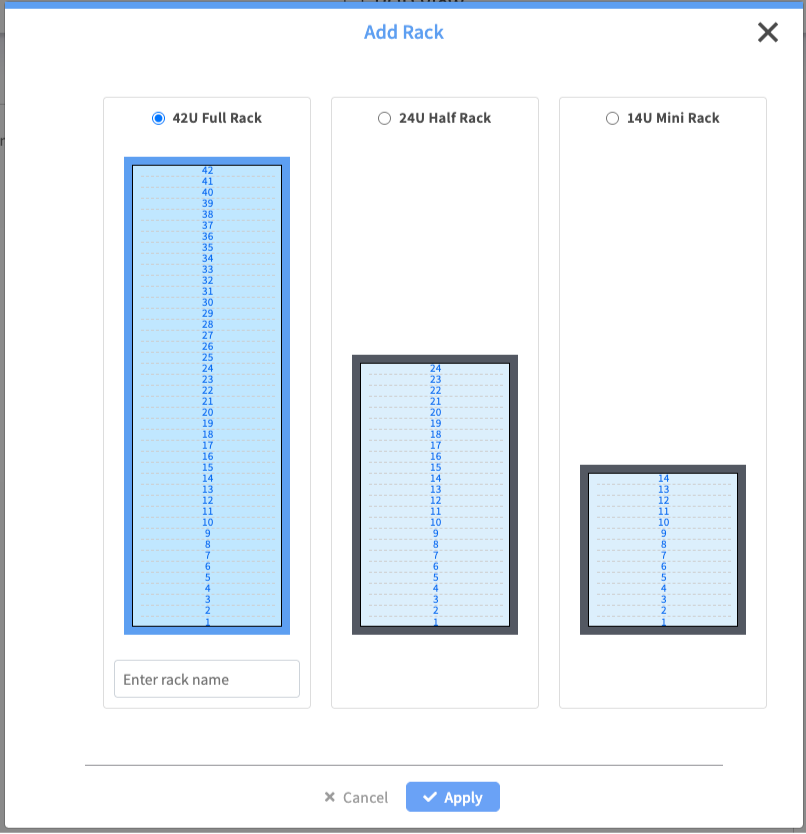
1. Click the **+ Add Rack** button
2. In the Add Rack dialog, choose a standard size:
   * **42U Full Rack**
   * **24U Half Rack**
   * **14U Mini Rack**
3. Enter a descriptive **Name** for the rack
4. Click **Apply**

<figure><img src="https://content.gitbook.com/content/iGPGTG6LFrVfBRB76ZPF/blobs/Q0ReJvjR3mBBzbmNVV8d/image.png" alt=""><figcaption><p><mark style="background-color:$info;">The "Add Rack" dialog showing the three rack type options.</mark></p></figcaption></figure>

### **Step 2: Adding Real Nodes to Racks**

Now you can place your real, managed EnGenius nodes into the racks.

**Process**:

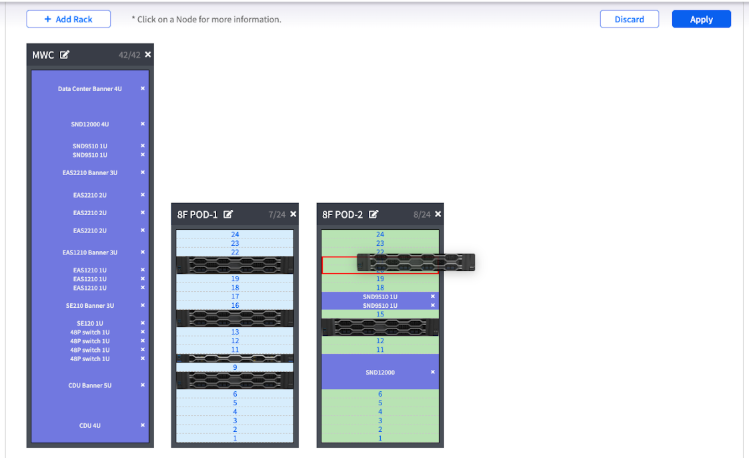
1. In the Device Panel, select the **Node tab**
2. Use the dropdown menu to filter the list by **Groups**
3. **Click and drag** a node from the list and drop it into an empty slot in a rack

<figure><img src="https://content.gitbook.com/content/iGPGTG6LFrVfBRB76ZPF/blobs/v4pX1N4XJK4U8doC23O2/image.png" alt=""><figcaption><p><mark style="background-color:$info;">An animation or image showing a node being dragged from the Node List and dropped into a rack.</mark></p></figcaption></figure>

### **Step 3: Planning with Virtual Devices**

**Overview**: Use virtual devices to create a complete representation of your rack space, including non-managed hardware or future additions.

**Process**:

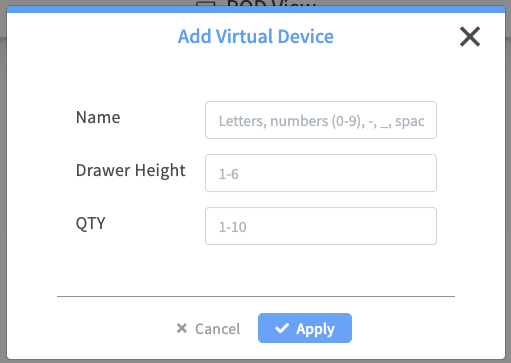
1. Select the **Virtual Device tab**
2. Click **+ Add Device** to create a new placeholder
3. Configure the placeholder's:
   * **Name**
   * **Height** (in U)
   * **Quantity**
4. Click **Apply**

<div align="left"><figure><img src="https://content.gitbook.com/content/iGPGTG6LFrVfBRB76ZPF/blobs/UkuRLtFjU2EyLarneB39/image.png" alt=""><figcaption><p><mark style="background-color:$info;">The "Add Virtual Device" dialog box.</mark></p></figcaption></figure></div>

***

## Managing Your Racks and Devices

Creating the layout is just the first step. Here is how you manage, modify, and see details for the items on your canvas.

### Viewing Node Details in the Rack

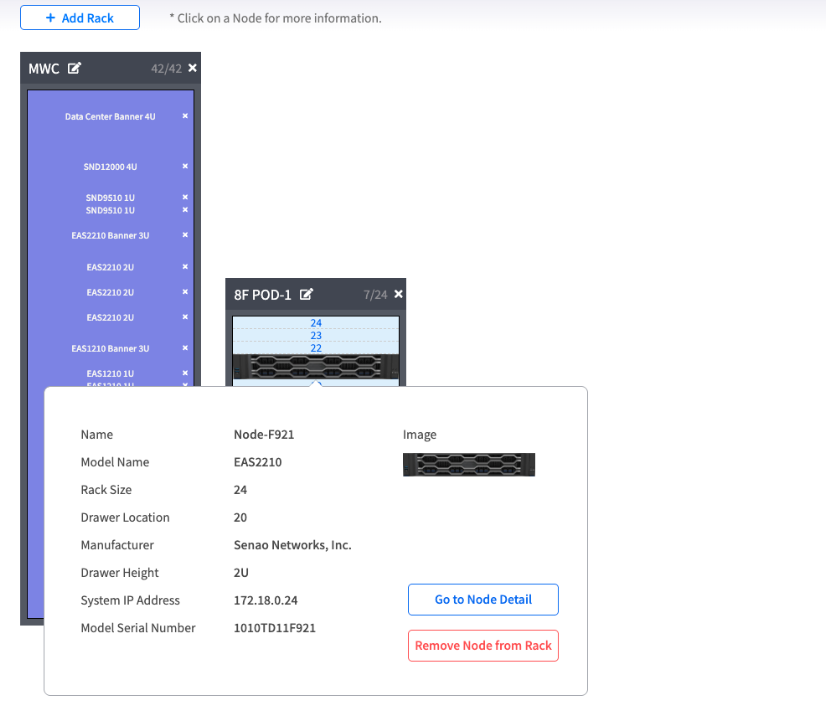
To quickly see the details of a node you have placed in a rack:

1. **Hover** your mouse over the node in the rack.
2. A tooltip will appear showing key details, such as its full **Name, Model, Serial Number, and IP Address.**

<figure><img src="https://content.gitbook.com/content/iGPGTG6LFrVfBRB76ZPF/blobs/eG4TUhIujXLvAI2ncvgC/image.png" alt=""><figcaption></figcaption></figure>

### Editing a Rack's Name

If your naming conventions change or you made a typo:

1. **Double-click** on the rack's nameplate (the title bar of the rack).
2. The name will become an editable text field.
3. Type the new name and press **Enter** to confirm.

### Removing a Device from a Rack

If a node is moved or decommissioned, you can remove it from the visual layout.

* To Remove a Real Node:
* Find the node in the rack.
* Click the **"X" icon** on the right side of the node's entry in the rack.
* The node will be removed from the rack and will reappear in the **Node Tab** list on the right, ready to be placed again.
* To Remove a Virtual Device:
* Find the virtual device in the rack.
* Click the **"X" icon** on its entry.
* The device will be removed from the rack and will reappear in the **Virtual Device Tab** list.

### Deleting a Rack

If a rack is no longer needed:

1. Ensure the rack is **empty**. You cannot delete a rack that still contains nodes or virtual devices. Remove all items first (see step above).
2. Click the **trash can** icon (Delete) located on the rack's nameplate.
3. Confirm the deletion. The empty rack will be removed from the canvas.

***

### Saving and Exporting Your Work

All your layout changes are temporary until you explicitly save them.

**Control Options**:

* **Apply**: Click to save your current layout
* **Discard**: Click to cancel all changes
* **Export**: Click to download the current layout as a PDF file

{% hint style="danger" %}
**Common Mistake: Forgetting to Click Apply**

Your layout changes are not saved automatically. Always click **Apply** to save your work.
{% endhint %}

***

## Chapter Summary & Key Takeaways

* **It's a Blueprint, Not the Building**: POD View is for planning and documentation. Changes here are logical and do not affect the real nodes
* **Virtual Devices are for Complete Planning**: Use virtual devices to represent everything in your rack—not just EnGenius nodes—for a truly accurate layout
* **Groups Save Time**: Organize your nodes into groups in the Node List first to make finding and placing them here much easier
* **Apply to Save**: Your work is not saved until you click the Apply button
* **Admin Rights for Changes**: Layout modifications require Admin permissions - Viewers can visualize but cannot modify

**What's Next**: Now that you understand the core **`MANAGE`** module, Part 3 will explore the **`CONFIGURE`** module for POD-level automation and deployment tasks.

> 💡 **Pro Tip**: Use groups strategically in the Node List before coming to POD View - it makes finding and organizing nodes in your rack layouts much more efficient.