> For the complete documentation index, see [llms.txt](https://doc.engenius.ai/llms.txt). Markdown versions of documentation pages are available by appending `.md` to page URLs; this page is available as [Markdown](https://doc.engenius.ai/home-cloud-user-manual/configuring-networks/configuring-gateway/configuring-firewall.md).
# Configuring Firewall
This section describes the various firewall configuration options and capabilities of the EnGenius Security Gateway. You can access this page from **Configure > Gateway > Firewall**
## Outbound rules
Here you can configure permit or deny Access Control List (ACL) statements to determine what traffic is allowed between VLANs or out from the LAN to the Internet. These ACL statements can be based on protocol, source IP address and port, and destination IP address and port. These rules **do not** apply to VPN traffic. To configure firewall rules that affect traffic between VPN peers, please refer to Site-to-site VPN Settings
Click **Add a rule** to add a new outbound firewall rule.

* The **Protocol** field allows you to specify TCP traffic, UDP traffic, ICMP traffic, or Any.
* The **Policy** field determines whether the ACL statement permits or blocks traffic that matches the criteria specified in the statement.
* The **Src.IP** and **Dest.IP** fields support IPs or CIDR subnets. Multiple IPs or subnets can be entered comma-separated.
* The **Src. Port** and **Dest.Port** fields support port numbers. Multiple ports can be entered comma-separated. \
You can enter additional information in the **Description** field
* Apply to all ESG in the org: It is used when you want to have the same firewall rules in all gateways in one organization. so the outbound rules will be replicated to all EnGenius Gateway in the same Organization.
## Layer 7 firewall Rules
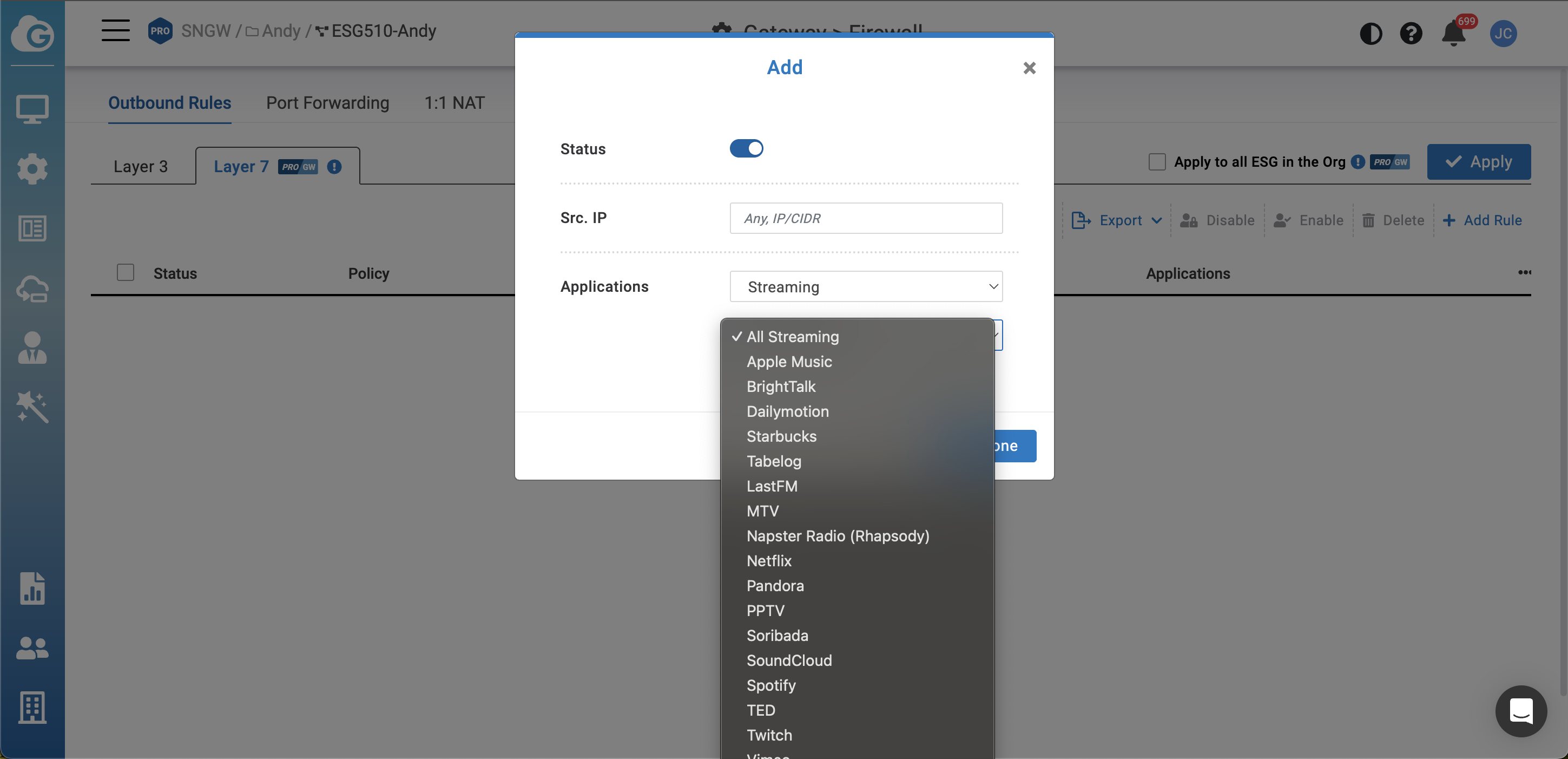
You can create firewall rules to **block** specific applications without specifying IP addresses or port ranges. This feature is particularly useful when applications frequently change their IP addresses or use multiple IPs
Click **Add a rule** to add a new outbound firewall rule.
You block entire categories and specific applications within a category. For instance, you can block all Steaming or Apple music/spotify while allowing business-critical ones
### Export CSV
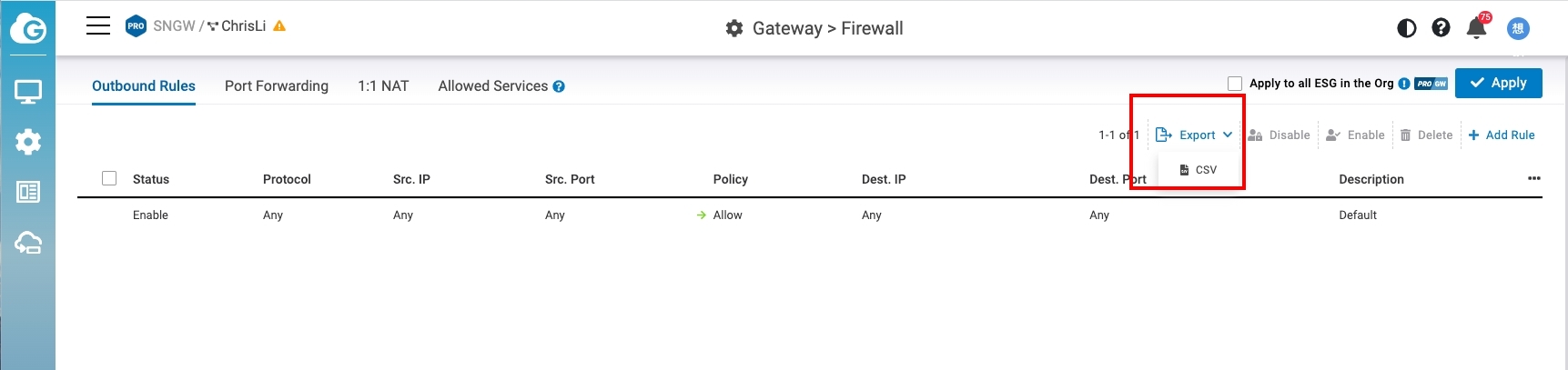
This allows you to generate a documented record of your outbound firewall rules in a CSV format. This documentation serves various purposes, including backup, future reference, and troubleshooting.
You can click on the **Export** button located at the top right corner to export current Outbound rules in a CSV format.
## Port Forwarding
Use this option to forward traffic destined for the WAN IP of the EnGenius Gateway on a specific port to any IP address within a local subnet or VLAN. Click **Add rule** to create a new port forward. You need to provide the following:

* **Protocol**: TCP or UDP.
* **Public IP:** Listen on the Public IP of WAN 1, WAN 2, or WAN1 & WAN2.
* **Public port**: Destination port of the traffic that is arriving on the WAN.
* **LAN IP**: Local IP address to which traffic will be forwarded.
* **Local port**: Destination port of the forwarded traffic that will be sent from the EnGenius Gateway to the specified host on the LAN. If you simply wish to forward the traffic without translating the port, this should be the same as the **Public port**.
* **Allowed remote IPs**: Remote IP addresses or ranges that are permitted to access the internal resource via this port forwarding rule.
* **Description**: A description of the rule.
### Export CSV
This allows you to generate a documented record of your port forwarding rules in a CSV format. This documentation serves various purposes, including backup, future reference, and troubleshooting.
You can click on the **Export** button located at the top right corner to export current Port forwarding rules in a CSV format.
## 1:1 NAT
Use this option to map an IP address on the WAN side of the EnGenius gateway (other than the WAN IP of the EnGenius Gateway itself) to a local IP address on your network. Click **Add a 1:1 NAT mapping** to create a new mapping. You need to provide the following:

* **Uplink**: The physical WAN interface on which the traffic will arrive.
* **Public IP**: The inbound destination public IP address that will be matched to access the internal resource from the WAN.
* **LAN IP**: The IP address of the server or device that hosts the internal resource that you wish to make available on the WAN.
* **Rules:** You can add rules to specify the matching conditions that only incoming connections matching the following conditions are accepted for 1:1 NAT service to access internal LAN resources.
* **Allowed Remote IPs**: Enter the source IP addresses/ranges that will be matched. You can specify multiple WAN IP addresses/ranges separated by commas.
* **Protocol**: Choose from **TCP**, **UDP**, **ICMP**, or **any**.
* **Public Ports**: Enter the destination port that will be matched. You can specify multiple ports separated by commas.
Creating a 1:1 NAT rule does not automatically allow inbound traffic to the public IP listed in the 1:1 NAT mapping. By default, all inbound connections are denied. You have to configure matching Rules as described above in order to allow the inbound 1:1 NAT traffic.
## Allowed Services
This allows you to configure the allowed services to access EnGenius Gateway

* **ICMP Ping:** Use this setting to allow the EnGenius Gateway to reply to inbound ICMP ping requests coming from the specified address(es). Supported values for the remote IP address field include **None, Any,** or a specific IP range (using CIDR notation). You can also enter multiple IP ranges separated by commas.
* **Web (local status & configuration):** Use this setting to allow or disable access to the local management page via the WAN IP of the EnGenius Gateway. Supported values for the remote IPs field are the same as for **ICMP Ping**.
## Syslog and Realtime firewall Logs
This feature allows users to log specific firewall rules for monitoring and troubleshooting. Logs can be stored in a syslog server or accessed in real-time to analyze network activities.
### Configuration Steps
1. Go to Gateway > Firewall > L3 outbound firewall rules or 1:1 NAT or port forwarding rules.
2. Check Syslog to identify which rule you need to save in the Syslog server or do real-time log download, then apply.
3. Those rules can be logged to syslog server but need to make sure you configured syslog server IP address in configure > general Settings > networks
4. When pressing Real-time logs, it will pop out to download real-time log (10\~60 seconds) information (PS: real-time log needs wait gateway configuration status is up to date)
{% hint style="info" %}
**Must know**
This feature requires gateway firmeware v1.2.70 or later versions.
{% endhint %}
---
# Agent Instructions
This documentation is published with GitBook. GitBook is the documentation platform designed so that both humans and AI agents can read, navigate, and reason over technical content effectively. Learn more at gitbook.com.
## Querying This Documentation
If you need additional information that is not directly available in this page, you can query the documentation dynamically by asking a question.
Perform an HTTP GET request on the following URL with the `ask` and `goal` query parameters:
```
GET https://doc.engenius.ai/home-cloud-user-manual/configuring-networks/configuring-gateway/configuring-firewall.md?ask=&goal=
```
`ask` is the immediate question: it should be specific, self-contained, and written in natural language.
`goal` is what the user is ultimately trying to achieve, the reason they need the answer. Sharing it helps GitBook give you a better, more relevant answer. A goal is most helpful when it describes the outcome the user wants rather than restating the question. For example, with `ask=how do I create an API token`, a goal like `build a script that syncs our docs to a CMS` lets GitBook tailor the answer to that use case.
The response will contain a direct answer to the question and relevant excerpts and sources from the documentation.
Use this mechanism when the answer is not explicitly present in the current page, you need clarification or additional context, or you want to retrieve related documentation sections.