> For the complete documentation index, see [llms.txt](https://doc.engenius.ai/llms.txt). Markdown versions of documentation pages are available by appending `.md` to page URLs; this page is available as [Markdown](https://doc.engenius.ai/home-cloud-user-manual/configuring-networks/general-settings/wifi-calling.md).
# Wifi Calling
WiFi calling has gained immense popularity in recent years, enabling users to make phone calls and send texts over a WiFi connection rather than relying on traditional cellular networks. This is especially useful in areas with weak cellular coverage, where "WiFi calling" ensures reliable and high-quality communications through local WiFi networks and the internet. While WiFi Calling is already convenient for personal use, it can be particularly advantageous for businesses, especially those operating in environments with limited cellular connectivity.
### What is WiFi Calling and How Does it Work?
WiFi Calling is a feature that allows mobile devices to make phone calls over a WiFi network instead of relying on a cellular connection. While Voice over IP (VoIP) calls have been available for years through apps like Skype and WhatsApp, carrier-grade WiFi Calling offers a more seamless experience by integrating directly with mobile operators' networks.
Unlike traditional VoIP services, which require a separate app or platform, WiFi Calling works natively on mobile devices, automatically connecting to a carrier’s network via the internet. This is achieved through technologies like the IP Multimedia Subsystem (IMS) and the evolved Packet Data Gateway (ePDG). When a mobile device is outside of a cellular network’s coverage but connected to WiFi, it sets up a secure IPsec tunnel to the ePDG and continues the call seamlessly without dropping.
With WiFi Calling enabled, your phone will automatically choose the strongest available network, whether it's WiFi or cellular. If you’re in an area with a weak cellular signal, WiFi Calling provides a reliable alternative, offering better call quality and fewer disruptions. Although WiFi Calling prioritizes the best network available, your phone will still route calls through cellular networks when they are stronger.
Ultimately, WiFi Calling is an evolution of VoIP that integrates more transparently with mobile carriers, offering users a seamless calling experience without the need for extra apps or complicated setups.
### Benefits of WiFi Calling
1. Enhanced Reliability:\
WiFi Calling connects to the carrier network through multiple channels, significantly reducing the likelihood of dropped calls and connectivity issues. This reliability makes it particularly valuable for mission-critical communication in settings such as hospitals, schools, and public safety organizations.
2. Improved User Experience:\
WiFi calling allows employees and guests to connect to the strongest available signal, ensuring better call quality even when moving around the premises. It also prioritizes calls in congested areas, enhancing overall communication experiences.
3. No Additional Apps Required:\
Unlike VoIP services that often require separate apps or software, Wi-Fi calling is accessible directly through smartphones, simplifying the user experience and making it easier for everyone to utilize.
4. Reliable Backup Solution:\
For users in areas with inconsistent cellular service, Wi-Fi calling serves as an excellent backup option, automatically connecting to the strongest available signal when cellular connectivity is lost.
5. High-Quality Indoor Calling:\
When near a Wi-Fi router or access point, users can enjoy high-quality calls indoors, making Wi-Fi calling an effective solution for both home and office environments.
These benefits make WiFi Calling an essential communication tool, enhancing reliability, cost-efficiency, and overall user satisfaction.
However, there are some drawbacks to consider. Public WiFi hotspots may not always be reliable, and if you are on the move, you might encounter interruptions when switching between WiFi and cellular networks. Additionally, a congested WiFi network can degrade call quality, as your device competes for bandwidth with other connected devices. Although network segmentation can help alleviate this issue, it's not always feasible outside of controlled environments. Finally, some older smartphones may not support WiFi calling, limiting access to the feature.
### What is right for you?
Wi-Fi Calling is a great alternative to expensive carrier services and can also serve as a backup during weak mobile coverage, especially for remote workers.
The EnGenius AP prioritizes voice traffic with the EnGenius Wi-Fi Calling feature, ensuring better call quality even when other traffic is using Wi-Fi bandwidth.
With reliable Wi-Fi coverage in your office or business, simply enable the feature in your phone’s settings and enjoy improved call quality.
Of course, there are some cases where neither cellular nor WiFi service is great, like in a large outdoor area or indoor warehouses, but communication between employees and customers is still critical. In these cases, you may also want to explore other technologies like those offered with the [EnGenius Voice](https://www.engeniustech.com/yes-you-can-have-durable-long-range-phone-and-two-way-radio-communication-with-your-current-phone-system/) solutions that perform best in long-range environments.
### Setting Up on EnGenius Cloud
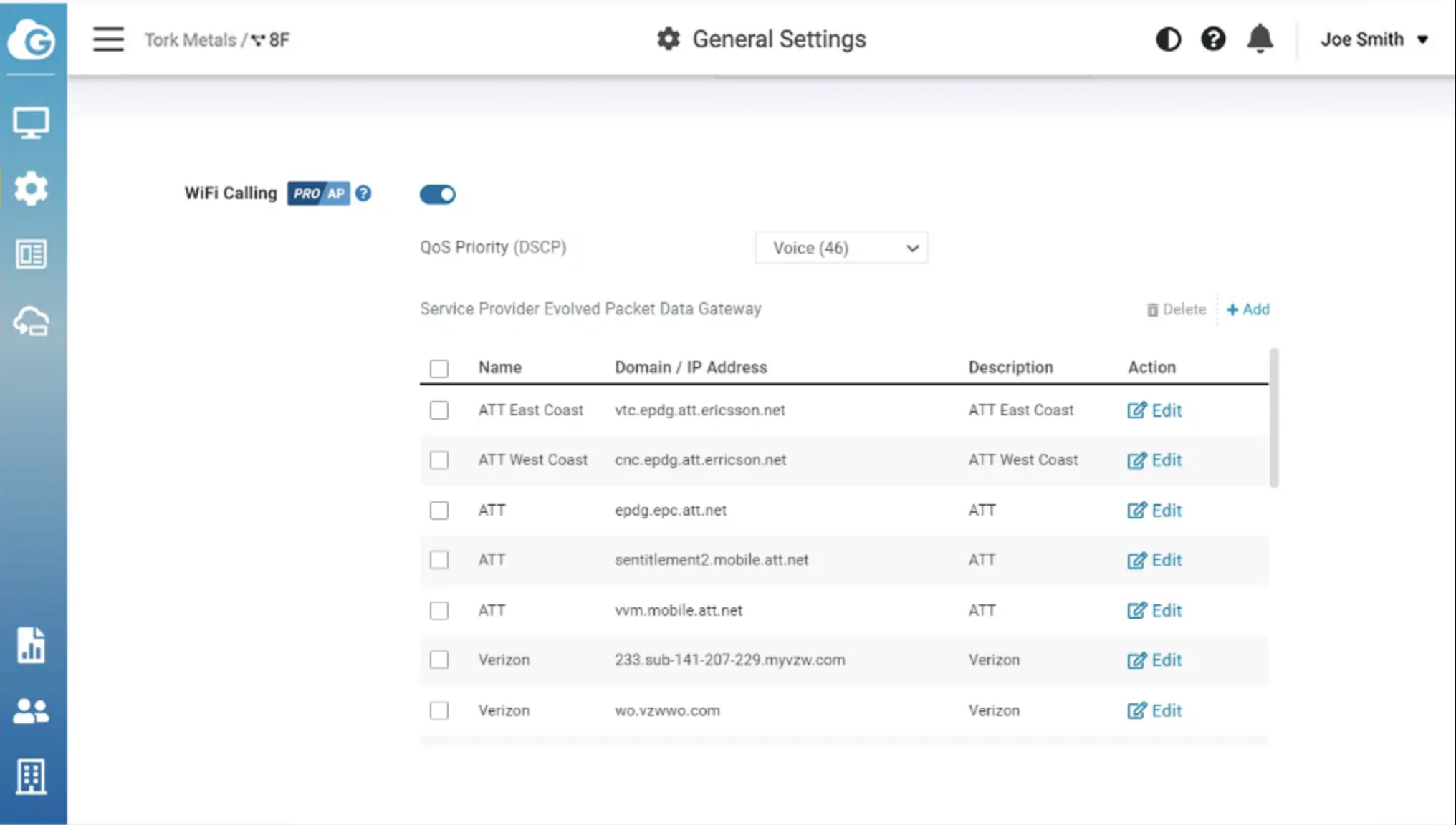
By enabling the EnGenius Wi-Fi Calling feature and configuring the eDPG profile, EnGenius Cloud can identify specific Wi-Fi Calling packets and remark the DSCP value to prioritize them. This ensures that voice traffic matching the eDPG profile criteria is processed with high priority by network devices, preventing it from being affected during Wi-Fi congestion. The setup steps are as follows:
1. Enable the Wi-Fi Calling feature on the [CONFIGURE > General Settings](https://cloud.engenius.ai/ezm/network/general) page.
2. Select the QoS Priority (DSCP).
3. Click the “Add” button to add the ePDG servers provided by your ISP.
---
# Agent Instructions
This documentation is published with GitBook. GitBook is the documentation platform designed so that both humans and AI agents can read, navigate, and reason over technical content effectively. Learn more at gitbook.com.
## Querying This Documentation
If you need additional information that is not directly available in this page, you can query the documentation by asking a question.
Perform an HTTP GET request on the following URL with the `ask` and `goal` query parameters:
```
GET https://doc.engenius.ai/home-cloud-user-manual/configuring-networks/general-settings/wifi-calling.md?ask=&goal=
```
`ask` is the immediate question: it should be specific, self-contained, and written in natural language.
`goal` is what the user is ultimately trying to achieve, the reason they need the answer. Sharing it helps GitBook give you a better, more relevant answer. A goal is most helpful when it describes the outcome the user wants rather than restating the question. For example, with `ask=how do I create an API token`, a goal like `automate deployments from our CI pipeline` lets GitBook tailor the answer to that use case.
The response will contain a direct answer to the question and relevant excerpts and sources from the documentation.
Use this mechanism when the answer is not explicitly present in the current page, you need clarification or additional context, or you want to retrieve related documentation sections.