> For the complete documentation index, see [llms.txt](https://doc.engenius.ai/llms.txt). Markdown versions of documentation pages are available by appending `.md` to page URLs; this page is available as [Markdown](https://doc.engenius.ai/home-cloud-user-manual/managing-devices/managing-camera/configure-and-check-camera-details.md).
# Configure and Check Camera Details
For each camera, there are more settings available to configure and fine-tune the system. In addition, EnGenius Cloud collects and aggregates lots of data reported by camera periodically. Sophisticated graphs and tables are available on the camera detail page to ease the monitoring and tracking of a camera. To get all the details, on **the cameras** page, hover your mouse cursor on the row of cameras you are interested in. A **Details** button is shown, and click on it to get into the camera detail page. To reboot cameras, you can still hover on the row of cameras. and click on the **Reboot** button.
## Summary
The first TAB page summarizes the camera's current settings and states. All details of configurations and statistics are shown on this page. On the top of the page, you can find the LED blinking button; this is used when you want to find where the camera is.
### **People / Vehicle Activities**
People and Vehicle Counting help you to gain valuable insights into the number of people or vehicles that appear in a particular location.
This data can then be used to gain a better understanding of the traffic flow and density of persons or vehicles in the area, allowing for informed decision-making and better security planning
### Record Overview
The will display whether the camera was recording video or not over a period of time. Green bars indicate the camera was recording on that period of time , The gray bar means the camera is not recording on that period of time
Place your cursor over each bar to see date, time, and recording status.
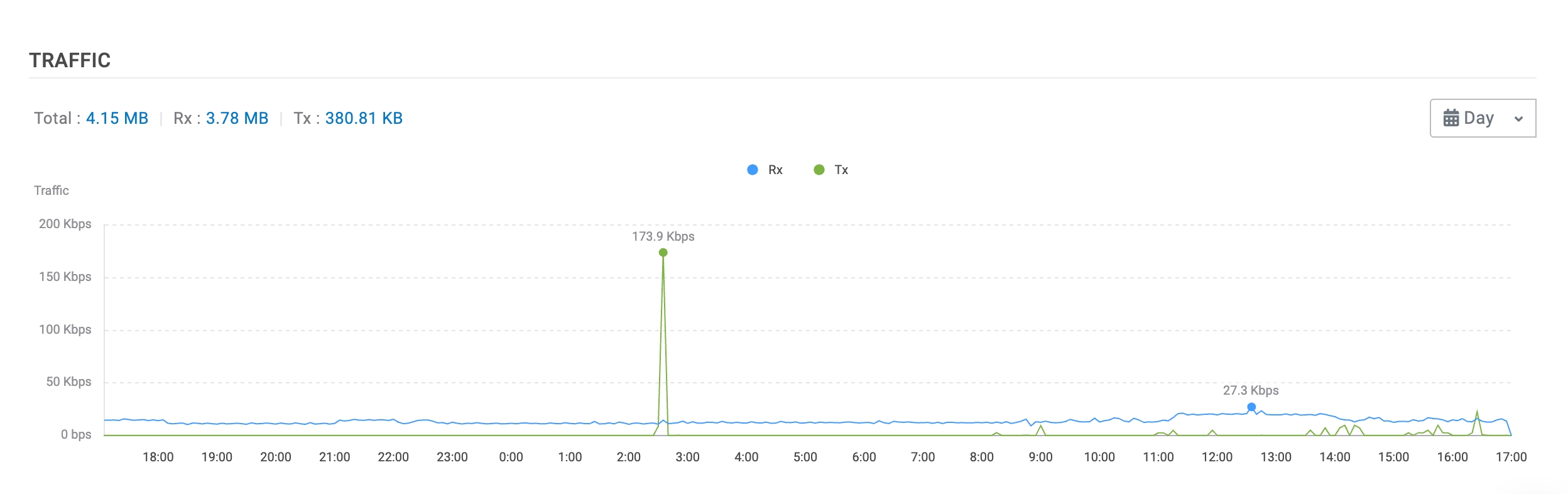
### Traffic
Traffic shows the camera Tx and Rx over a period of time
## Camera settings
### Image Control
* **Brightness**: Adjust the brightness level of the camera feed using the slider. The range is from 0% (minimum brightness) to 100% (maximum brightness). Increase the percentage to brighten the image, useful for low-light environments.
* **Contrast**: Modify the contrast level to enhance differences between light and dark areas in the image. Use the slider to set a value between 0% (lowest contrast) and 100% (highest contrast).
### Day night Mode
Select the operating mode for the camera based on lighting conditions:
* **Auto**: Automatically switches between day and night mode based on ambient light levels.
* **Always Day**: Keeps the camera in day mode regardless of lighting conditions, ideal for well-lit environments.
* **Always Night**: forces the camera into night mode, useful for consistently dark areas or nighttime surveillance.
### Orientation
Adjust the orientation of the camera image:
* **Normal**: Standard orientation, suitable for most setups.
* **Upside Down**: Flips the image vertically and mirror it too. Use this setting when the camera is mounted upside down.
### Iris Mode
**Iris** refers to the adjustable aperture of the camera lens that regulates the amount of light entering the camera sensor. Proper adjustment of the Iris ensures optimal image quality in varying lighting conditions.
Iris settings are critical to avoid issues like **flickering**, **rolling effects**, or over/underexposed images, depending on the environment where the camera is installed.
* Fixed Mode: The Iris is set to its **maximum opening**, allowing the maximum amount of light to enter the sensor. Suitable for low-light environments where capturing as much light as possible is essential.
* Indoor: Prioritizes eliminating **flickering** and **rolling effects** caused by indoor artificial lighting.
* Outdoor: Auto-setting Iris to get best quality, but easy to meet rolling or flicker effect in indoor environment.
### High Dynamic Range
High dynamic range are camera techniques for capturing the same image at different exposures and then merging those images together to form a single image. This is particularly useful where the image consists of very light and very dark areas (e.g., an indoor camera that faces a window to outside).
### Privacy Mask
Privacy Mask allows you to block sensitive areas from a camera’s feed. After you apply a privacy window to an area of the camera feed, subsequent video in the specified area is covered by dark.
### Real-Time Steaming Protocol
RTSP streaming is for 3rd party applications, NVR, VMS, or NAS. Both live video and audio are streamed out at the same time.
1. Username/password : 3rd party application client needs them for Digest authentication during connection.
2. High Resolution URL: This is created automatically for copying to clipboard and being pasted in 3rd party applications.
---
# Agent Instructions
This documentation is published with GitBook. GitBook is the documentation platform designed so that both humans and AI agents can read, navigate, and reason over technical content effectively. Learn more at gitbook.com.
## Querying This Documentation
If you need additional information that is not directly available in this page, you can query the documentation by asking a question.
Perform an HTTP GET request on the following URL with the `ask` and `goal` query parameters:
```
GET https://doc.engenius.ai/home-cloud-user-manual/managing-devices/managing-camera/configure-and-check-camera-details.md?ask=&goal=
```
`ask` is the immediate question: it should be specific, self-contained, and written in natural language.
`goal` is what the user is ultimately trying to achieve, the reason they need the answer. Sharing it helps GitBook give you a better, more relevant answer. A goal is most helpful when it describes the outcome the user wants rather than restating the question. For example, with `ask=how do I create an API token`, a goal like `automate deployments from our CI pipeline` lets GitBook tailor the answer to that use case.
The response will contain a direct answer to the question and relevant excerpts and sources from the documentation.
Use this mechanism when the answer is not explicitly present in the current page, you need clarification or additional context, or you want to retrieve related documentation sections.