> For the complete documentation index, see [llms.txt](https://doc.engenius.ai/llms.txt). Markdown versions of documentation pages are available by appending `.md` to page URLs; this page is available as [Markdown](https://doc.engenius.ai/home-cloud-user-manual/managing-devices/managing-camera/recording-playback-and-smart-motion-search.md).
# Recording Playback and Smart Motion Search
Live view, playback, and smart motion search are combined into one panel to reduce switching operations between each other. Normally, users spend time searching for videos on the timeline. Here smart Motion search makes it easy and reduces the number of times to play back and forward on record track
you can access Video Playback from **Monitor > Camera > Videos**
## Timeline Search
### Steps
1. Pick a specific day and time on the calendar.
2. Scroll on record track and then mouse up and down to the appropriate duration scale where event stamps on the timeline are clear.
3. Click pre- or next-events on the timeline, or mouse over the timeline to pop up an event snapshot and click on the timestamp to the time point.
4. Once abnormality is found, click pre- or next frame to locate a clear moment and take a snapshot or export a video clip.
## Smart Motion Search
This allows you to identify people and vehicles within the camera's field of view and quickly find relevant events.
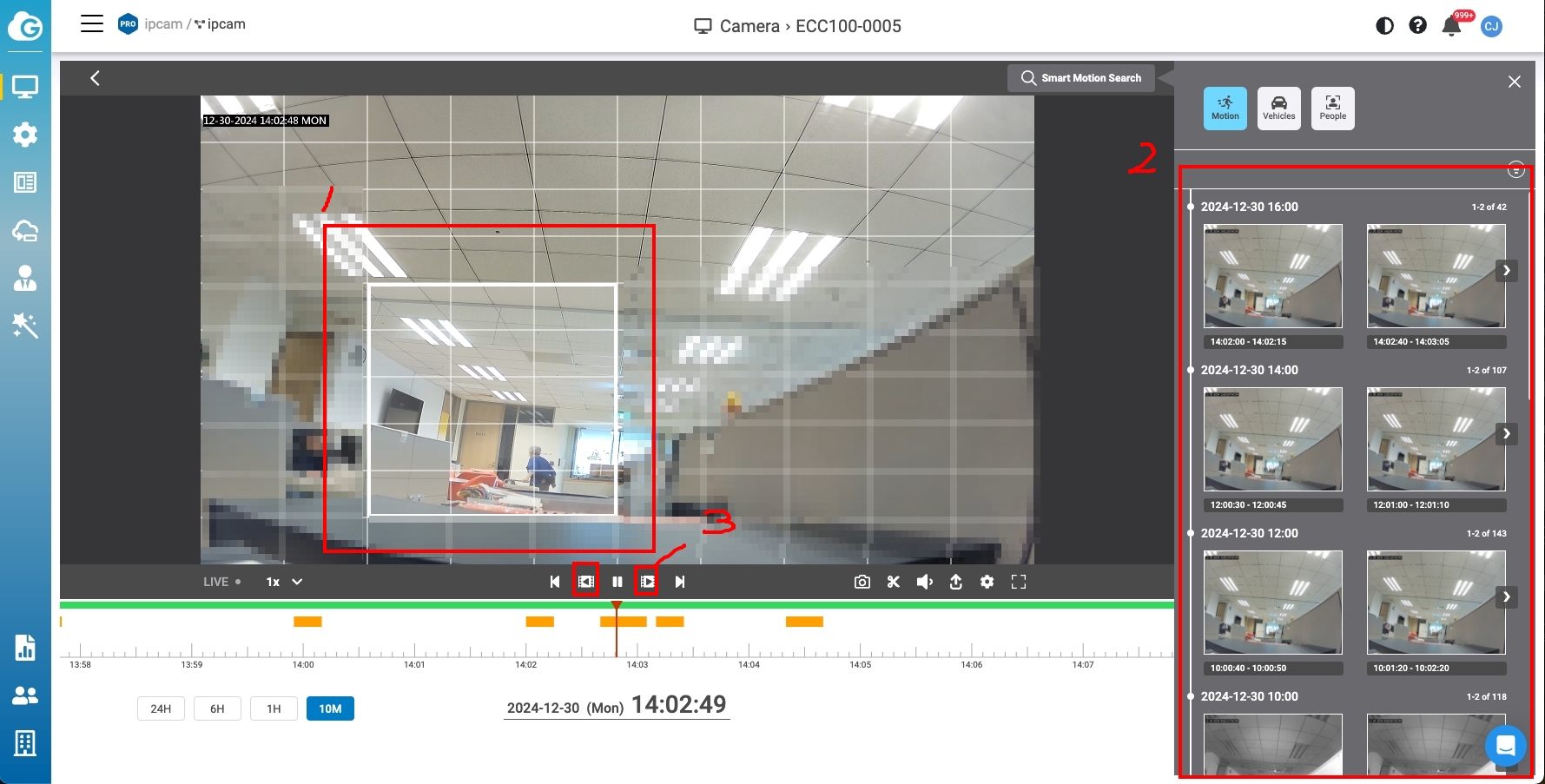
You can click the **smart motion search** on the top-right corner at the beginning.
### Steps
1. Set an interest region on video. Results are shown on paging, sorting from latest to past.
2. Check the snapshot or scroll down to the next page of results. Once an abnormality was found, click on the snapshot to playback the video clip on the timeline. Each time duration can have multiple search result , you can click right or left arrow icon to find it.
3. Once you can't find the results you want, you can click the filter icon to search based on the time duration.
4. Click pre- or next frame to locate a clear moment and take a snapshot or export a video clip.
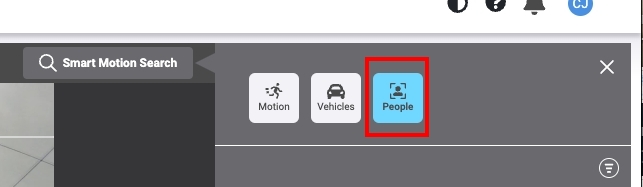
## People Search
This allows you to identify people within the camera's field of view and quickly find relevant events.
The details steps are the same when you do the motion search, but change to the People tab.
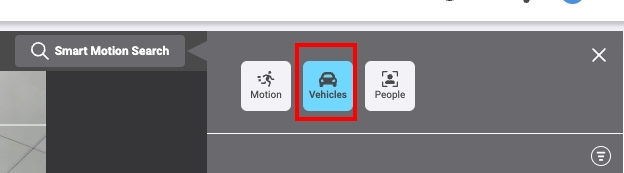
## Vehicle Search
This allows you to identify vehicles within the camera's field of view and quickly find relevant events.
The details steps are the same when you do the motion search, but change to the Vehicle tab.
## Animal Search
This allows you to identify vehicles within the camera's field of view and quickly find relevant events.
The details steps are the same when you do the motion search, but change to the Animal tab.
## Video Player User Interface
1. **Full Screen: click to have fullscreen of the videos.**
2. **Camera detail:** Go to the camera detail page to adjust camera settings.
3. **Share URL**: Anyone who has the URL can access it without authentication. The video is not autoplay to be able to have audio when playing. It is easy to share an abnormal event with a person who has no EeGenius account, like police.
4. **Audio On/Off:** Enable/Disable microphone of camera to pick up remote audio.
5. **Export Video:** Trim video from start time to end time on timeline
6. **Snapshot**: Directly have a snapshot at that moment when you click the button.
7. **Previous/Next Event**: Quickly navigate through recorded events in the camera's playback timeline.
8. **Stop at previous/next frame**: Precisely navigate through recorded footage frame by frame. This is especially useful for detailed analysis or capturing specific moments in the footage.
9. **Previous/Next Alert**: Quickly navigate through recorded alerts in the camera's playback timeline.
10. **Play/pause video**: click to switch to play or stop video and adjust the volume.
11. Play speed: This allows you to adjust the play speed. If you play at higher speed, you will get more footage frame from the cameras and double more throughputs.
12. Digital Zoom: Adjust the zoom level and focus on specific areas of the camera's view using the mouse.
* **Scroll Up:** Zoom in to view details more closely.
* **Scroll Down:** Zoom out to expand the field of view.
* **Click and Drag:** After zooming in, click on the screen and drag to adjust the visible area within the zoomed-in frame.
13. Adjust the timeline duration: Allows you to change the time line duration for the video time bar.
14. Live icon: click to go to live view instantly.
15. Calendar: Click to search the video footage at a specific day and time directly.
#### Video Timeline Indicator
Purple bar: Indicates backup footage stored on an NVS/NAS during this period.
Green bar: Indicates recording stored directly on the camera's local storage.
Orange bar: Indicates that an object was detected during this period.
Blue bar: Indicates the cloud AI analysis was processed during the period.
---
# Agent Instructions
This documentation is published with GitBook. GitBook is the documentation platform designed so that both humans and AI agents can read, navigate, and reason over technical content effectively. Learn more at gitbook.com.
## Querying This Documentation
If you need additional information that is not directly available in this page, you can query the documentation by asking a question.
Perform an HTTP GET request on the following URL with the `ask` and `goal` query parameters:
```
GET https://doc.engenius.ai/home-cloud-user-manual/managing-devices/managing-camera/recording-playback-and-smart-motion-search.md?ask=&goal=
```
`ask` is the immediate question: it should be specific, self-contained, and written in natural language.
`goal` is what the user is ultimately trying to achieve, the reason they need the answer. Sharing it helps GitBook give you a better, more relevant answer. A goal is most helpful when it describes the outcome the user wants rather than restating the question. For example, with `ask=how do I create an API token`, a goal like `automate deployments from our CI pipeline` lets GitBook tailor the answer to that use case.
The response will contain a direct answer to the question and relevant excerpts and sources from the documentation.
Use this mechanism when the answer is not explicitly present in the current page, you need clarification or additional context, or you want to retrieve related documentation sections.