> For the complete documentation index, see [llms.txt](https://doc.engenius.ai/llms.txt). Markdown versions of documentation pages are available by appending `.md` to page URLs; this page is available as [Markdown](https://doc.engenius.ai/home-cloud-user-manual/managing-team-members.md).
# Managing Team Members
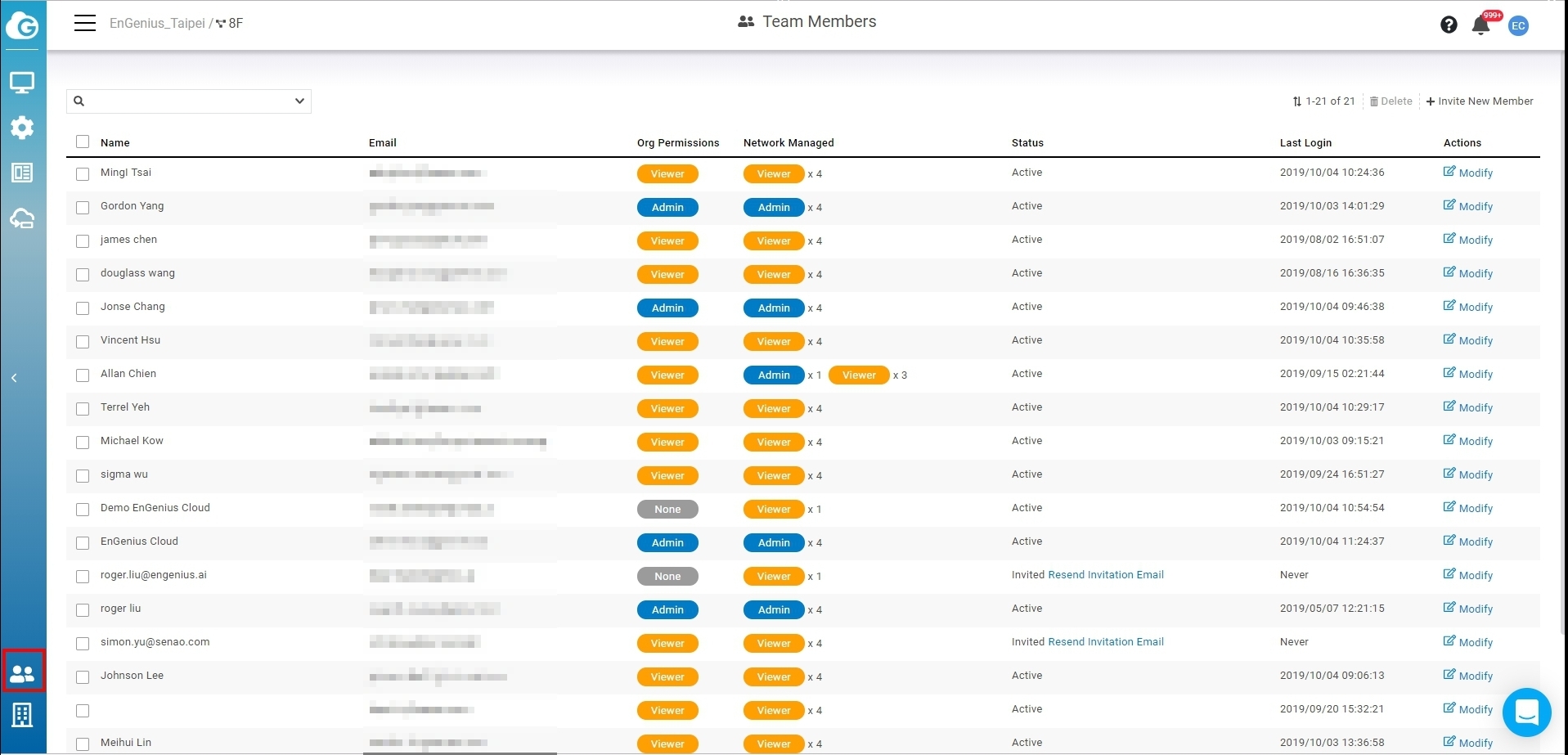
Use this screen to view, manage, and create user accounts for organization/network.
Click **Team Member icon** to access this screen.
The Team Member page contains the following information about each member:
* **Name :** member name **.**
* **Email :** member email .
* **Org Permissions :** member's org permissions .
* **Network Managed :** Displayed numbers of member's network permissions , hovering on the permission badge will display the network .
* **Status :** Member account status . **Active** means member has completed the signup . **Invited** means invitation mail had been sent but member hasn't complete the signup .
* **Last login : t**ime that user last logged in .
* **Modify :** click to modify the member permissions .
## Invite New Members
You can invite multiple users and assign them permissions for entire organization trees at once.
1. Input the **user email**, one per row.
2\. Assign member privileges for a network or organization.
3\. Click **Apply** to save changes.
## **Modify Member Permissions**
1. Click **Modify.**
2. Change the Permission based on the organization trees.
3. Click **Apply**.

---
# Agent Instructions
This documentation is published with GitBook. GitBook is the documentation platform designed so that both humans and AI agents can read, navigate, and reason over technical content effectively. Learn more at gitbook.com.
## Querying This Documentation
If you need additional information that is not directly available in this page, you can query the documentation dynamically by asking a question.
Perform an HTTP GET request on the current page URL with the `ask` query parameter, and the optional `goal` query parameter:
```
GET https://doc.engenius.ai/home-cloud-user-manual/managing-team-members.md?ask=&goal=
```
`ask` is the immediate question: it should be specific, self-contained, and written in natural language.
`goal` is optional and describes the broader end goal you are ultimately trying to accomplish on behalf of the user. GitBook uses it to tailor the answer towards what is most useful for that goal.
The response will contain a direct answer to the question and relevant excerpts and sources from the documentation.
Use this mechanism when the answer is not explicitly present in the current page, you need clarification or additional context, or you want to retrieve related documentation sections.