> For the complete documentation index, see [llms.txt](https://doc.engenius.ai/llms.txt). Markdown versions of documentation pages are available by appending `.md` to page URLs; this page is available as [Markdown](https://doc.engenius.ai/home-engenius-qsg-library/engenius-genvo-qsg/genvo-mesh-router/ehr330.md).

# EHR330

GenVo Tri-Band BE14000 Wi-Fi 7  Mesh Router

{% hint style="info" %}

## <mark style="color:blue;">GenVo One+</mark>

### GenVo Tri-Band BE14000 Wi-Fi 7&#xD; Mesh Router

#### **Model:**  EHR330

* Tri-band Wi-Fi 7 with BE14000 performance
* EasyMesh R6 with support for up to 4 nodes
* Managed through the EnGenius GenVo App
  {% endhint %}

<details>

<summary><mark style="color:blue;">Content Quick Links</mark></summary>

* [**Package Contents**](#package-contents-dai-geng-xin)
* [**Hardware Overview**](#hardware-overview)
* [**System Installation**](#system-installation)

</details>

## <mark style="color:blue;">Package Contents</mark>

<figure><img src="https://2824051977-files.gitbook.io/~/files/v0/b/gitbook-x-prod.appspot.com/o/spaces%2FFoczbxDur7GFtvaYVcCL%2Fuploads%2FBMwW5cU5pEAq4w2oNddP%2FEHR330%20Package%20Content%201%20%20(1).png?alt=media&amp;token=dfb51ec8-19f7-476b-90d6-b9bdb498f5f7" alt=""><figcaption></figcaption></figure>

## <mark style="color:blue;">Hardware Overview</mark>

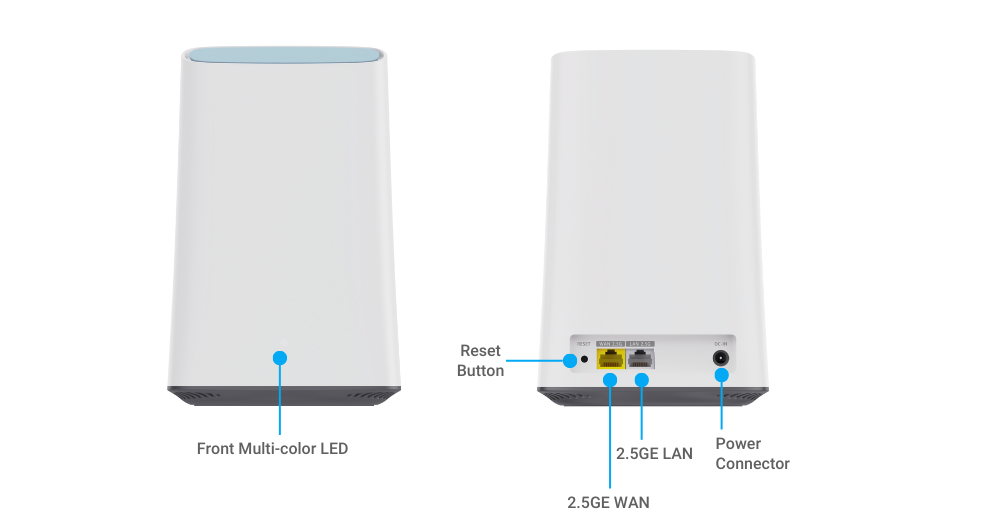
### <mark style="color:$primary;">Ports</mark>

<figure><img src="https://2824051977-files.gitbook.io/~/files/v0/b/gitbook-x-prod.appspot.com/o/spaces%2FFoczbxDur7GFtvaYVcCL%2Fuploads%2FPgkrFjYVuCUKzeA9OgLd%2FEHR330.png?alt=media&amp;token=24ecef80-6a8b-48e6-94e4-a54ac067f8c4" alt=""><figcaption></figcaption></figure>

{% hint style="info" %}

#### **Reset Button**

* <mark style="color:$primary;">Restore Factory Defaults</mark>: Press and hold the reset button for over **6** seconds until the **Front LED** starts *<mark style="background-color:orange;">fast flashing</mark>*. The device will then automatically reset to its factory default settings.
  {% endhint %}

### <mark style="color:$primary;">LED Behavior Table</mark>

<table data-full-width="true"><thead><tr><th width="104.135498046875">LED Color</th><th width="135.13018798828125">LED Behavior</th><th width="211.66668701171875">Status / Condition</th><th>Description</th></tr></thead><tbody><tr><td>White</td><td>Blinking</td><td>Powering On</td><td>The device is powering on and initializing.</td></tr><tr><td>White</td><td>Solid On</td><td>System Ready</td><td>The device is ready for operation.</td></tr><tr><td>Blue</td><td>Blinking </td><td>Bluetooth Pairing Mode / <br>Mesh Pairing Mode</td><td>The device is in Bluetooth pairing mode and ready to connect with other devices.</td></tr><tr><td>Blue</td><td>Solid On</td><td>Bluetooth Connected</td><td>The device is successfully connected via Bluetooth.</td></tr><tr><td>Green and Blue</td><td>Alternating Green and Blue Blinking</td><td>Firmware Update in Progress</td><td>A firmware update is currently in progress.</td></tr><tr><td>Red</td><td>Solid On</td><td>Internet Not Available / Hardware Error</td><td>The device has detected that internet connection is not available, or has encountered a hardware malfunction or error.</td></tr></tbody></table>

{% hint style="info" %}
**LED indicator**&#x20;

The EHR330 uses a single multi-color LED to indicate power, connection, and system status.
{% endhint %}

## <mark style="color:blue;">System Installation</mark>

{% stepper %}
{% step %}

#### Download the <mark style="color:$primary;">EnGenius GenVo App</mark>

Download the **EnGenius GenVo App** from the App Store or Google Play.\
Sign in or create an EnGenius account to get started.

### **Mobile App:**&#x20;

<mark style="color:$primary;">**EnGenius GenVo**</mark> (iOS/ Android supported)

:arrow\_down: [Download the GenVo mobile app here](https://qr.engenius.ai/app/router)

![](https://2824051977-files.gitbook.io/~/files/v0/b/gitbook-x-prod.appspot.com/o/spaces%2FFoczbxDur7GFtvaYVcCL%2Fuploads%2FLMEeE1fQNQjTQti5rgW3%2FGenVo%20APP.png?alt=media\&token=60d3a077-9187-46ea-8ba0-02eddeb48b44)

{% endstep %}

{% step %}

#### Power On the Mesh Router

Connect the **included power adapter** and turn on the router.\
Wait for the **LED** to indicate the device is booting up.
{% endstep %}

{% step %}

#### Connect the WAN Port

Use an Ethernet cable to connect the **yellow WAN port** to your modem or internet source.

{% hint style="warning" %}
Ensure the cable is inserted into the correctly labeled port.
{% endhint %}
{% endstep %}

{% step %}

#### Follow the App Instructions

Open the **EnGenius GenVo App** and follow the on-screen instructions to complete setup.\
The app will guide you through pairing, network creation, and adding additional mesh nodes.
{% endstep %}
{% endstepper %}


---

# Agent Instructions
This documentation is published with GitBook. GitBook is the documentation platform designed so that both humans and AI agents can read, navigate, and reason over technical content effectively. Learn more at gitbook.com.

## Querying This Documentation
If you need additional information that is not directly available in this page, you can query the documentation dynamically by asking a question.

Perform an HTTP GET request on the current page URL with the `ask` query parameter, and the optional `goal` query parameter:

```
GET https://doc.engenius.ai/home-engenius-qsg-library/engenius-genvo-qsg/genvo-mesh-router/ehr330.md?ask=<question>&goal=<endgoal>
```

`ask` is the immediate question: it should be specific, self-contained, and written in natural language.
`goal` is optional and describes the broader end goal you are ultimately trying to accomplish on behalf of the user. GitBook uses it to tailor the answer towards what is most useful for that goal.

The response will contain a direct answer to the question and relevant excerpts and sources from the documentation.

Use this mechanism when the answer is not explicitly present in the current page, you need clarification or additional context, or you want to retrieve related documentation sections.