> For the complete documentation index, see [llms.txt](https://doc.engenius.ai/llms.txt). Markdown versions of documentation pages are available by appending `.md` to page URLs; this page is available as [Markdown](https://doc.engenius.ai/home-engenius-qsg-library/broadband-outdoor-qsg/broadband-outdoor/eoc655-series.md).
# EOC655 Series
5GHz Dual Radio 2x2 Access Point with N-Type Connectors (EOC655) | AP with 18dBi Panel Antenna (EOC655-C18) | AP with 23dBi Panel Antenna (EOC655-C23)
### **Introduction**
This Quick Start Guide is designed to guide you through installing the **Broadband Outdoor Access Point**, model **EOC655/EOC655-C18/EOC655-C23**, including hardware mounting and configuration.
{% hint style="info" %}
## Broadband Outdoor Access Point
#### **Model: EOC655**
*Outdoor 5GHz Dual Radio 2x2 Access Point with N-Type Connectors*
* Excel in PtP and PtMP applications, offering low latency and high performance in dense RF environments.
* Two spatial streams support up to 1,200 Mbps (5GHz) & 574 Mbps (2.4GHz).
* 2x2 detachable 5GHz External N-type antenna connectors.
#### **Model: EOC655-C18**
*Outdoor 5GHz Dual Radio 2x2 Access Point with 18dBi Panel Antenna*
* Excel in PtP and PtMP applications, offering low latency and high performance in dense RF environments.
* Two spatial streams support up to 1,200 Mbps (5GHz) & 574 Mbps (2.4GHz).
* 18 dBi directional antenna significantly extends PtP wireless links up to 10 miles, optimizing long-distance connectivity.
#### **Model: EOC655-C23**
*Outdoor 5GHz Dual Radio 2x2 Access Point with 23dBi Panel Antenna*
* Excel in PtP and PtMP applications, offering low latency and high performance in dense RF environments.
* Two spatial streams support up to 1,200 Mbps (5GHz) & 574 Mbps (2.4GHz).
* 23 dBi directional antenna significantly extends PtP wireless links up to 10 miles, optimizing long-distance connectivity.
{% endhint %}
Content Quick Links
[**Hardware Overview**](#hardware-overview)
[**Hardware Mounting**](#hardware-mounting)
[**Configure with SkyPoint and SkyConnect**](#configuration-using-skypoint-and-skyconnect)
## Package Contents
## System Requirements
To access SkyConnect, use a supported web browser or download the SkyPoint mobile app. Make sure to install the correct app and use a compatible browser before signing up for the SkyConnect Service or managing your network on the SkyConnect Platform.
### **Mobile App:**
SkyConnect (iOS/ Android supported)
:arrow\_down: [Download the SkyConnect mobile app here](https://www.engeniustech.com/eoc-software-download.html#skyconnect)

### **Web Browser:**
* Google Chrome (57.0.2987.110 and later)
* Microsoft Edge (80.0.361.103 and later)
* Mozilla Firefox (52.0 and later)
## Hardware Overview
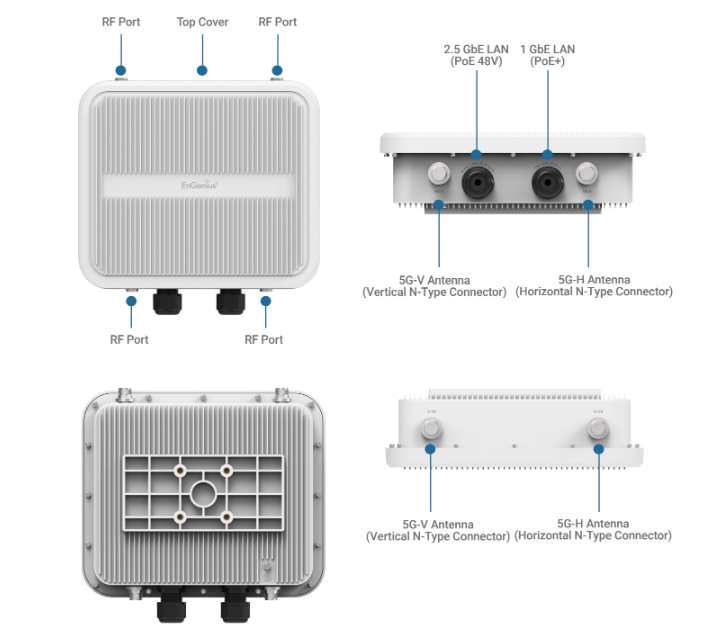
### EOC655
Outdoor 5GHz Dual Radio 2x2 Access Point with N-Type Connectors (EOC655)
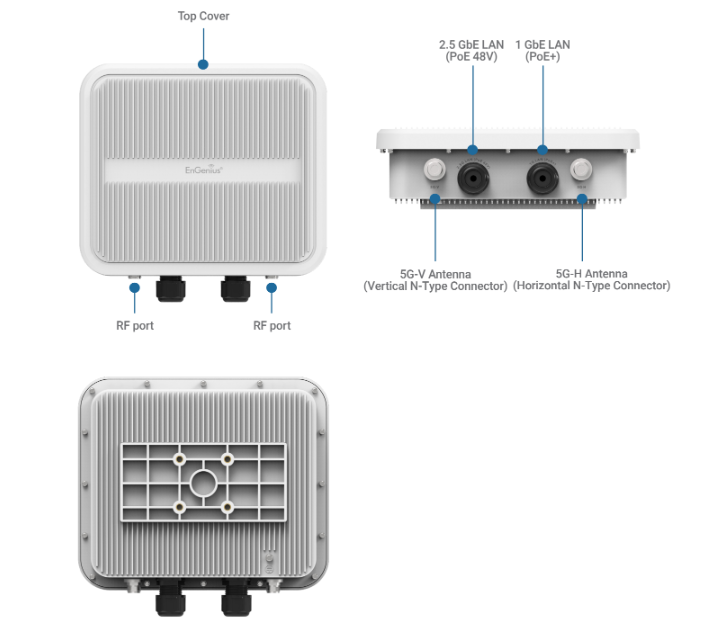
### EOC655-C18
Outdoor 5GHz Dual Radio 2x2 Access Point with 18dBi Panel Antenna (EOC655-C18)
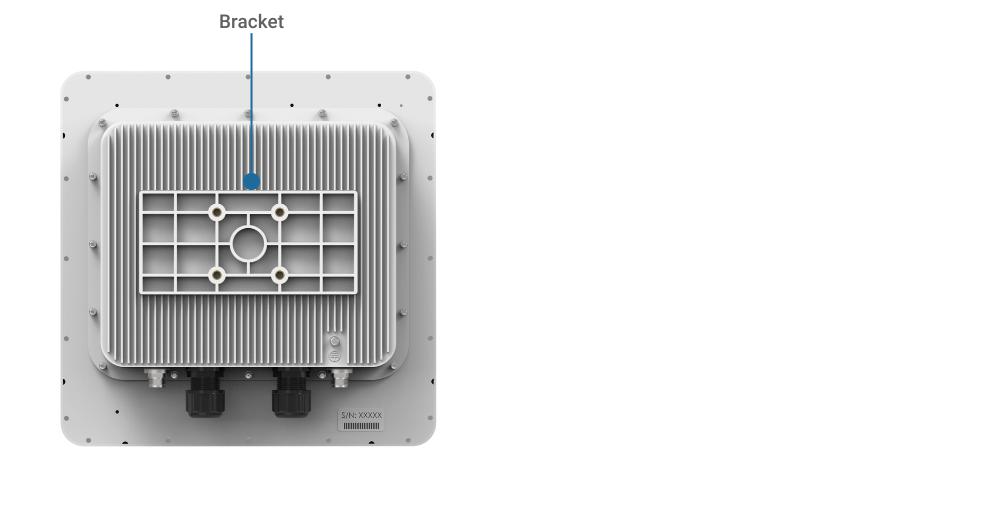
### EOC655-C23
Outdoor 5GHz Dual Radio 2x2 Access Point with 23dBi Panel Antenna (EOC655-C23)
{% hint style="info" %}
**Reset by SkyLocator:**
Open the SkyLocator tool, select the device to execute, and click the 'Reset' button.
{% endhint %}
## Hardware Mounting
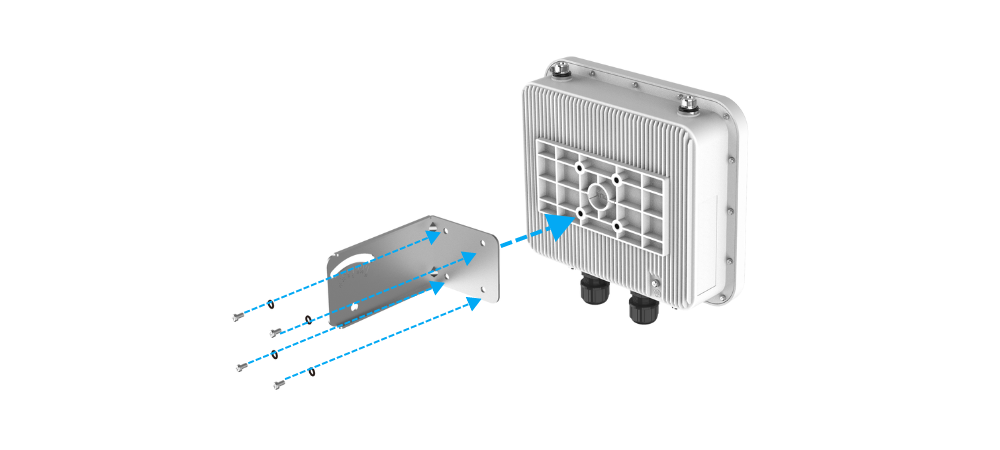
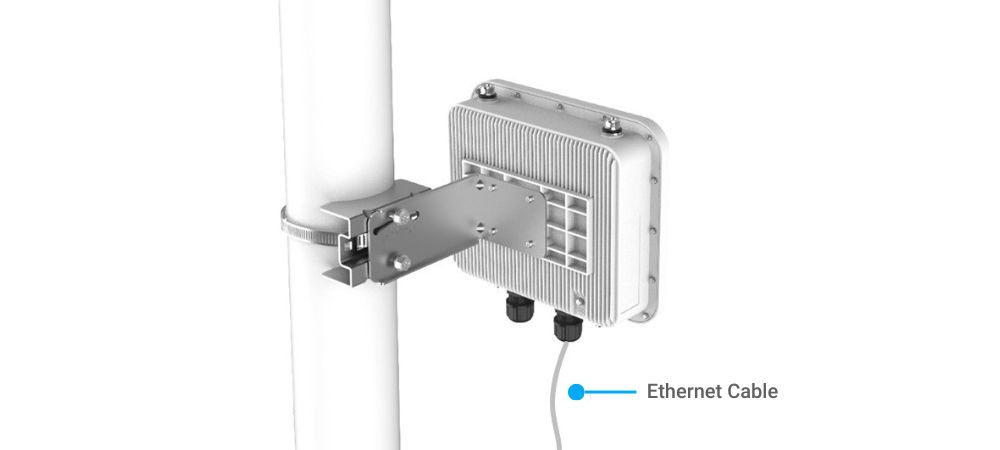
The EOC655/EOC655-C18/EOC655-C23 can be mounted on the Pole, please perform the steps for the appropriate installation:
### Pole Mount
1. Place the L-shaped plate on the device and fix the four screws on L-plate into the device.
2. Insert the screws tightly to the pole and L-plate fixed with the device.
3. Please loosen the metal strap, pass it through the Pole Mount Bracket and Pole, adjust it to the desired height, and then tighten the metal strap.
4\. Secure the machine onto the Pole Mount Bracket through the L-shaped bracket using two M8 screws (Note: Do not tighten at this point).
5\. Finally, adjust the machine to the desired angle, then tighten the M8 screws.
### W**eatherproof Instructions**
1. Crimp with RJ45 connector at one end of the straight-through cable and keep the other end bare.
2. Insert the RJ45 end of the cable into the RJ45 Ethernet port inside the enclosure. The cable should latch into the Ethernet port.
3. Seal the Ethernet cap tightly into the device to make it weatherproof.
4. Crimp the bare end of the cable with an RJ45 connector and connect it to the PoE Injector with an Ethernet Cable.
{% hint style="info" %}
Ethernet cable category Cat5e or Cat6 with the thickness of 4.5mm to 6mm is recommended, along with a weather-proofing cap.
{% endhint %}
### **Grounding the Unit**
For proper grounding, attach a grounding cable at the grounding point at the bottom corner of the device and connect the other end to common ground to protect the device against lighting or ESD events.
## Configuration using SkyPoint and SkyConnect
### **Step 1: Power On Device**
The EnGenius Broadband Outdoor Access Points can be powered by any of the following:
* EnGenius Cloud PoE or 802.3at PoE+ Switch
* EnGenius PoE Adapter
{% hint style="danger" %}
Do not use both power sources at the same time.
{% endhint %}
#### Connecting to a PoE Switch
Connect the Ethernet cable from the EnGenius Outdoor AP directly to the PoE port of the PoE switch.
#### **Powered with a PoE Adapter**
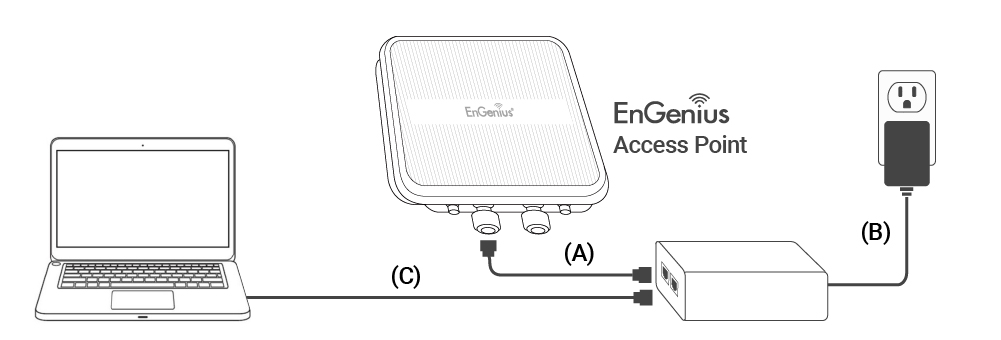
(A) Connect one end of the Ethernet cable to the 2.5G LAN (PoE 48V) port of EnGenius Outdoor AP and the other end to the PoE port on the PoE Adapter.
(B) Connect the power cord with the PoE Adapter and plug the other end into an electrical outlet.
(C) Connect the second Ethernet cable to the LAN port of the PoE Adapter and the other end to the Ethernet port on the computer.
{% hint style="info" %}
Please ensure the use of cat5/cat5e UTP/STP RJ45 Ethernet cables.
{% endhint %}
### **Step 2:** Connect to Device
Device registration can be completed using the SkyConnect mobile app or the SkyPoint network management system (NMS).
#### SkyConnect Mobile App
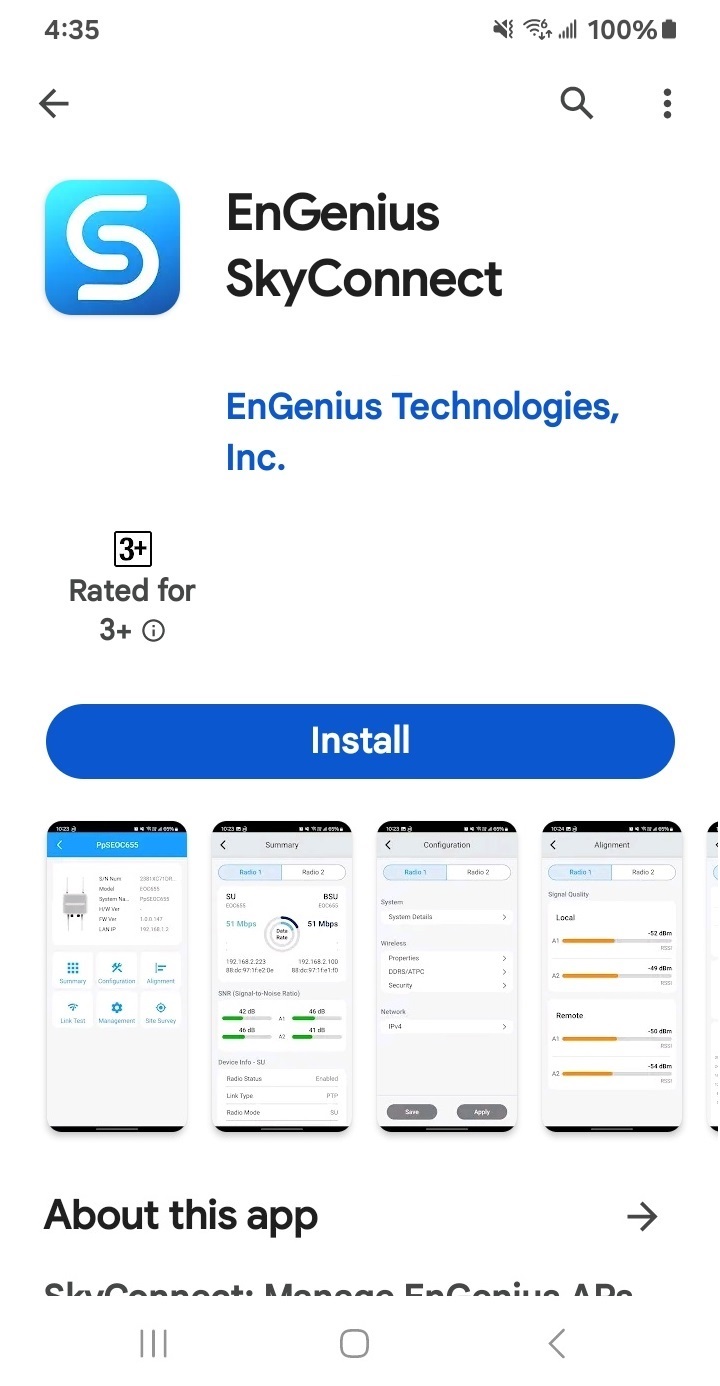
1. **Scan the QR Code:** Use your smartphone's camera to scan the QR code. This action will navigate you to the[ SkyConnect app download page](https://www.engeniustech.com/eoc-software-download.html#skyconnect).
2. **Download and Install:** Once the link opens, follow the on-screen instructions to download and install the SkyConnect App on your device.
#### Start Using the SkyConnect App To begin using SkyConnect:
1\. Locate the SkyConnect icon on your device's home screen or in the app drawer.
2\. Tap the icon to launch SkyConnect.
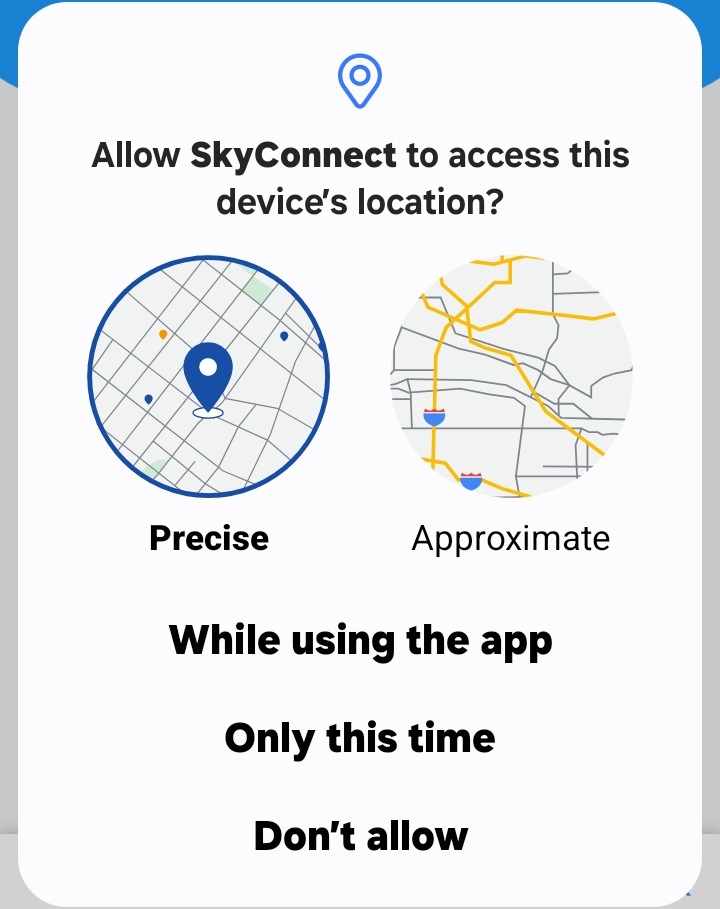
3\. Upon opening, SkyConnect will ask for certain permissions to function optimally.
**- Allow** SkyConnect to access this device's location: this permission required for\
generic functioning of the app.
**- Allow** SkyConnect to access photos and media on your device: this permission\
required for config backups and firmware upgrade.
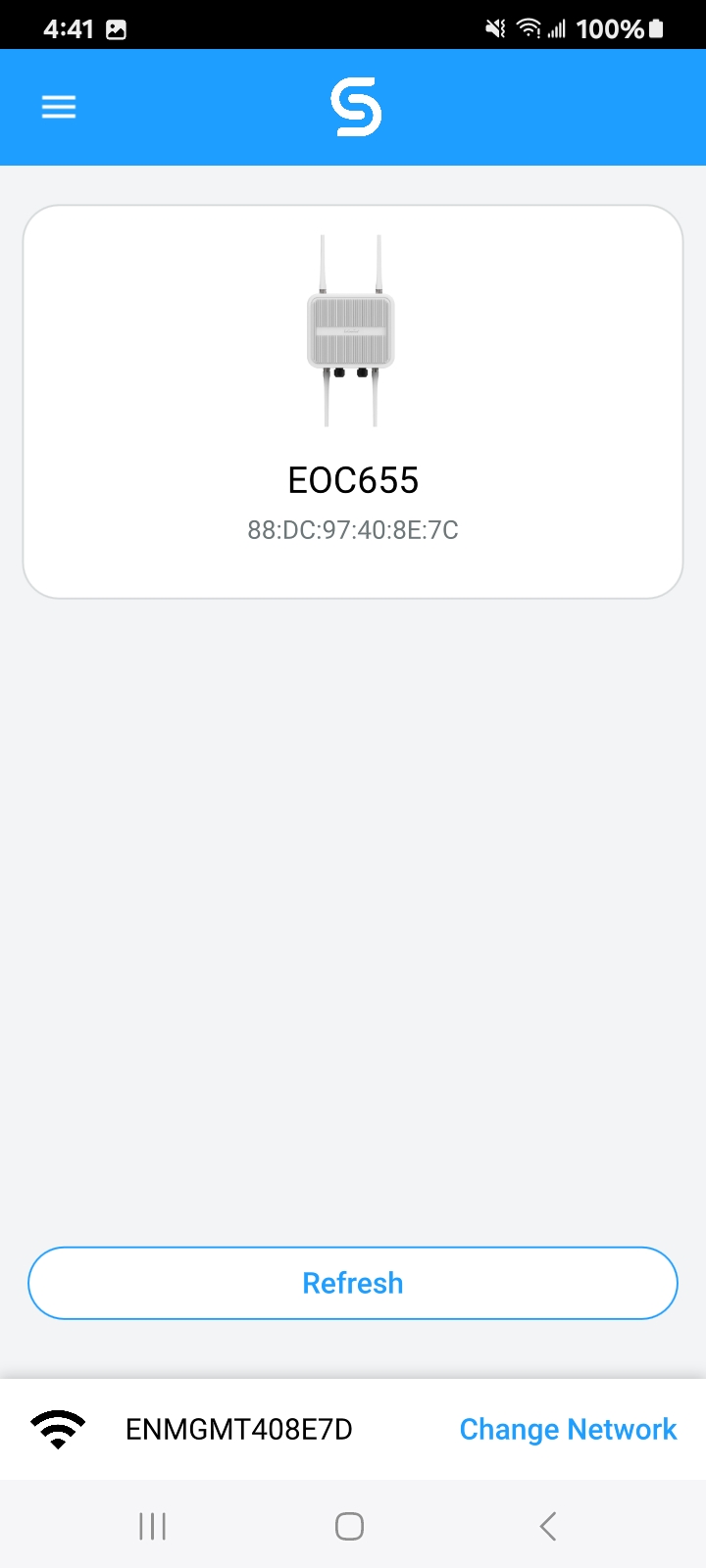
4\. After successfully installing the app on your smart device, launch the app. In the\
SkyConnect app, navigate to the home screen and select ‘Change Network’.
5\. The EOC655 device will broadcast a 2.4GHz management SSID. The SSID format will \
be ENMGMT\. For example, it might\
look like “ENMGMT408E7D”.
6\. The default password for management SSID is “12345678.” Select the network name\
that matches your device's format from the list of available networks and connects to\
it.
7\. If you see a pop-up window on your mobile device, please click on "Connect only this time".
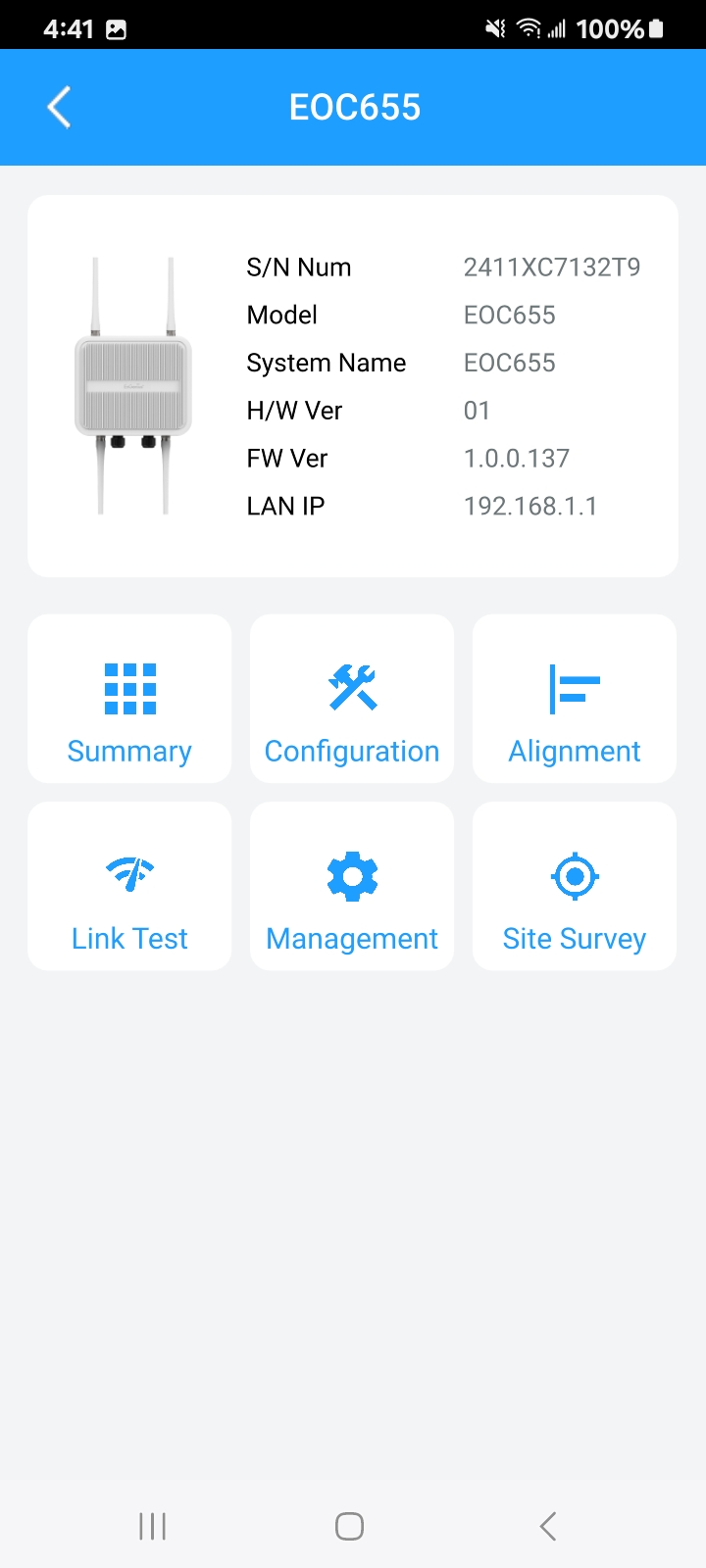
8\. Once connected, tap on the device image to start configuring and managing the\
EOC655.
{% hint style="info" %} **Network**: Management domain shared same configurations within NMS, SkyPoint.
{% endhint %}
### Step 3: Manage with NMS, SkyPoint
Log in to the SkyPoint network monitoring platform using localhost: (or local IP address) and port number 8980. The default credentials are admin/admin.
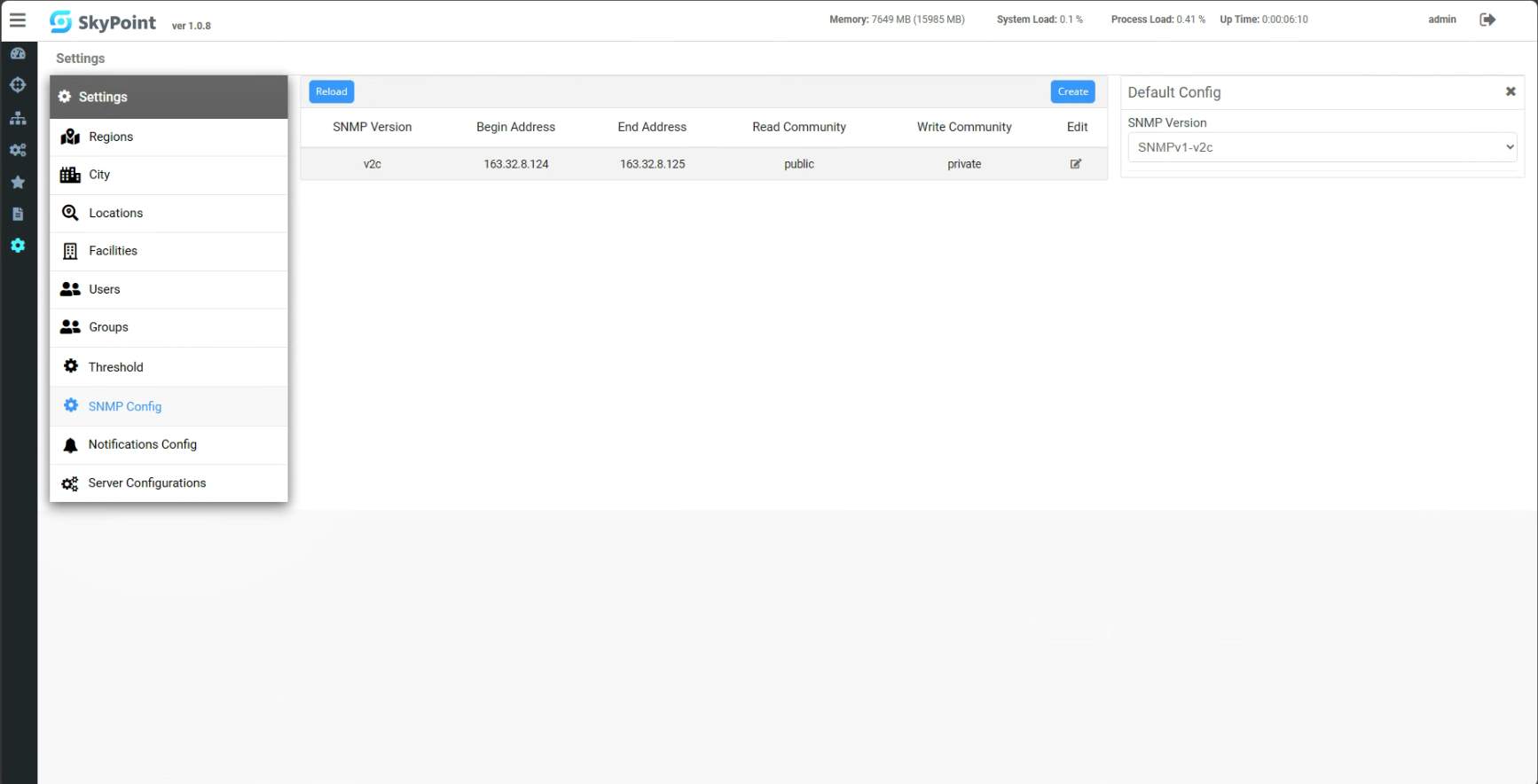
1\. After logging in to the SkyPoint page, click 'Settings,' then click 'SNMP Config'.
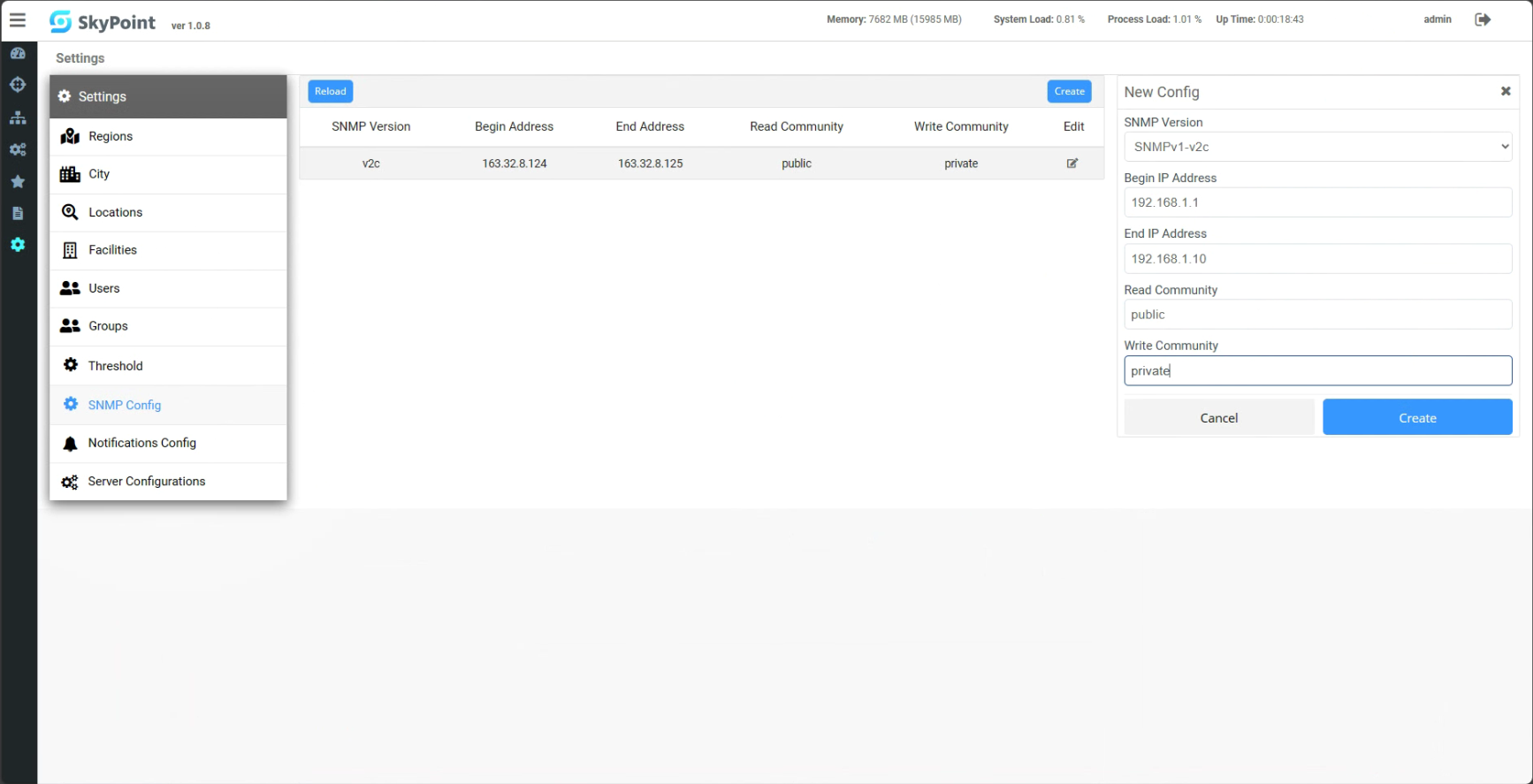
2\. On the SNMP Config page, click 'Create' to configure SNMP. Then, select SNMP\
Version and enter the Begin IP Address, End IP Address, Read Community, and Write\
Community. Finally, click on 'Create' to complete the configuration. \
\*The default Read Community and Write Community on EOC655 are public/private.
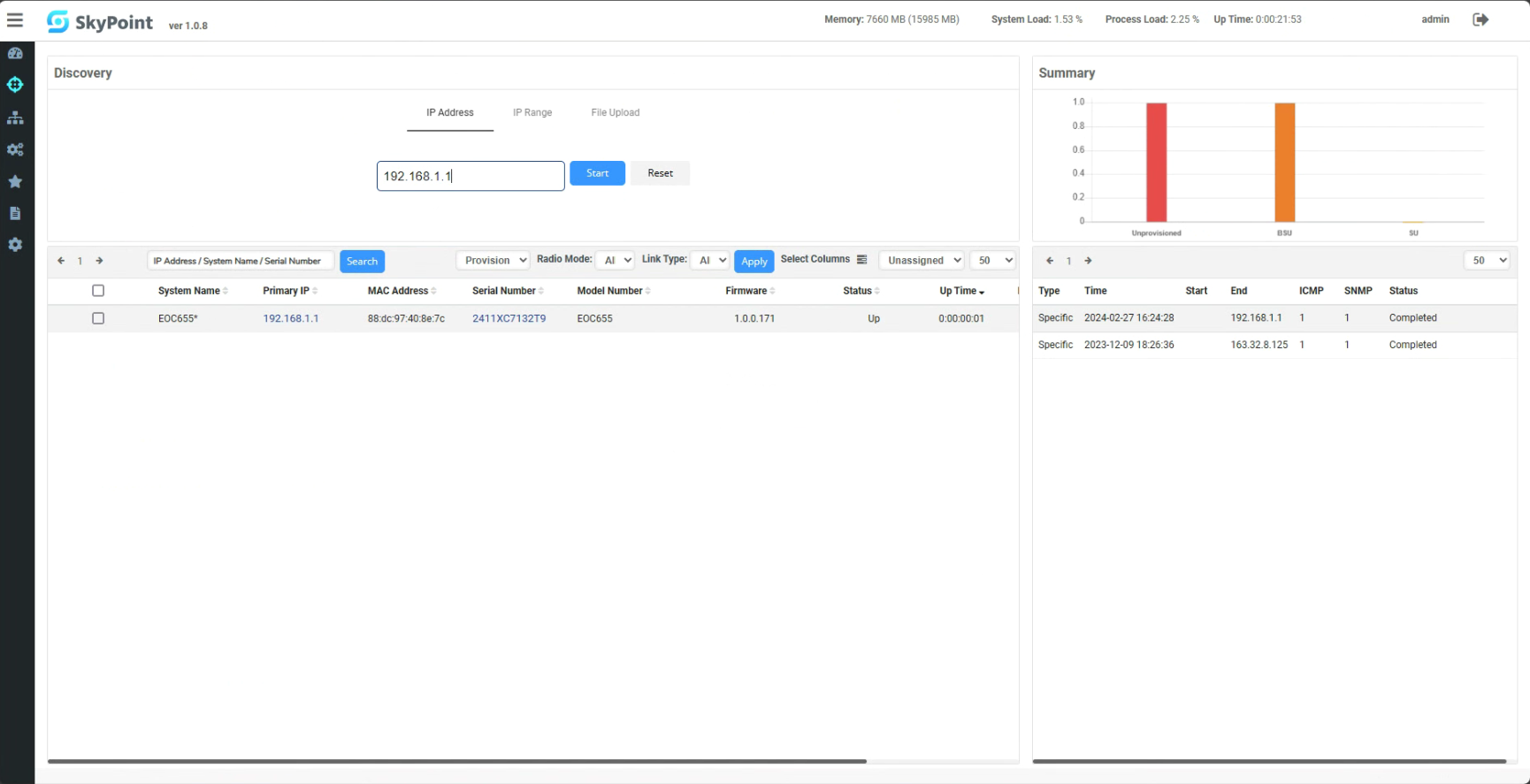
3\. After configuring SNMP, click on 'Discovery,' enter an IP Address or the IP Range, then\
click 'Start' to discover the device. Afterward, click 'OK' in the popup window.
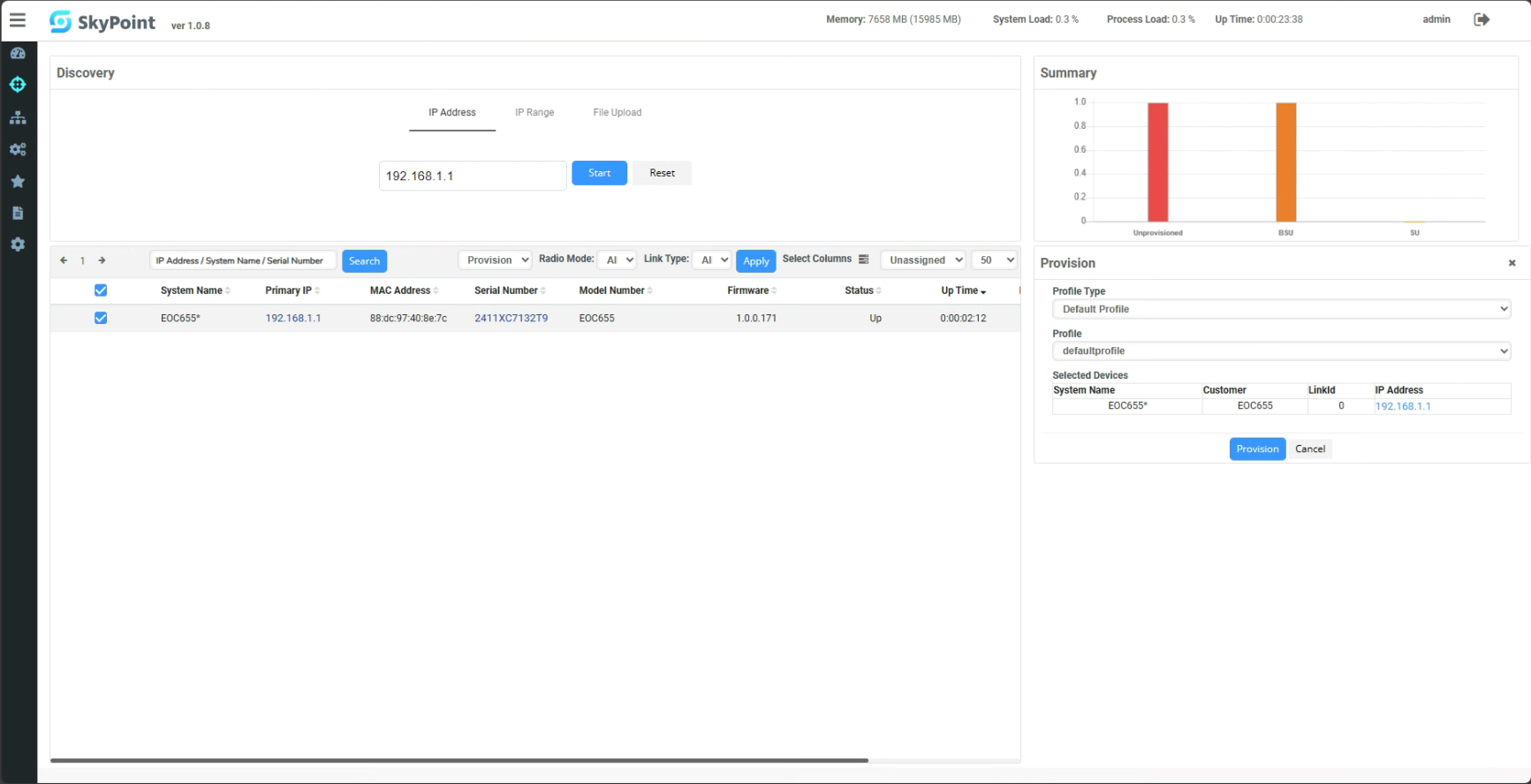
4\. Once the device is discovered, the next steps are to select 'Provision,' choose the\
device, click 'Apply' to provision the device, and then click 'Provision' to confirm your\
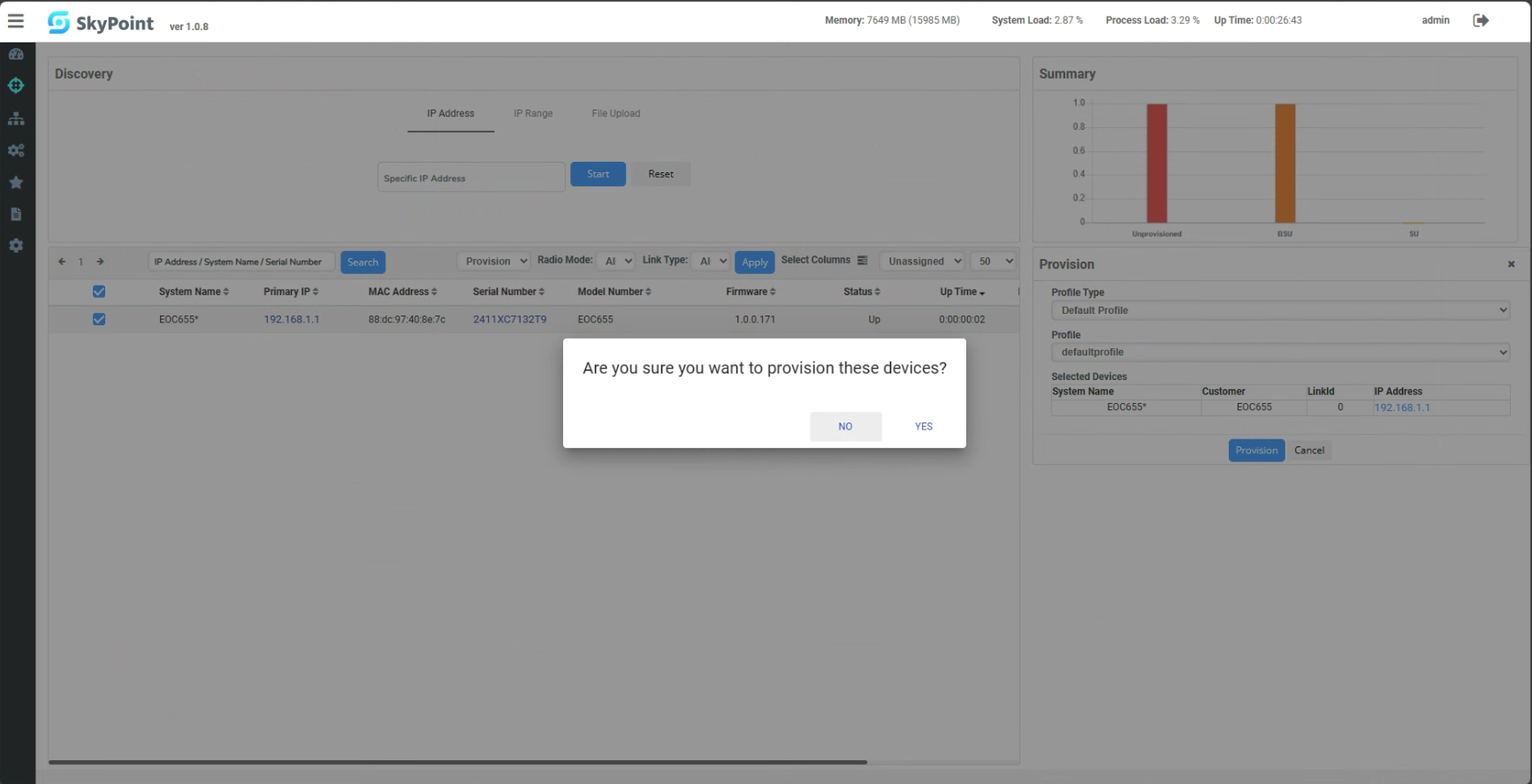
intention to provision these devices.
5\. Click 'Yes' in the popup window to confirm the provisioning of the device.
6\. Then click 'OK' in the popup window.
7\. After completing the device provisioning, return to the Dashboard. Now, you can start\
monitoring and managing the EOC655.
## Network Connectivity: Action and Troubleshooting Guide
**Accessing the Device**
To begin troubleshooting your network connectivity, follow these steps to access your device's user interface:
1. **Via Web Browser:**
* Navigate to [**http://192.168.1.1**](http://192.168.1.1) on your web browser.
* Log in using the default admin account credentials: **Username:** `admin` **Password:** `admin`.
2. **Via Wi-Fi:**
* Locate the SSID named **EnMGMTxxxx** on your client device (laptop, mobile device, tablet). Note: `xxxx` represents the last four digits of the MAC address, which can be found on the back of your device.
* Connect to this SSID to access your device’s settings.
**Troubleshooting Connection Issues**
If your Access Point (AP) is not managed by the NMS, SkyPoint platform, this indicates a possible issue with NMS connectivity. Follow the steps below to troubleshoot:
1. **Device Local Access Page:**
* Access the Device Local Access page as detailed above.
2. **Check Network Statistics:**
* Navigate to the Statistics page to review both wired and wireless interface states on the device's user interface. This information is crucial for diagnosing and resolving connection problems.
3. **Take Necessary Action:**
* Based on the statistics and device status, take the appropriate corrective action to resolve any connectivity issues.

{% hint style="info" %} **Change IP Assignment Settings**
By default, the IP address of the Broadband Access Point (EOC series) is set to static IP. If you encounter issues with IP address assignment, please double-check the IP setting, including IP address, subnet mask, and gateway. If the issue still exists, you may change your IP assignment from "Static mode" to "Dynamic" via the following procedure.
1. Go to the Network -> IP Configuration section.
2. Change IPv4 Address Type to "Dynamic".
3. Configure the IP address, gateway, subnet mask, and proxy settings.
4. Press "Save", then click on the disk icon in the upper right corner, and then click "Apply."
5. Reconnect this device to the LAN network and try again.

{% endhint %}
For more details, please refer to the "[User Manual - EOC series](https://docs.engenius.ai/eoc655-user-manual/)".
---
# Agent Instructions
This documentation is published with GitBook. GitBook is the documentation platform designed so that both humans and AI agents can read, navigate, and reason over technical content effectively. Learn more at gitbook.com.
## Querying This Documentation
If you need additional information that is not directly available in this page, you can query the documentation by asking a question.
Perform an HTTP GET request on the following URL with the `ask` and `goal` query parameters:
```
GET https://doc.engenius.ai/home-engenius-qsg-library/broadband-outdoor-qsg/broadband-outdoor/eoc655-series.md?ask=&goal=
```
`ask` is the immediate question: it should be specific, self-contained, and written in natural language.
`goal` is what the user is ultimately trying to achieve, the reason they need the answer. Sharing it helps GitBook give you a better, more relevant answer. A goal is most helpful when it describes the outcome the user wants rather than restating the question. For example, with `ask=how do I create an API token`, a goal like `automate deployments from our CI pipeline` lets GitBook tailor the answer to that use case.
The response will contain a direct answer to the question and relevant excerpts and sources from the documentation.
Use this mechanism when the answer is not explicitly present in the current page, you need clarification or additional context, or you want to retrieve related documentation sections.