> For the complete documentation index, see [llms.txt](https://doc.engenius.ai/llms.txt). Markdown versions of documentation pages are available by appending `.md` to page URLs; this page is available as [Markdown](https://doc.engenius.ai/home-engenius-qsg-library/engenius-cloud-qsg/cloud-ai-camera/ecc500.md).
# ECC500
Cloud-Managed AI 4K Outdoor Dome with 512GB Built-In Storage (ECC500)
## Cam8MP Dome IP67 512GB
## Introduction
This Quick Start Guide is designed to guide you through the installation of the **Cam8MP Dome IP67 512GB** Camera, model **ECC500**, including hardware mounting and configuration.
{% hint style="info" %}
## Cam8MP Dome IP67 512GB
### Cloud-Managed 8MP AI Outdoor Dome with 512GB Storage
#### **Model:** ECC**500**
* Cloud Dashboard Management and Mobile App monitoring anywhere
* 4K Sony Starvis sensor with HDR 120dB of crystal clear image quality day and night
* 3X motorized optical zoom controllable on remote without missing any details
* Camera durable 512GB storage for event and continuous recording 24x7
* IP67 and IK10 for tough weather and vandal-resistant
* AI NPU of facial recognition for instant alert, search, and statistics
{% endhint %}
Content Quick Links
* [**Hardware Overview**](#hardware-overview)
* [**Hardware Mounting**](#hardware-mounting)
* [**Configure with EnGenius Cloud**](#configure-with-engenius-cloud)
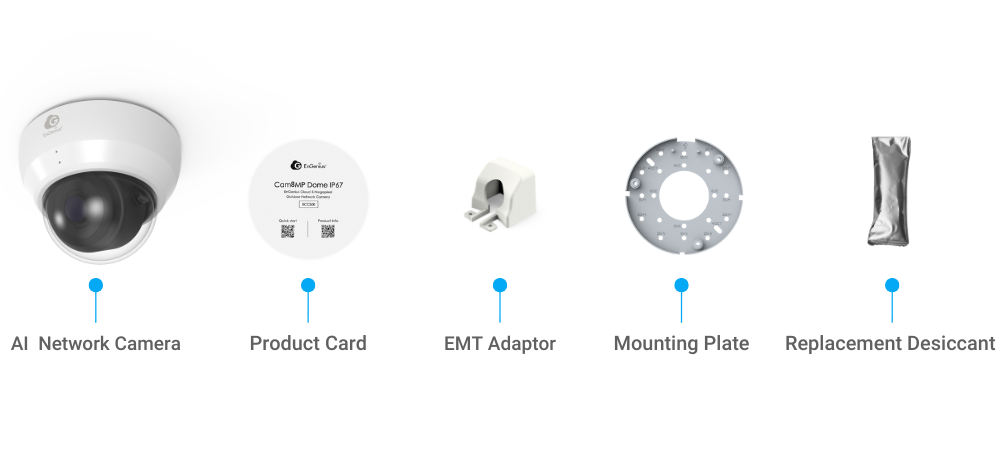
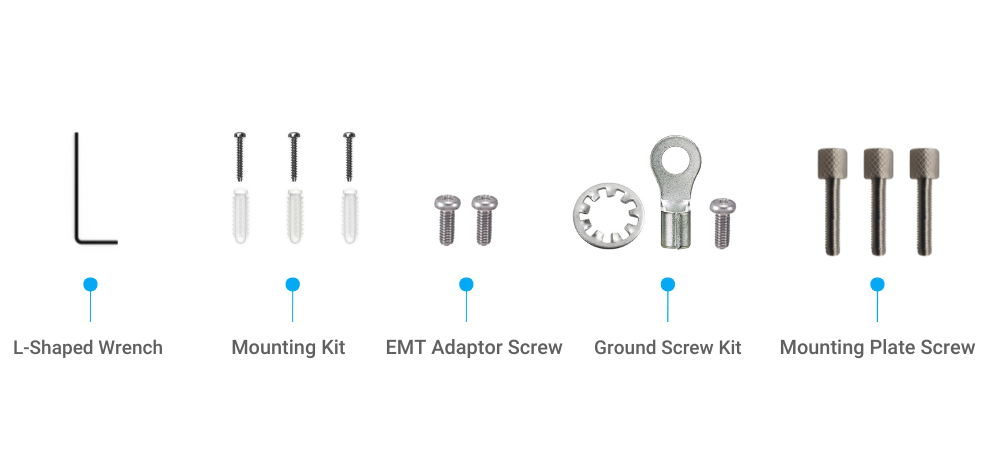
## Package Contents
## System Requirements
Before signing up for the EnGenius Cloud Service or logging into the EnGenius Cloud Platform to manage your network, ensure that you have downloaded the correct app and are using a supported browser.
### **Mobile App:**
**EnGenius Cloud To-Go** (iOS/ Android supported)
:arrow\_down: [Download the Cloud To-Go mobile app here](https://qr.engenius.ai/app/cloud2go)

### **Web Browser:**
* Google Chrome (57.0.2987.110 and later)
* Microsoft Edge (80.0.361.103 and later)
* Mozilla Firefox (52.0 and later)
## **Network Requirements**
{% hint style="info" %}
**Before you begin, ensure that your network environment has DHCP enabled.**
{% endhint %}
EnGenius AI Cloud Cameras (ECC series) are configured by default to obtain an IP address dynamically from a DHCP server. If a firewall is in place, it must permit outgoing connections on specific ports to designated IP addresses. For details on the required firewall rules, please refer to the [User Manual](https://docs.engenius.ai/engenius-cloud/appendix/firewall-rule/firewall-rule).
The cameras rely on a DNS server to resolve EnGenius Cloud services into IP addresses for communication. The DHCP server provides the camera with the DNS server information, enabling proper connectivity.
## Hardware Overview
{% hint style="info" %}
#### **Reset Button:**
* **Reset to Default:** Press and hold the reset button for more than **10** seconds until the **PWR LED** begins *flashing rapidly* (0.2-second intervals). The device will then restore its factory default settings. To erase all videos stored on the camera, press and hold the reset button for more than **15** seconds.
{% endhint %}
### LEDs
## Hardware Mounting
### Precaution
{% stepper %}
{% step %}
**Installation Planning**
Prior to installation, conduct a thorough system design. Identify the optimal placement and coverage area for each camera to ensure complete surveillance. Determine the cable routing method in advance:
\
• **Through walls/ceilings** – requires drilling.
\
• **Along walls/ceilings** – use baseboard cable channels for concealment.
{% endstep %}
{% step %}
**Installation Guidelines**
• Position cameras to minimize exposure to direct sunlight. This helps maintain image quality and prolongs equipment lifespan.
\
• Keep the protective film on the camera’s transparent dome cover until the installation is fully completed. Removing it prematurely may result in scratches or other damage.
{% endstep %}
{% step %}
**Maintenance and Servicing**
• Always power off equipment before conducting any maintenance or adjustments.
\
• Engage qualified technicians for all maintenance and repair work to ensure proper handling and safety.
{% endstep %}
{% endstepper %}
{% hint style="warning" %}
**Important:** Remove the protective film from the camera's transparent dome cover only after the entire installation process is complete to avoid damage and scratches.
{% endhint %}
### Camera Mounting Instructions
The camera can be mounted on either a ceiling or a wall. Perform the following steps for the selected installation method:
{% hint style="info" %}
Before beginning hardware installation, **register the camera to EnGenius Cloud** (refer to the [**Configure with EnGenius Cloud**](#configure-with-engenius-cloud) section). If registration has not yet been performed, record the product serial number, as it will be required during the registration process.
{% endhint %}
1. Insert the three bracket screws into the bracket, but do not fully tighten them.
2. Position the mounting plate on the ceiling or wall. Using any pair of opposing holes or slots, mark the drilling points. Consider both the orientation of the camera and the cable exit position. For reference on mounting hole positions and orientation, see the diagram in the Mounting Plate Details section.
3. Drill holes at the marked positions and secure the mounting plate to the surface using the provided anchors and screws.
4. When installing Electrical Mechanical Tubing (EMT), begin by securing the EMT adapter to the mounting plate using the two M2 screws provided in the mounting kit. Next, install the ¾” EMT conduit at the camera location and connect it to the EMT adapter. Finally, fasten the adapter plate to the surface using the supplied short screws and anchors.
5. For Electrical Mechanical Tubing (EMT) installations, begin by attaching the EMT adapter to the mounting plate using the two M2 screws included in the kit. Then, install the ¾” EMT conduit at the camera location and connect it to the EMT adapter. Finally, secure the adapter plate to the surface with the provided short screws and anchors.
6. Carefully detach the magnetic cover ring. Using the L-shaped wrench, loosen the three cover screws, then lift and remove the camera cover.
7. Remove the cable grommet from the metal base and feed the Ethernet cable through the pass-through hole. Connect the cable to the Ethernet port, then slide the grommet onto the cable and insert it back into the pass-through hole. Finally, check that the grommet is securely seated and properly sealed, ensuring there are no gaps.
{% hint style="info" %}
Note: Avoid pulling the Ethernet cable too tightly, as this can create strain and impact data performance. Conversely, leaving excessive slack may obstruct the proper installation of the top cover.
{% endhint %}
{% hint style="info" %}
Please note that the network cable diameter should be between 5 mm and 6.5 mm, and the type of network connector.
{% endhint %}
8. Position the camera onto the mounting plate screws, rotate it clockwise until it locks into place, then tighten the three mounting plate screws with a Phillips screwdriver.
9. Adjust the camera’s pan, tilt, and rotation angles as needed. You can also fine-tune the monitored image position through the EnGenius Cloud-To-Go app.
10. Replace the desiccant inside the top cover with a new one from the protective pouch provided in the box. Ensure the interior of the dome cover is free of dust and particles by gently wiping it with a clean, lint-free cloth or by blowing away any debris. Once the dome cover is installed, remove the protective film and reattach the magnetic cover ring to the camera.
### Mounting Plate Details
The table below outlines the various mounting holes on the mounting plate and their corresponding functions.
| Hole | Function |
| ---- | ---------------------------------------- |
| 1G-V | 1-gang NA junction box, vertical mount |
| 1G-H | 1-gang NA junction box, horizontal mount |
| 2G-V | 2-gang NA junction box, vertical mount |
| 2G-H | 2-gang NA junction box, horizontal mount |
| 4OCT | 4” octagon NA junction box |
| EUC | EU/UK/China junction box |
### Grounding
To connect the green grounding cable to the camera, follow these steps: Position a 20AWG or thicker grounding cable with a ring terminal, then secure it by inserting an M4-0.7 x 6mm screw through the terminal and tightening it into the threaded grounding point on the back of the device, as shown above. Finally, connect the other end of the grounding cable directly to a circuit breaker, ground rod, or earth ground.
## **Configure with EnGenius Cloud**
### **Step1: Register Device and Assign to Network**
You can register the device with the **Cloud To-Go** **mobile app** or the **EnGenius Cloud platform**.
#### **Cloud To-Go Mobile App**
1. Open and log in to the **EnGenius Cloud To-Go** mobile app.
2. Scan the QR code on the back of the device via the app.

3\. If the camera successfully scans a QR code, the app will display the device Information. You could tap "**Register**" to complete the Registration.
.png?alt=media\&token=4f668345-141f-4022-9710-0270d78a22b8)
4\. Registered devices will be shown on the ***Inventory\&License*** page. Slide left on the device and click "**Assign to New Network"** to add the device to your personalized Network.

#### **EnGenius Cloud Platform**
1. Log in to the **EnGenius Cloud Platform**: .
2. Go to the ***home > Inventory\&License*** page and click "**Register Device**".
3. Enter the **Serial Number** of the device(s) for device registration. Please refer to "[User Manual-Registering Devices to Organization](https://doc.engenius.ai/home-cloud-user-manual/getting-started/device-onboarding)".

4\. Select the registered device and click "**Assign to Network**" to add the device to your personalized Network.
.png?alt=media\&token=c76fe6f8-f60a-4aed-aa18-7cd969a7d56b)
### **Step2: Power On Device**
The ECC500 cloud camera device can be powered by any of the following:
* EnGenius Cloud PoE+ switch or 802.3at PoE+ compliant switch
* EnGenius PoE adaptor (EPA5006GP/EPA5006GAT)
#### Connecting to a PoE Switch
Connect the Ethernet cable from the EnGenius Cloud Camera directly to a PoE port on the PoE switch.

#### Powered with a PoE Adapter
(A) Connect one end of the Ethernet cable to the LAN (PoE) port of the EnGenius Cloud Camera and the other end to the PoE port on the PoE adapter.
(B) Attach the power cord to the PoE adapter and plug the opposite end into an electrical outlet.
(C) Connect a second Ethernet cable from the PoE adapter’s LAN port to the network (LAN).
{% hint style="info" %}
Please ensure to use cat5/cat5e UTP/STP RJ45 Ethernet cables.
{% endhint %}
Camera is powered by a PoE Adapter
### Step3: Connect to the EnGenius Cloud
Once the device is powered on and ready to connect to the Internet, the **LED indicator** will stay *Solid On*, which means the device is now connected to the EnGenius Cloud Platform. It will automatically download the default configuration settings from EnGenius Cloud for automated provisioning.
{% hint style="warning" %}
When the **Camera** is connected to the EnGenius Cloud Platform for the first time, it will automatically check the latest firmware version available. If the **firmware upgrade** is required, it might take **8\~10 minutes** to complete the process. The **LED** indicator will be *Flashing (every 0.5 sec)* till the process is finished.
{% endhint %}
### **Step4: Manage with the EnGenius Cloud**
Log in to the [**EnGenius Cloud**](https://cloud.engenius.ai/) **platform** to configure detailed settings. For more information, please refer to the [User Manual](https://docs.engenius.ai/engenius-cloud/).

{% hint style="warning" %}
To remove a camera for other uses, you must first [**Remove it from the personalized network**](https://docs.engenius.ai/engenius-cloud/managing-organizations/managing-device-inventory#removing-devices-from-a-network) in EnGenius Cloud, [**Deregister**](https://docs.engenius.ai/engenius-cloud/managing-organizations/managing-device-inventory#de-registering-a-device-from-engenius-cloud) it, and then reset the camera.
{% endhint %}
##
---
# Agent Instructions
This documentation is published with GitBook. GitBook is the documentation platform designed so that both humans and AI agents can read, navigate, and reason over technical content effectively. Learn more at gitbook.com.
## Querying This Documentation
If you need additional information that is not directly available in this page, you can query the documentation by asking a question.
Perform an HTTP GET request on the following URL with the `ask` and `goal` query parameters:
```
GET https://doc.engenius.ai/home-engenius-qsg-library/engenius-cloud-qsg/cloud-ai-camera/ecc500.md?ask=&goal=
```
`ask` is the immediate question: it should be specific, self-contained, and written in natural language.
`goal` is what the user is ultimately trying to achieve, the reason they need the answer. Sharing it helps GitBook give you a better, more relevant answer. A goal is most helpful when it describes the outcome the user wants rather than restating the question. For example, with `ask=how do I create an API token`, a goal like `automate deployments from our CI pipeline` lets GitBook tailor the answer to that use case.
The response will contain a direct answer to the question and relevant excerpts and sources from the documentation.
Use this mechanism when the answer is not explicitly present in the current page, you need clarification or additional context, or you want to retrieve related documentation sections.
.png?alt=media&token=1da51941-aff2-4a92-afc0-9e0e2071f167)
_0819.png?alt=media&token=d50d9828-c962-4d01-be9c-fae3129406e9)
%20-ECC500.png?alt=media&token=ecc58b8e-75a6-455b-a39a-c4c6837b15bd)
%20-ECC500_4_%E6%B8%B2.png?alt=media&token=8f78615a-7b10-40e8-b3de-ca4d9b545f08)
%20-ECC500_4.png?alt=media&token=1bac854b-1c13-410d-a76d-1605bcf4b482)
-05.png?alt=media&token=eeafa24d-a59e-4204-b682-cf91866e75ee)
-06%2BNote.png?alt=media&token=d59e3ebc-82c8-433c-9d1e-9513ddeb7323)

-07%20(1).png?alt=media&token=d773d1d7-a135-4f5a-98a7-fe4552e2f4b9)

-09.png?alt=media&token=73aa96c7-ce00-48ab-87c0-ffe1de3384d7)


