> For the complete documentation index, see [llms.txt](https://doc.engenius.ai/llms.txt). Markdown versions of documentation pages are available by appending `.md` to page URLs; this page is available as [Markdown](https://doc.engenius.ai/home-engenius-qsg-library/engenius-cloud-qsg/cloud-access-point/ecw160.md).
# ECW160
Cloud Managed 11ac Wave 2 2×2 Outdoor Wireless Access Point (ECW160)
## Introduction
This Quick Start Guide is designed to guide you through the installation of the **Cloud5 2x2 Outdoor** Access Point, model **ECW160**, including hardware mounting and configuration.
{% hint style="info" %}
## Cloud5 2x2 Outdoor
### Cloud Managed 11ac Wave 2 2×2 Outdoor Wireless Access Point
#### **Model: ECW160**
* Wi-Fi 5 technology for high-performance Wi-Fi in high-density, multi-device environments.
* 2x2 antennas to support up to 867 Mbps (5GHz) & 400 Mbps in 2.4GHz.
* Support 802.3af PoE input for flexible installation over 100 meters.
{% endhint %}
Content Quick Links
* [**Hardware Overview**](#hardware-overview)
* [**Hardware Mounting**](#hardware-mounting)
* [**Configure with EnGenius Cloud**](#configure-with-engenius-cloud)
## Package Contents
## System Requirements
The EnGenius Cloud is primarily accessible with a web browser or mobile app. Before signing up for the EnGenius Cloud Service or logging on to the EnGenius Cloud Platform to manage your network, ensure that you've downloaded the right app and used the supported browser.
### **Mobile App:**
**EnGenius Cloud To-Go** (iOS/ Android supported)
:arrow\_down: [Download the Cloud To-Go mobile app here](https://qr.engenius.ai/app/cloud2go)

### **Web Browser:**
* Google Chrome (57.0.2987.110 and later)
* Microsoft Edge (80.0.361.103 and later)
* Mozilla Firefox (52.0 and later)
## **Network Requirements**
Before you get started, please make sure your network environment is DHCP-enabled. EnGenius Cloud Access Points (ECW series) are default assigned an IP address dynamically by the DHCP server.
{% hint style="info" %}
If you encounter issues with IP address assignment, you may want to change your IP assignment from "**DHCP mode**" to "**Static IP**". Please check the "[User Manual: Login to Local Access Page](https://docs.engenius.ai/engenius-cloud/getting-started/device-setup/troubleshooting-ecw-ap/login-to-local-access-page)" for more details.
{% endhint %}
## Hardware Overview
### Ports
{% hint style="info" %}
#### **Reset Button:**
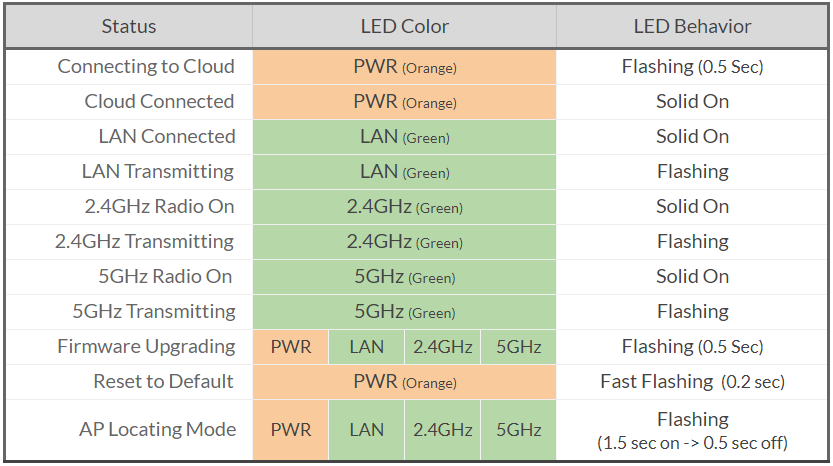
* **Reset to default**: Press and hold the reset button for over **10** seconds, and the **LED(PWR)** will start *Fast Flashing* (0.2 sec). Then, the device will be reset to factory default settings.
{% endhint %}
### LEDs
{% hint style="info" %}
**ECW160** has four LED indicators, **PWR/ LAN/ 2.4GHz/ 5GHz**.
{% endhint %}
## Hardware Mounting
The ECW160 can be mounted on the **Wall** and **Pole**, and please perform the steps for the appropriate installation:
### Wall Mount
A. Determine where the **Access Point** will be placed and stick the **Adhesive Label** on the surface.
B. Use the appropriate drill bit to drill two 8.1mm diagrams and 26mm depth holes in the markings of the label.
C. Remove the label and screw the **Anchors** onto the holes until they are flushed with the wall.
D. Hang the **Access Point** against the wall onto the **Screw** heads.
### Pole Mount
A. Thread the open end of the **Pole Mounting Strap** through the mounting bracket on the back of the **Access Point**.
B. Lock and tighten the **Pole Mounting Strap** to secure the **Access Point** to the pole.
## **Configure with EnGenius Cloud**
### **Step1: Register Device and Assign to Network**
You can register the device either by **Cloud To-Go** **mobile app** or the **EnGenius Cloud platform**.
#### **Cloud To-Go Mobile App**
1. Open and log in to the **EnGenius Cloud To-Go** mobile app.
2. Scan the QR code on the back of the device via the app.

3\. If the camera successfully scans a QR code, the app will display the device Information. You could tap "**Register**" to complete the Registration.

4\. Registered devices will be shown on the ***Inventory\&License*** page. Slide left the device and click "**Add to Network**" add the device to your personalized Network.
{% hint style="info" %} **Network**: Management domain shared same configurations within EnGenius Cloud**.**
{% endhint %}

#### **EnGenius Cloud Platform**
1. Log in to the **EnGenius Cloud Platform**: .
2. Go to the ***home > Inventory\&License*** page and click "**Register Device**".
3. Enter the **Serial Number** of the device(s) for device registration. Please refer to "[User Manual-Registering Devices to Organization](https://docs.engenius.ai/engenius-cloud/getting-started/device-onboarding)".

4\. Select the registered device and click "**Assign to Network**" to add the device to your personalized Network.
{% hint style="info" %} **Network**: Management domain shared same configurations within EnGenius Cloud**.**
{% endhint %}

### **Step2: Power On Device**
The EnGenius Cloud AP devices can be powered by any of the following:
* EnGenius Cloud PoE Switch or 802.3at PoE+ compliant Switch
* EnGenius PoE adapter (EPA5006GR)
{% hint style="danger" %}
Do not use both power sources at the same time.
{% endhint %}
#### Connecting to a PoE Switch
Connect the Ethernet cable from the EnGenius Cloud AP directly to the PoE port of the PoE switch.

### **Powering with a PoE Adapter**
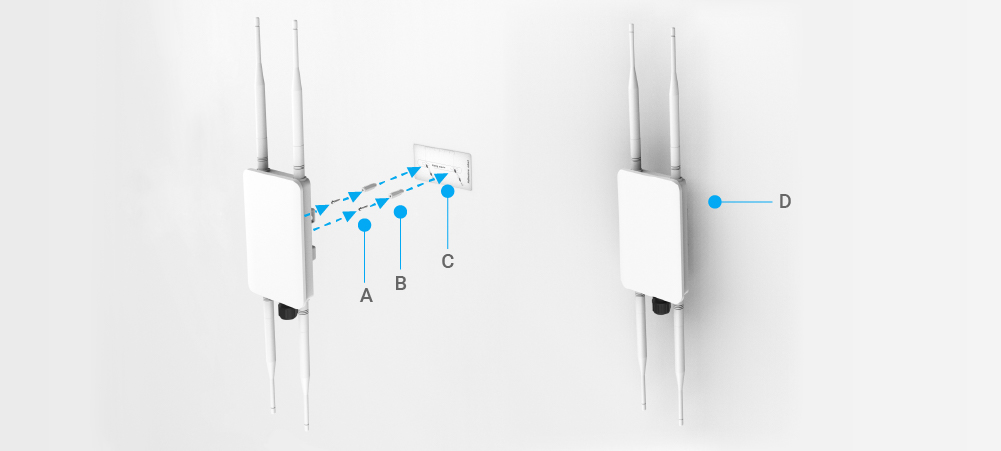
(A) Connect one end of the Ethernet cable into the LAN (PoE) port of EnGenius FIT AP and the other end to the PoE port on the PoE Adapter.
(B) Connect the power cord with the PoE Adapter and plug the other end into an electrical outlet.
(C) Connect the second Ethernet cable into the LAN port of the PoE Adapter and the other end to the Ethernet port on the computer.
Please make sure to use cat5/cat5e UTP/STP RJ45 Ethernet cables.
### Step3: Connect to the EnGenius Cloud
Once the device is powered on and ready to connect to the Internet, the **LED indicator** will stay *Solid On*, which means the device is now connected to the EnGenius Cloud Platform. It will automatically download the default configuration settings from EnGenius Cloud for automated provisioning.
{% hint style="warning" %}
When the Access Point is connected to the EnGenius Cloud Platform for the first time, it will automatically check the latest firmware version available. If the **firmware upgrade** is required, it might take **8\~10 minutes** to complete the process. The **LED** indicator will be *Flashing (0.5 sec)* till the process is finished.
{% endhint %}
### **Step4: Manage with the EnGenius Cloud**
Log in to the [**EnGenius Cloud**](https://cloud.engenius.ai/) **platform** to configure detailed settings. For more information, please refer to [User Manual](https://docs.engenius.ai/engenius-cloud/).

## Troubleshooting
If your AP cannot be managed by the EnGenius Cloud Platform, there might be a problem with connecting to EnGenius Cloud.
To troubleshoot the connection issue, you may log in to the **Device Local Access** page:
1. Use your client device (e.g., a laptop, mobile device, or tablet) to find the SSID: "**EnMGMTxxxx**" (xxxx is the last four digits of MAC - MAC would be found on the back of the device) and connect to it.
2. Under your web browser, enter the URL: [**http://EnGenius.local**](http://engenius.local/) or **** to access the device's user interface.
3. You can review the device status after logging into the AP with the default admin account/password (admin/admin).
4. Check the information on **Network Connectivity** and take action if necessary.

{% hint style="info" %} **Change IP Assignment Settings**
By default, the EnGenius Cloud Access Point (ECW series) is assigned an IP address dynamically by the DHCP server. If you encounter issues with IP address assignment, please double-check the IP setting, including IP address, subnet mask, gateway, proxy, and management VLAN. If the issue still exists, you may change your IP assignment from "***DHCP mode***" to "***Static IP***" via the following procedure.
1. Go to the **Local Setting** section.
2. Change IPv4 settings to "***Use Static IP***".
3. Configure the ***IP address, gateway, subnet mask, and proxy*** settings.
4. Reconnect this device to the LAN network and try again.

{% endhint %}
For more details, please refer to the "[User Manual-Troubleshooting ECW AP](https://docs.engenius.ai/engenius-cloud/getting-started/device-setup/troubleshooting-ecw-ap)".
##
---
# Agent Instructions
This documentation is published with GitBook. GitBook is the documentation platform designed so that both humans and AI agents can read, navigate, and reason over technical content effectively. Learn more at gitbook.com.
## Querying This Documentation
If you need additional information that is not directly available in this page, you can query the documentation dynamically by asking a question.
Perform an HTTP GET request on the current page URL with the `ask` query parameter, and the optional `goal` query parameter:
```
GET https://doc.engenius.ai/home-engenius-qsg-library/engenius-cloud-qsg/cloud-access-point/ecw160.md?ask=&goal=
```
`ask` is the immediate question: it should be specific, self-contained, and written in natural language.
`goal` is optional and describes the broader end goal you are ultimately trying to accomplish on behalf of the user. GitBook uses it to tailor the answer towards what is most useful for that goal.
The response will contain a direct answer to the question and relevant excerpts and sources from the documentation.
Use this mechanism when the answer is not explicitly present in the current page, you need clarification or additional context, or you want to retrieve related documentation sections.