> For the complete documentation index, see [llms.txt](https://doc.engenius.ai/llms.txt). Markdown versions of documentation pages are available by appending `.md` to page URLs; this page is available as [Markdown](https://doc.engenius.ai/home-engenius-qsg-library/engenius-fit-qsg/fit-vpn-firewall/xg60-fit.md).
# XG60-FIT
EnGenius FitXpress 4-Port Gigabit PoE+ VPN Firewall (XG60-FIT)
## Introduction
This Quick Start Guide is designed to guide you through the installation of the FitXpress **FitGateway6 4G 1SFP**, model **XG60-FIT**, including hardware mounting and configuration.
{% hint style="info" %}
## FitGateway6 4G 1SFP
### EnGenius FitXpress 4-Port Gigabit PoE+ VPN Firewall
#### **Model: XG60-FIT**
* 4 x Gigabit Ports to unleash elevated speeds for NAS, workstations, or Wi-Fi 5 APs
* 1 x PoE+ port for a wide range of networking devices such as IP cameras, VoIP phones, workstations and more
{% endhint %}
Content Quick Links
[**Hardware Overview**](#hardware-overview)
[**Hardware Installation**](#hardware-installation)
[**Cloud Management with FitXpress**](#cloud-management-with-fitxpress)
## Package Contents
## System Requirements
The EnGenius Fit is primarily accessible with a web browser or mobile app. Before signing up for the EnGenius Fit Service or logging on to the EnGenius Fit Platform to manage your network, ensure that you've downloaded the right app and used the supported browser.
**FitXpress App** (iOS/Android )
:arrow\_down: [Download the FitXpress mobile app here](https://qr.engenius.ai/app/fitcloud)
### **Web Browser:**
* Google Chrome (57.0.2987.110 and later)
* Microsoft Edge (80.0.361.103 and later)
* Mozilla Firefox (52.0 and later)
## **Network Requirements**
Before you get started, please make sure the WAN access method in your network environment which will be used to connect this VPN Firewall device to the Internet; by default, EnGenius **FitXpress VPN** Firewall (XG-series) is able to assign IP addresses by its internal DHCP server when users connect their client devices to LAN ports (P1, P2, or P3 port).
## Hardware Overview
#### Ports
{% hint style="info" %}
* **Reset to default**: Press and hold the reset button more than 10 seconds, and the **Power/WWAN/Test/PoE** LED will become Flashing. Then, the device will be reset to factory default settings.
{% endhint %}
#### LEDs
## Hardware Installation
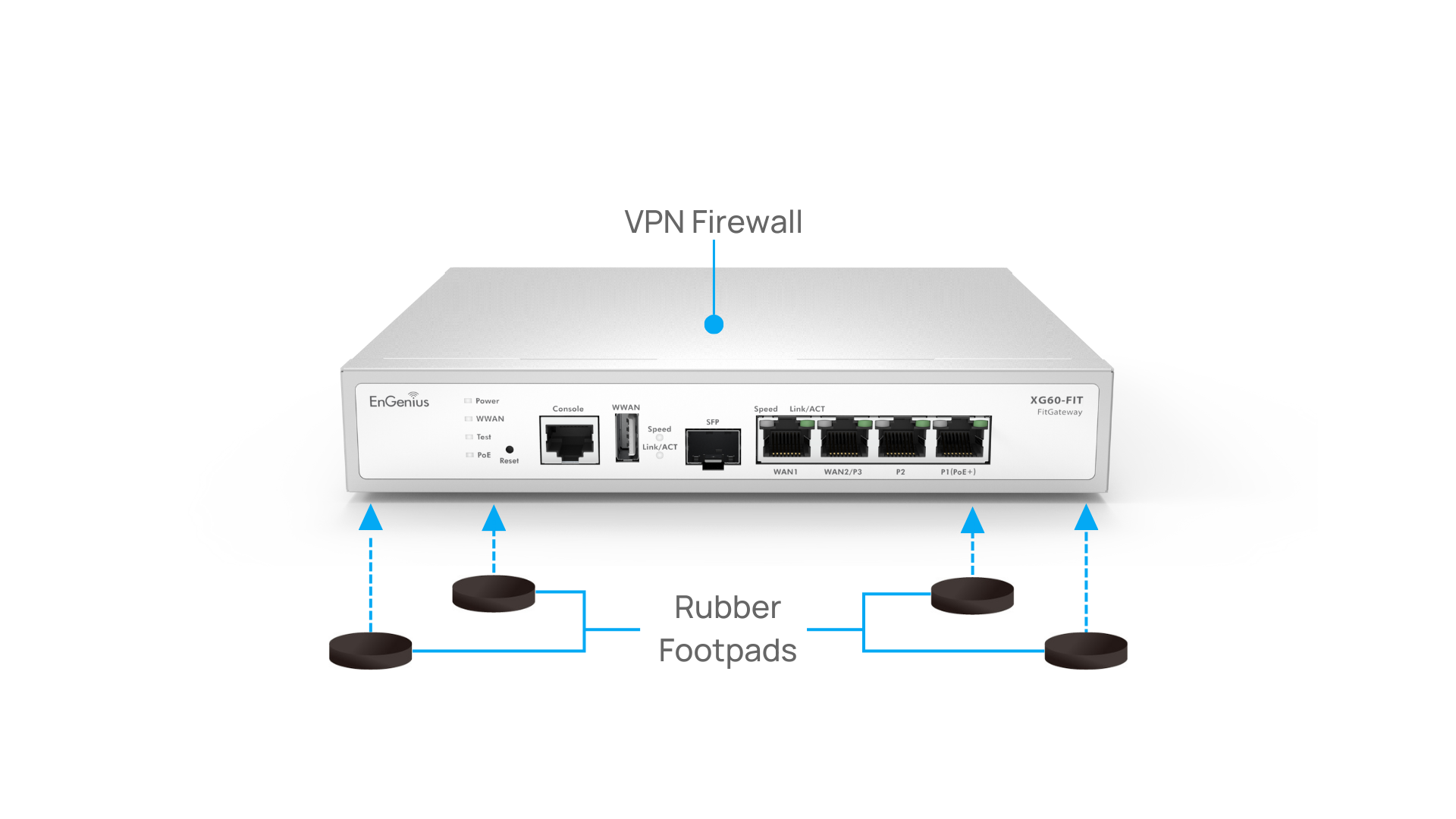
The **FitXpress VPN Firewall** can be placed on a flat surface or installed on the wall. Please perform the following steps to install:
### Place on a Flat Surface
Attach the **Rubber Footpads** at the bottom of the VPN Firewall at each corner. The **Rubber Footpads** help secure the VPN Firewall and protect it from vibration and shock when stacking.
### Wall Mount
To mount the **FitXpress VPN Firewall** on a wall, install the two provided **Screws** in positions that correspond to the slots on the bottom side of the **VPN Firewall,** then mount the **VPN Firewall.**
## Cloud Management with FitXpress
### **Step 1: Connecting to Ethernet**
#### Connecting Ethernet to WAN1
Depending on WAN connection type in your network, WAN1 default connection setting is DHCP; if your WAN connection type is DHCP, after you connect Ethernet cable to WAN1 port, you can skip the next WAN1 connection set-up section through VPN Firewall Local Status Page.
#### WAN1 Connection Set-up through Device Local Status Page
If your WAN connection type is Static IP or PPPoE, after you connect Ethernet cable to WAN1 port, you have to access the VPN Firewall's Local Status Page to configure WAN1 connection. User can connect a PC to P1, P2, or P3 LAN port, and then open browser and type or in URL field., where default login username/password is admin/admin
**Note:** After FIT VPN Firewall has been assigned to an Organization/Network, this local credential will be updated by the Local Credential setting in Cloud Configuration (Configure > General Settings > Local Credential).
#### (a) WAN1 Connection by Static IP
Please fill in the IP address config information for your WAN connection {if the uplink switch has tagged VLAN, you need to specify its VLAN ID accordingly).
#### (b) WAN1 Connection by PPPoE
Please fill in the PPPoE config information for your WAN connection (if the uplink switch has tagged VLAN, you need to specify its VLAN ID accordingly).
### **Step2: Register Device**
You can register the device with the **FitXpress app** or the **FitXpress Cloud platform**.
#### **FitXpress** Mobile App
1. Open the **FitXpress** mobile app and create an account.
2. Log in and go to the **Devices** section. Click the **Add(+)** button.
3. Scan the QR code on the back of the device via the app.
Scan to Register
4\. If the camera successfully scans a QR code, the app will display the Device Information. You could tap "**Register**" to complete the Registration.
### Step 3: Connect to the FitXpress
Once the device is powered on and ready to connect to the Internet, the **PWR LED** will stay *Solid On*, which means the device is now connected to the **FitXpress** platform. It will automatically download the default configuration settings from FitXpress for automated provisioning.
{% hint style="warning" %}
When the VPN Firewall is connected to the **FitXpress** platform for the first time, it will automatically check the latest available firmware. If the **firmware upgrade** is required, it might take **8\~10 minutes** to complete the process.
{% endhint %}
### **Step 4: Manage with FitXpress**
Log in to the **FitXpress app** to configure detailed settings and monitor your devices.
### Troubleshooting
If your VPN Firewall device cannot be managed by the Fit VPN Firewall Platform, there might be a problem with connecting to EnGenius Cloud.
To troubleshoot the connection issue, you may log in to the **VPN Firewall Local Web** page:
1. Make sure that your computer LAN interface is set to DHCP and connect to VPN Firewall LAN port to get DHCP IP address from the VPN Firewall. By default, the computer should get the IP address in this segment 192.168.66.x.
2. Under your web browser, enter the URL: **** to access the VPN Firewall's local status page web interface.
3. You can review the device status after logging into the VPN Firewall with the default admin account/password (admin/admin).
4. Check the information on the **Device Status** and take action if necessary.
{% hint style="warning" %} **Change WAN IP Assignment Settings**
By default, the EnGenius Fit VPN Firewall's WAN1 setting is set to DHCP client. If you encounter issues with IP address assignment, please double-check the IP setting, including IP address, subnet mask, VPN Firewall, DNS, and management VLAN. If the issue still exists, you may change your IP assignment from "***DHCP*** " to "***Static IP***" or "***PPPoE***" via the following procedure in the VPN Firewall's Local Status Page page.
1. Go to the **Local Setting** section.
2. Change Configuration setting to "***Static IP***" or "***PPPoE***".
3. Configure the needed settings for the selected type.
4. Reconnect this VPN Firewall to the network and try again.

{% endhint %}
---
# Agent Instructions
This documentation is published with GitBook. GitBook is the documentation platform designed so that both humans and AI agents can read, navigate, and reason over technical content effectively. Learn more at gitbook.com.
## Querying This Documentation
If you need additional information that is not directly available in this page, you can query the documentation by asking a question.
Perform an HTTP GET request on the following URL with the `ask` and `goal` query parameters:
```
GET https://doc.engenius.ai/home-engenius-qsg-library/engenius-fit-qsg/fit-vpn-firewall/xg60-fit.md?ask=&goal=
```
`ask` is the immediate question: it should be specific, self-contained, and written in natural language.
`goal` is what the user is ultimately trying to achieve, the reason they need the answer. Sharing it helps GitBook give you a better, more relevant answer. A goal is most helpful when it describes the outcome the user wants rather than restating the question. For example, with `ask=how do I create an API token`, a goal like `automate deployments from our CI pipeline` lets GitBook tailor the answer to that use case.
The response will contain a direct answer to the question and relevant excerpts and sources from the documentation.
Use this mechanism when the answer is not explicitly present in the current page, you need clarification or additional context, or you want to retrieve related documentation sections.
.png?alt=media&token=78f8ade9-c110-47a5-a990-fdc4fd5186a7)



.png?alt=media&token=00ae4bd0-5c0f-4da0-a266-74b913fdc1e1)

.png?alt=media&token=245bc7ab-ca85-4dbc-a349-ad1182aa4d29)
.png?alt=media&token=46adc262-ef0b-4ff7-83c3-2a2351165b73)


