> For the complete documentation index, see [llms.txt](https://doc.engenius.ai/llms.txt). Markdown versions of documentation pages are available by appending `.md` to page URLs; this page is available as [Markdown](https://doc.engenius.ai/intel-r-vroc-for-windows-guide/vroc-configuration/management-and-maintenance.md).
# Management and Maintenance
**In this chapter, you will learn:**
* The safe operational guidelines for hot-plugging NVMe drives.
* The importance of the RAID Write Hole protection feature.
* The functions and limitations of the 90-day trial period.
This chapter covers advanced topics related to ongoing management and maintenance of the Intel® VROC storage environment, including best practices for hot-plugging NVMe drives, a detailed explanation of the RAID Write Hole protection mechanism, and the usage limitations of the 90-day trial feature.
### Intel® VROC NVMe Hot-Plug Operations
Intel® VROC supports hot-plugging (inserting and removing) NVMe drives while the system is running. However, specific limitations and timing requirements must be followed to avoid data loss or system instability.
#### Hot Insert Limitation
When inserting multiple drives, you must allow sufficient time between each insertion for the platform to process the event.
* **Recommendation**: For scenarios involving an entire RAID volume, it is strongly recommended to power down the system, install all drives, and then restart. Hot-inserting all drives of a volume simultaneously may cause the volume to enter a Fail state. If this occurs, recovery may be attempted through the Intel® VROC GUI by resetting the volume to Normal, though there remains a risk of permanent data loss.
#### Hot Plug Limitation in Windows
When replacing multiple NVMe SSDs, each hot-plug operation must be performed sequentially.
* **Procedure**: Only one drive should be removed or inserted at a time.
* **Wait Time**: A delay of **45 to 90 seconds** (or until the device appears/disappears in Windows Device Manager) must be observed between each hot-plug operation.
* **Unsupported Actions**: Simultaneous hot-plug actions involving multiple NVMe drives are not supported.
#### Surprise Hot Plug Limitations (S3/S4 States)
Due to Microsoft Windows timing constraints for resuming from S3 (Sleep) and S4 (Hibernate) power states, hot-plug operations (insertion or removal) of VROC-managed drives are **not supported** during these low-power events.
**Note**: Failure to follow these recommendations may result in a Blue Screen of Death (BSOD) or other abnormal system behavior.
### Intel® VROC RAID Write Hole Closure
The Intel® VROC product family supports mitigation of the **RAID Write Hole (RWH)** scenario, primarily in RAID 5 configurations on Intel® Xeon® Scalable platforms.
#### What is the RAID Write Hole?
The RAID Write Hole is a critical data integrity fault condition associated with parity-based RAID (like RAID 5). It occurs when a power failure or system crash happens at the same time as a drive failure or write error. This can lead to a state where the parity information on one drive no longer matches the data on the other drives in the stripe.
The result can be silent data corruption, where the array incorrectly "corrects" data during a rebuild, or irrecoverable data loss.
#### How Intel® VROC Mitigates RWH
With the Intel® VROC family, an integrated RAID Write Hole protection mechanism is available that completely mitigates this issue when the Close RAID Write Hole feature is enabled during volume creation.
If this feature is disabled, the system reverts to the legacy mitigation methods, Dirty Stripe Journaling and Partial Parity Logging, which offer partial protection.
It is highly recommended to enable the Close RAID Write Hole feature for all mission-critical RAID 5 volumes to ensure complete data integrity protection.
### Intel® VROC 90-Day Trial Period
The Intel® VROC package includes a **90-day trial period** that temporarily enables **Intel® VROC Premium mode** in Windows\* for data volumes, **without requiring a physical Intel® VROC Upgrade Key**. This trial allows users to evaluate the full Premium feature set for a limited time.\
The trial period begins automatically once the first Intel® VROC RAID volume is created.
#### Recommendations and Limitations
* **UEFI Invisibility**: The trial mode does **not** extend to the Intel® VROC UEFI HII environment. RAID volumes created during the trial will not appear in the BIOS.
* **No Boot Volumes**: Do not attempt to create or migrate a system (boot) drive into a trial RAID volume. Doing so will render the system unbootable, as pre-OS RAID functionality is not supported during the trial.
* **Evaluation Only**: The trial feature is intended solely for evaluation purposes. Do not use trial RAID volumes for mission-critical or production data—data integrity is not guaranteed either in the Intel® VROC UEFI HII environment or after the trial period has expired.
#### Usage and Notifications
The trial mode applies only to platforms **without an Intel® VROC Upgrade Key**.\
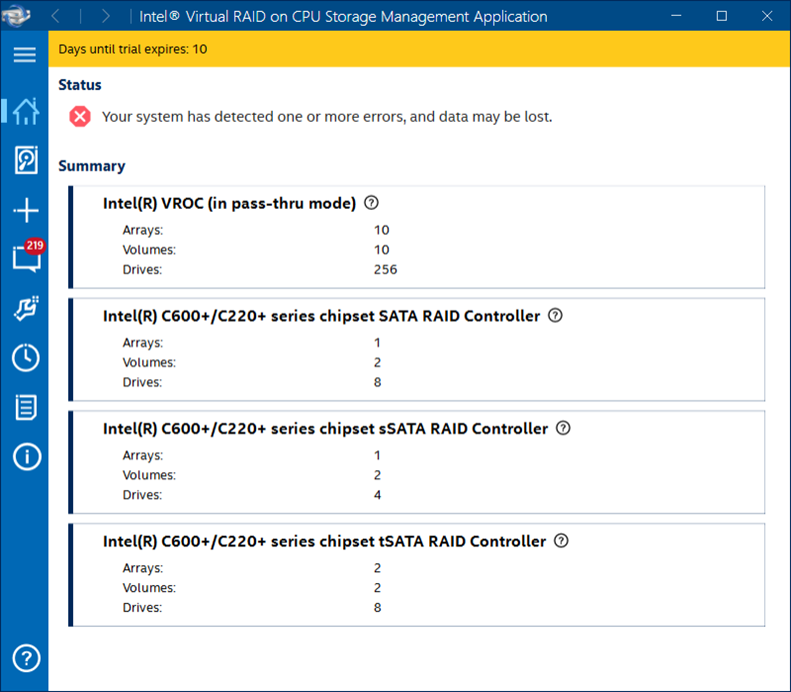
During this period, the **System Report** identifies Intel® VROC as operating in **Pass-Thru mode**.
Before any RAID volumes are created, the Intel® VROC GUI will not indicate that a trial is active.\
The trial period activates **automatically when the first RAID volume is created** after Intel® VROC installation.
During the active trial, a **yellow notification band** appears at the top of the Intel® VROC GUI **Home** page, displaying the trial status and remaining days.
{% hint style="info" %}
During the trial period, the Intel® VROC UEFI HII interface will not display the created RAID volume. Instead, it will list the attached drives as non-RAID disks, as shown in Figures 9-2 and 9-3 below.
{% endhint %}
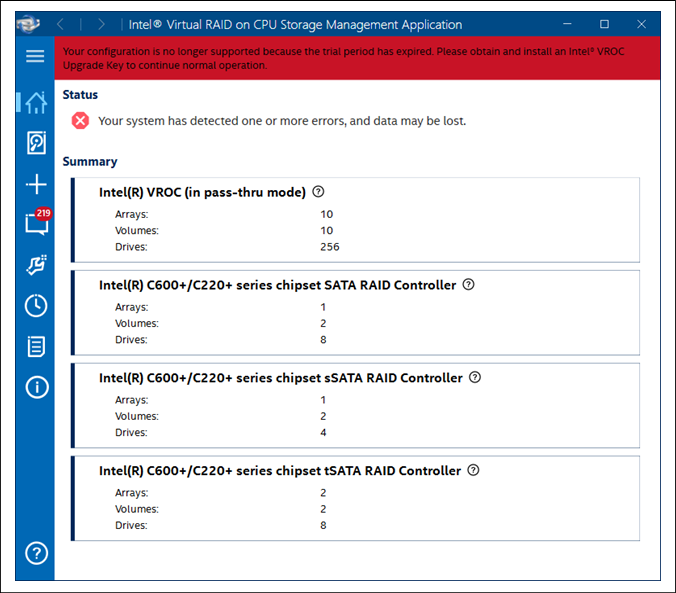
After the 90-day trial expires, the notification will turn red, and any RAID volumes created during the trial will become inaccessible. To regain access and full functionality, you must install a physical Intel® VROC Upgrade Key on the motherboard. Once the key is installed, the environment will become fully operational, and all RAID volumes will be accessible as normal.
---
# Agent Instructions
This documentation is published with GitBook. GitBook is the documentation platform designed so that both humans and AI agents can read, navigate, and reason over technical content effectively. Learn more at gitbook.com.
## Querying This Documentation
If you need additional information that is not directly available in this page, you can query the documentation by asking a question.
Perform an HTTP GET request on the following URL with the `ask` and `goal` query parameters:
```
GET https://doc.engenius.ai/intel-r-vroc-for-windows-guide/vroc-configuration/management-and-maintenance.md?ask=&goal=
```
`ask` is the immediate question: it should be specific, self-contained, and written in natural language.
`goal` is what the user is ultimately trying to achieve, the reason they need the answer. Sharing it helps GitBook give you a better, more relevant answer. A goal is most helpful when it describes the outcome the user wants rather than restating the question. For example, with `ask=how do I create an API token`, a goal like `automate deployments from our CI pipeline` lets GitBook tailor the answer to that use case.
The response will contain a direct answer to the question and relevant excerpts and sources from the documentation.
Use this mechanism when the answer is not explicitly present in the current page, you need clarification or additional context, or you want to retrieve related documentation sections.