# Installing Expansion Cards

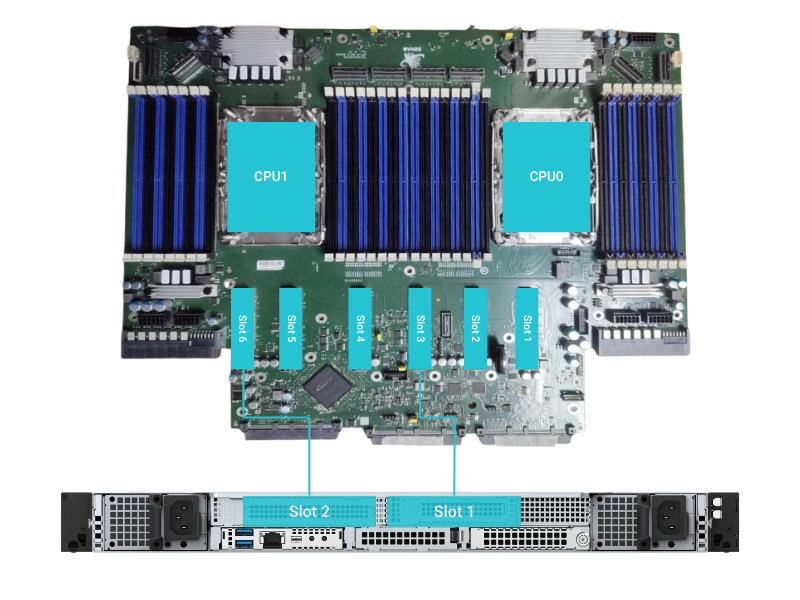
This chapter shows you how to add functionality to your server by installing expansion cards. Your server supports standard PCIe cards and OCP NIC 3.0 modules.

\ <br>

<figure><img src="/files/5hnJrN11FcHsFcHM74xP" alt=""><figcaption></figcaption></figure>

## **Expansion Slot Overview**

<table data-header-hidden><thead><tr><th></th><th></th><th></th><th width="116.625"></th><th></th><th></th></tr></thead><tbody><tr><td><strong>Slot Number</strong></td><td>PCIe Slot on MB</td><td><strong>PCIe Version</strong></td><td><strong>Lane Width</strong></td><td><strong>Form Factor Supported</strong></td><td><strong>Notes</strong></td></tr><tr><td>-</td><td>Slot1</td><td>Gen5</td><td>x16</td><td>-</td><td>-</td></tr><tr><td>-</td><td>Slot2</td><td>Gen5</td><td>x16</td><td>-</td><td>-</td></tr><tr><td>PCIe Slot1</td><td>Slot3</td><td>Gen5</td><td>x8</td><td>Half Height, Half Length (HHHL)</td><td>Via Riser Card</td></tr><tr><td>-</td><td>Slot4</td><td>Gen5</td><td>-</td><td>-</td><td>-</td></tr><tr><td>-</td><td>Slot5</td><td>Gen5</td><td>x16</td><td>-</td><td>-</td></tr><tr><td>PCIe Slot2</td><td>Slot6</td><td>Gen5</td><td>x16</td><td>Full Height, Half Length (FHHL)</td><td>Via Riser Card</td></tr><tr><td>OCP 3.0</td><td></td><td>Gen5</td><td>x8</td><td>Small Form Factor</td><td>-</td></tr></tbody></table>

## Installing a PCIe card

Use these steps to install a standard PCIe card into one of the available riser slots.

{% hint style="danger" %}
**Warning: Power Off Completely**

Before you install or remove any expansion card, you must shut down the server and disconnect it from all power sources.
{% endhint %}

### **To install a PCIe card:**

1. **Power off the server and open the chassis.**
2. **Locate an available PCIe slot.**
3. **Remove the slot cover.**
4. **Insert the card.** Press down firmly and evenly until the card is fully seated.
5. **Secure the card.**

{% hint style="success" %}
**Pro Tip: Connect Auxiliary Power**

High-performance cards, especially GPUs, often require more power. If your card has an auxiliary power connector, be sure to connect the required power cables.
{% endhint %}

## Installing an OCP NIC 3.0 module

The Open Compute Project (OCP) NIC 3.0 slot provides a modular way to add networking capabilities.

### **To install an OCP NIC:**

1. **Locate the OCP NIC 3.0 slot.**
2. **Align and insert the module.** Push the module horizontally until it is firmly seated.
3. **Secure the module** with the provided thumbscrew.

### **Removing an Expansion Card**

1. **Power off the system** and disconnect all power sources.
2. **Remove any auxiliary power cables** attached to the card.
3. **Unscrew or unlock the card’s retention mechanism.**
4. **Gently pull the card upward** and out of the slot, avoiding contact with adjacent components.

{% hint style="info" %}
**Best Practice:  Check BIOS Settings After Installation**

After installing a new card, you may need to enter the BIOS setup to configure the card or adjust the system's boot order.
{% endhint %}


---

# Agent Instructions: Querying This Documentation

If you need additional information that is not directly available in this page, you can query the documentation dynamically by asking a question.

Perform an HTTP GET request on the current page URL with the `ask` query parameter:

```
GET https://doc.engenius.ai/s11-user-guide/core-component-installation/installing-expansion-cards.md?ask=<question>
```

The question should be specific, self-contained, and written in natural language.
The response will contain a direct answer to the question and relevant excerpts and sources from the documentation.

Use this mechanism when the answer is not explicitly present in the current page, you need clarification or additional context, or you want to retrieve related documentation sections.
