> For the complete documentation index, see [llms.txt](https://doc.engenius.ai/llms.txt). Markdown versions of documentation pages are available by appending `.md` to page URLs; this page is available as [Markdown](https://doc.engenius.ai/s21-user-guide/software-and-remote-management/configuring-the-bios.md).

# Configuring the BIOS

This chapter explains how to access and configure the server's BIOS (Basic Input/Output System). The BIOS is the firmware that initializes the hardware during the boot process and provides runtime services for the operating system. Correctly configuring the BIOS is a critical step before you install an OS.

## **Accessing the BIOS setup utility**

You can enter the BIOS setup utility only during the initial moments of the server's boot process.

### **To access the BIOS:**

1. **Connect a monitor and keyboard** to the server if you plan to work locally.
2. **Power on or restart the server.**
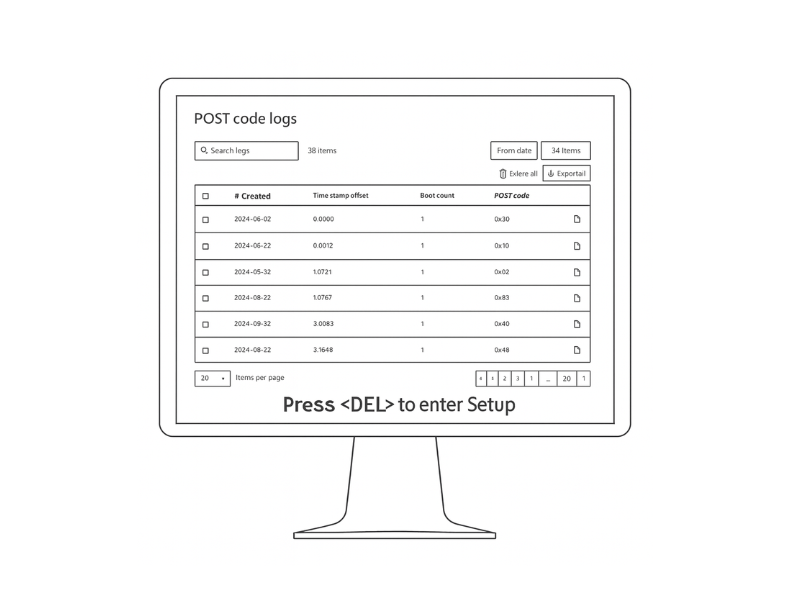
3. **Watch the screen for a prompt** that appears shortly after power-on. It will tell you which key to press to enter setup. This prompt is usually only on the screen for a few seconds.

   <br>

   <figure><img src="https://content.gitbook.com/content/dIIwjfEmgdgoBYBfOBWz/blobs/YwDJbAZYFapbORUJ66Ul/Configuring%20the%20BIOS_V02.png" alt=""><figcaption></figcaption></figure>
4. **Press the \<Delete> key.** On this server, you'll press the **\<Delete>** key repeatedly until the BIOS setup screen appears.

### **Navigating key settings**

The BIOS setup utility is organized into several menus. You'll typically use the arrow keys to navigate, **Enter** to select, and **Esc** to go back. While there are many options, here are the most important ones to check before deploying a server.

### **Boot Order**

This setting tells the server which device to boot from first.

* **Location:** Usually found under a **Boot** or **Boot Manager** menu.
* **What to do:** Set the boot order to match your OS installation plan. For example, to install from a USB drive, set the USB drive as the first boot device. For network booting, select the PXE-enabled network card.

### **Virtualization Technology**

To run hypervisors like VMware ESXi or Microsoft Hyper-V, you must enable hardware virtualization support.

* **Location:** Look for **Intel (VMX) Virtualization Technology** or similar options, often in an **Advanced** or **CPU Configuration** menu.
* **What to do:** Ensure this setting is set to **Enabled**.

### **Storage Configuration**

This setting controls how the system interacts with the storage drives.

* **Location:** Typically under an **Advanced** or **Integrated Peripherals** menu.
* **What to do:** Choose the mode that fits your needs.
  * **AHCI (Advanced Host Controller Interface):** The standard mode for NVMe drives when you are not using RAID.
  * **RAID (Redundant Array of Independent Disks):** Enable this mode if you plan to use the onboard Intel VROC (Virtual RAID on CPU) to create a RAID volume from your NVMe drives.

{% hint style="success" %}
**Best Practice: Load Optimized Defaults First**&#x20;

Before you make any changes, it's a good practice to load the BIOS default settings. Look for an option like **Load Optimized Defaults** (often F9). This gives you a stable, known-good starting point. After loading the defaults, you can then make your specific changes.
{% endhint %}

### **Saving your configuration**

Any changes you make in the BIOS are not applied until you save them.

**To save and exit:**

1. Navigate to the **Save & Exit** menu.
2. Select the **Save Changes and Reset** (or **Save Changes and Exit**) option. This is often the **F10** key.
3. Confirm that you want to save and exit. The server will save your settings and reboot.

### **BIOS Menu Reference**

For users who need to explore beyond the basic settings, this table provides a complete overview of the main BIOS menus and their functions.

<table><thead><tr><th width="118.641357421875">Menu</th><th>Description</th><th>Key Options</th></tr></thead><tbody><tr><td><strong>Main</strong></td><td>Displays an overview of the system, including BIOS version, processor type, memory size, and system time.</td><td>System Time/Date</td></tr><tr><td><strong>Advanced</strong></td><td>Contains detailed configuration options for the CPU, chipset, storage, and other onboard devices.</td><td>CPU Configuration (Virtualization, Power Management), NVMe Configuration, Network Stack</td></tr><tr><td><strong>Security</strong></td><td>Manages security features, including administrator passwords and Secure Boot settings.</td><td>Administrator Password, Secure Boot Configuration</td></tr><tr><td><strong>Boot</strong></td><td>Controls the boot process, including boot device order and UEFI/Legacy boot modes.</td><td>Boot Option Priorities, UEFI/Legacy Boot Mode</td></tr><tr><td><strong>Save &#x26; Exit</strong></td><td>Provides options for saving or discarding changes, loading default settings, and overriding the boot device.</td><td>Save Changes and Reset, Discard Changes and Exit, Load Optimized Defaults, Boot Override</td></tr></tbody></table>

####


---

# Agent Instructions
This documentation is published with GitBook. GitBook is the documentation platform designed so that both humans and AI agents can read, navigate, and reason over technical content effectively. Learn more at gitbook.com.

## Querying This Documentation
If you need additional information that is not directly available in this page, you can query the documentation dynamically by asking a question.

Perform an HTTP GET request on the current page URL with the `ask` query parameter, and the optional `goal` query parameter:

```
GET https://doc.engenius.ai/s21-user-guide/software-and-remote-management/configuring-the-bios.md?ask=<question>&goal=<endgoal>
```

`ask` is the immediate question: it should be specific, self-contained, and written in natural language.
`goal` is optional and describes the broader end goal you are ultimately trying to accomplish on behalf of the user. GitBook uses it to tailor the answer towards what is most useful for that goal.

The response will contain a direct answer to the question and relevant excerpts and sources from the documentation.

Use this mechanism when the answer is not explicitly present in the current page, you need clarification or additional context, or you want to retrieve related documentation sections.