

IPSec IKEv1
Coud Configuration
The Client VPN service uses IPsec VPN technology and can support VPN clients running on Windows10, macOS, iOS devices, and Android devices
To enable client VPN, choose Enabled from Configure > Gateway > Client VPN page.

The following client VPN options can be configured:
Hostname: This is the hostname of the EnGenius Gateway that client VPN users will use to connect to. If you have enabled DDNS service in your WAN settings, then the registered DDNS FQDN hostname is displayed which can be resolved to the Primary WAN public IP address of the EnGenius Security Gateway. If the DDNS service is not enabled or the DDNS update fails then the Primary WAN public IP address is displayed.
VPN Client Subnet: The subnet that will be used for client VPN connections. This should be a private subnet that is not in use anywhere else in the network. The EnGenius Gateway will be the default gateway on this subnet and will route traffic to and from this subnet.
DNS server: The server's VPN clients will use to resolve DNS hostnames. Choose from Google Public DNS or specify custom DNS servers by IP address.
WINS server: If VPN clients should use WINS to resolve NetBIOS names, select Specify WINS Servers from the drop-down and enter the IP addresses of the desired WINS servers.
Pre-Shared Key: The shared secret that will be used to establish the client's VPN connection.
Authentication type: Use this option to authenticate Client VPN users with the local ESG VPN User database or select Custom RADIUS to use external RADIUS servers for authentication.
For detailed instructions on how to configure a client VPN connection on various client device platforms. please refer to the following instructions
Client Device Configuration
VPN settings for IOS
Navigate to Settings > General > VPN & Device Management > Add VPN Configuration.
Type: Set to IPsec.
Description: This can be anything you want to name this connection, for example, "Work VPN"

4. Server: Enter the hostname, the admin can find the hostname from Configure > Gateway> Client VPN

5. Account: Enter the username that the admin created on the Configure > Users > ESG VPN Users
6. Password: Enter the password that the admin created on the Configure > Users > ESG VPN Users
7. Secret: Enter the Pre-shared key that the admin find the key from Configure > Gateway> Client VPN

8. Click Done and Enable the VPN connection on the IOS Device.

VPN settings for Mac OS
Create a new service and select VPN connection with Cisco IPSec

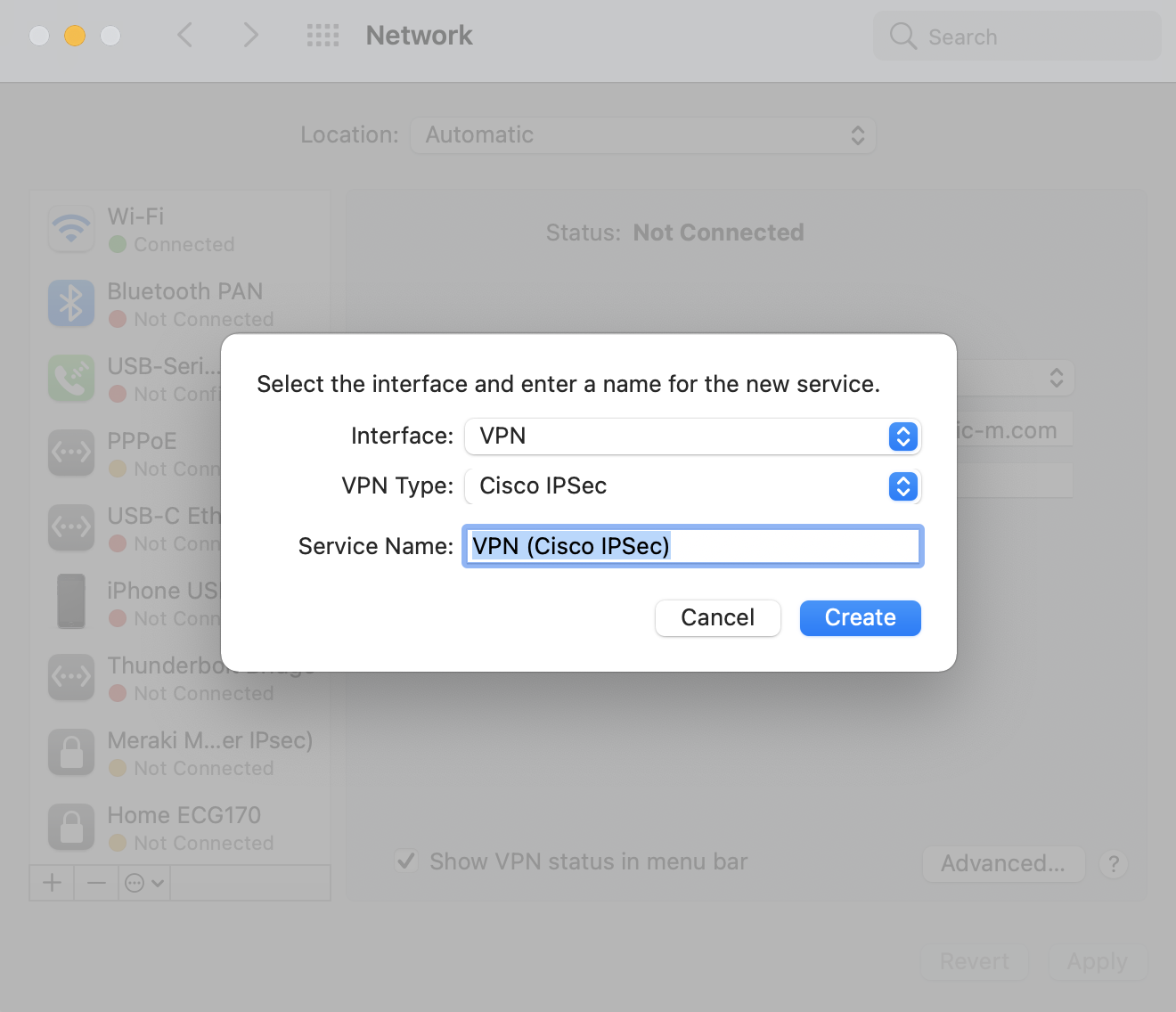
2. Enter server address and account/password

3. Enter the pre-shared key

4. Connect to VPN server

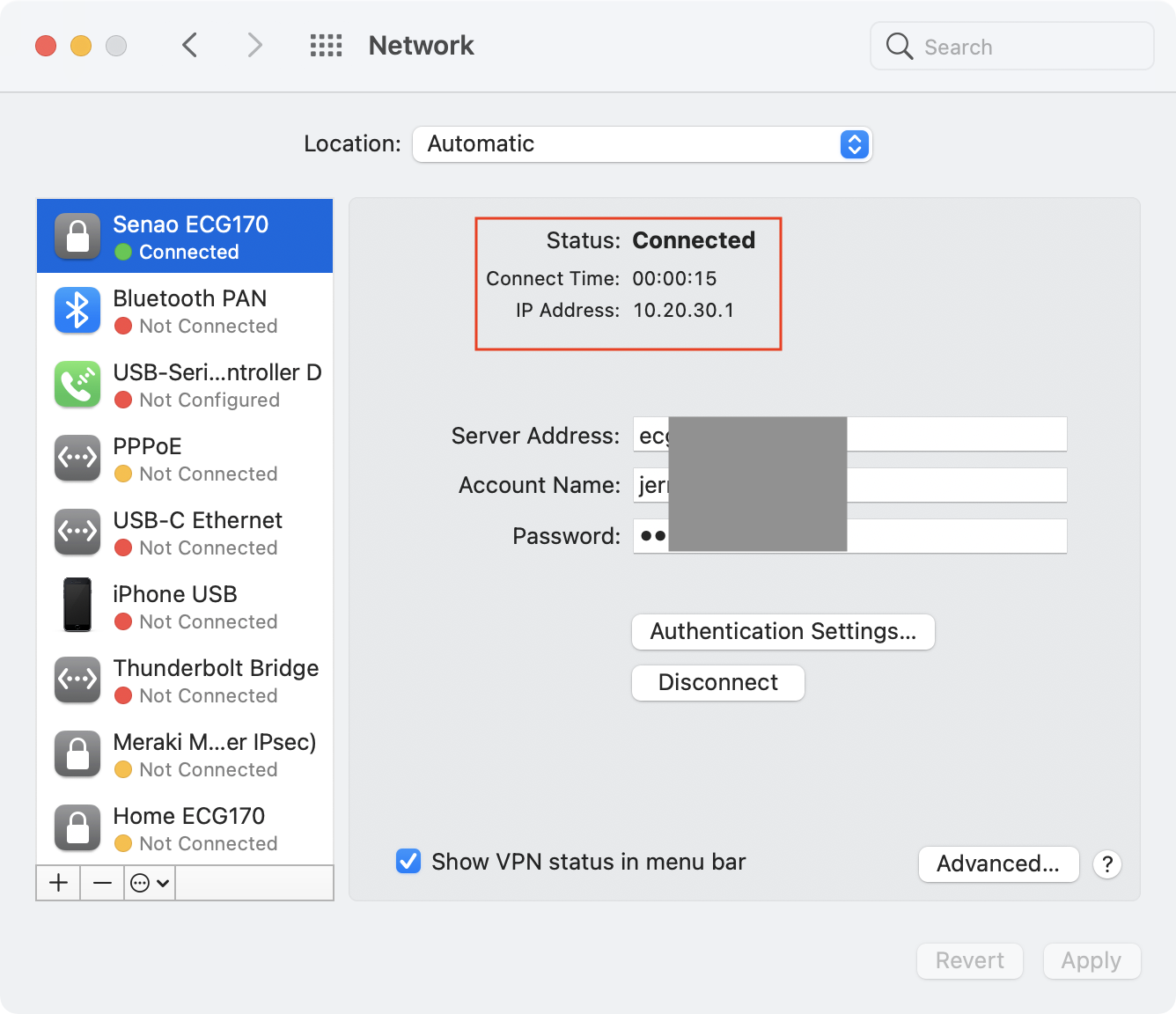
VPN settings for Android
Andriod 11 connects to VPN IPsec Xauth PSK
1. Go to Setting > Connection & Sharing

2. Click VPN

3. Click add VPN

4. Set Office Profile Name, Security type, Server address IP, IPsec pre-share key, Username, and Password, and Click the Save button.

5. Click Office VPN profile to start a connection, When the VPN client connects to the VPN server, it will show the key icon on the top bar status, and the Profile name will show connected.

6. When you want to disconnect the VPN connection, please click the toggle button to disconnect VPN.

Must know
EnGenius Gateway supports IKEv1, so if you use Android 13 or a later version you will not to use the Client VPN because Android 13 only supports IKEv2.
VPN settings for Windows 10
Win10 connects to VPN IPsec Xauth PSK
1. Download the VPN Access Manager application.
2. Install vpn-client-2.2.2-release.exe
3. Setup VPN client setting
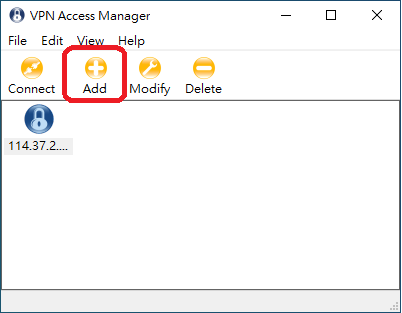
a. Click Add button to add a VPN profile
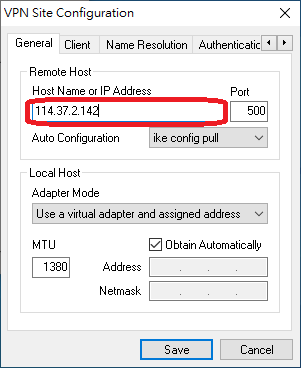
b. Input the VPN server IP address and click the Save button.
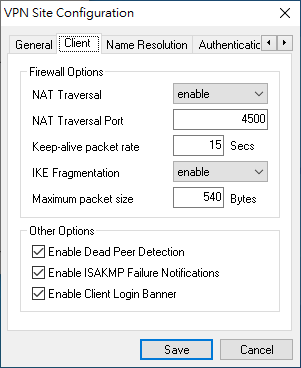
c. Client use default setting.
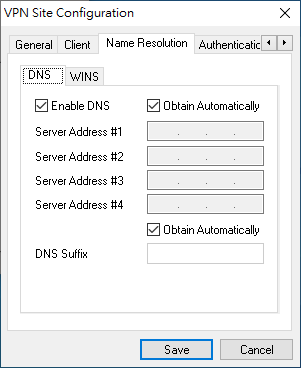
d. Name Resolution uses the default setting.
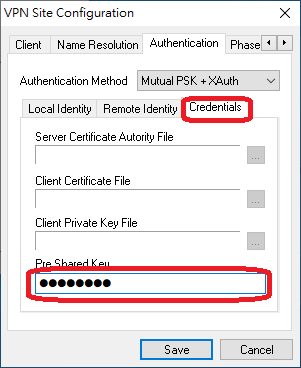
e. Authentication select Mutual PSK+XAuth and click the Save button.
 Note: ESG510 Local Identify Type should change to IP address.
f. Authentication>Credentials input IPsec Pre-share key and click Save button.
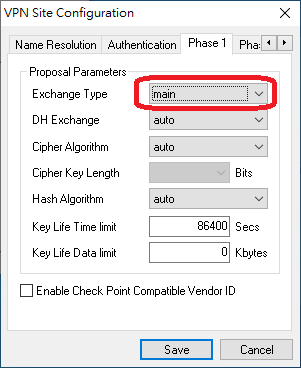
g. Phase 1 Exchange Type select to main and click the save button.
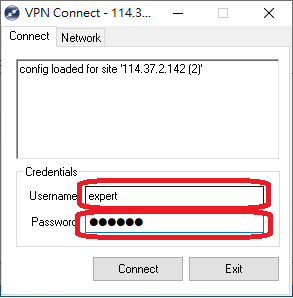
h. Click VPN profile, input user name, and password, and click Connect button.
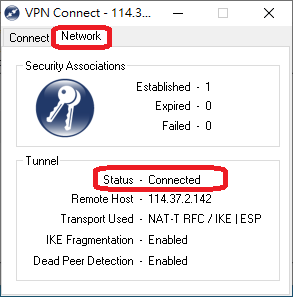
i. Click Network to check VPN connection status.
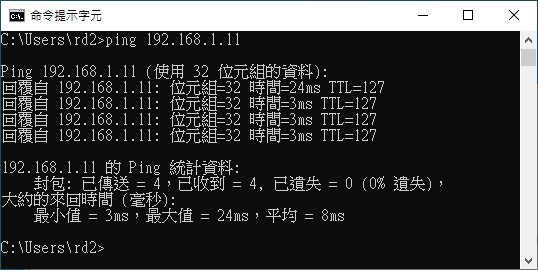
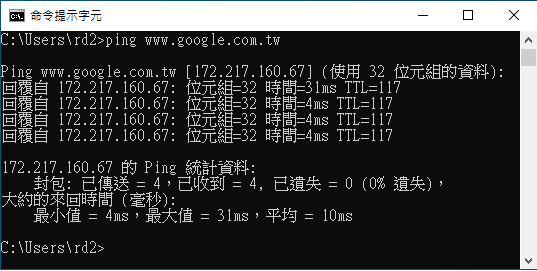
4. Use ping traffic to check VPN link status.
a. Ping VPN server LAN side PC
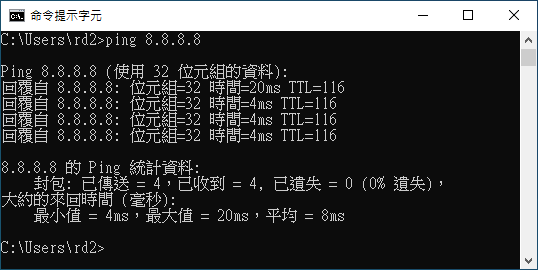
b. ping VPN server WAN side DNS.
c. ping www.google.com.
Last updated
Was this helpful?